> ## Documentation Index
> Fetch the complete documentation index at: https://cometchat-22654f5b-feature-react-native-sdk-quotedmessage-a.mintlify.site/llms.txt
> Use this file to discover all available pages before exploring further.
# Getting Started With UI Kit Builder
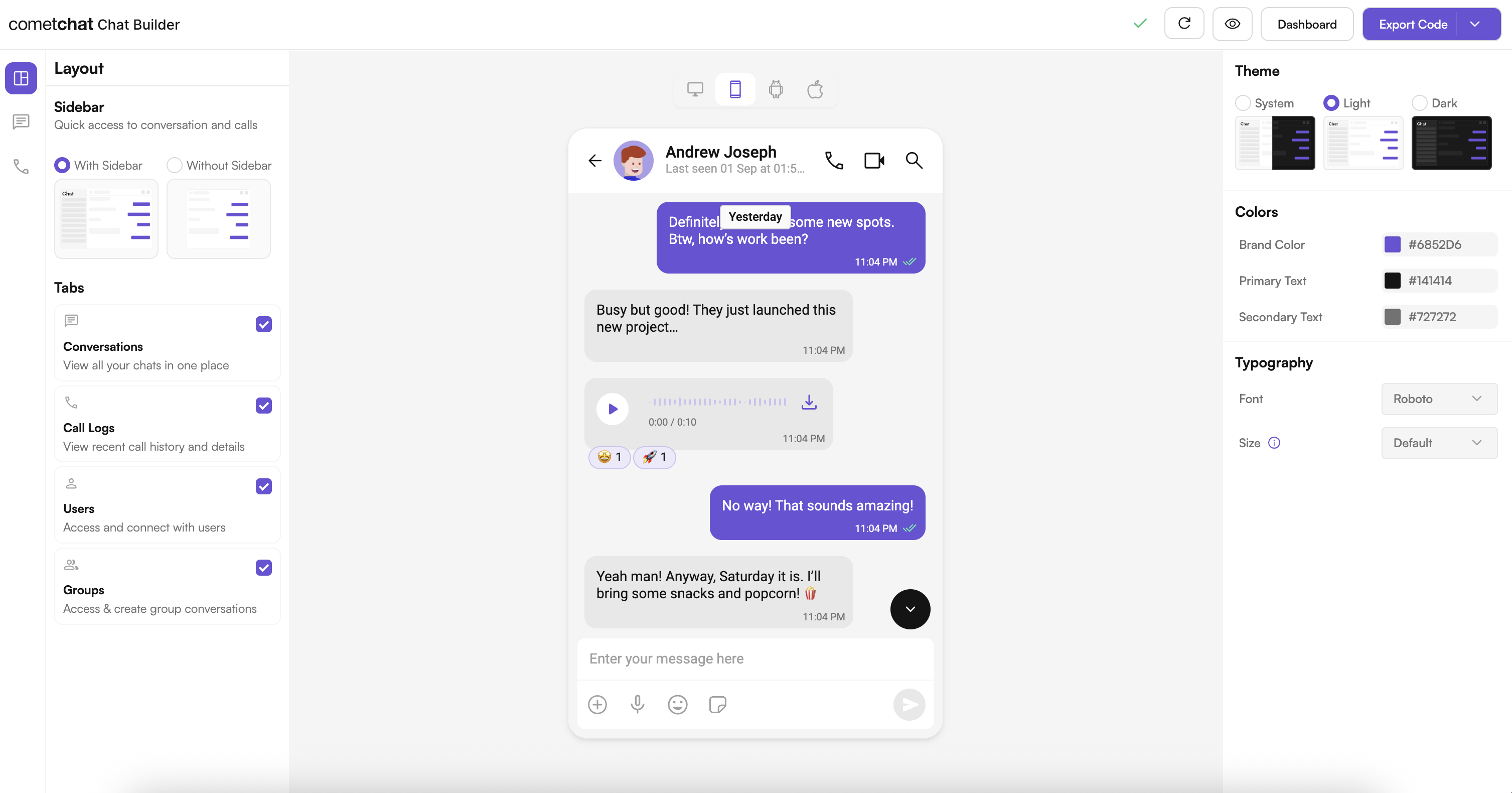
UI Kit Builder streamlines integrating CometChat’s Android UI Kit into your app. Design the experience visually, export platform‑ready assets and settings, and wire them into your Android project with a few steps.
 ## Complete Integration Workflow
1. Design your chat experience in UI Kit Builder.
2. Export your code and settings package.
3. Enable extra features in the CometChat Dashboard if needed.
4. Optionally preview the experience in a sample app.
5. Integrate into your Android project.
6. Customize further with UI Kit styling and components.
***
## Launch the UI Kit Builder
1. Log in to your CometChat Dashboard: [https://app.cometchat.com](https://app.cometchat.com)
2. Select your application.
3. Go to Integrate → Android → Launch UI Kit Builder.
***
## Enable Features in CometChat Dashboard
If your app needs any of these, enable them from your Dashboard: [https://app.cometchat.com](https://app.cometchat.com)
* Stickers
* Polls
* Collaborative whiteboard
* Collaborative document
* Message translation
* AI User Copilot: Conversation starter, Conversation summary, Smart reply
How to enable:
## Complete Integration Workflow
1. Design your chat experience in UI Kit Builder.
2. Export your code and settings package.
3. Enable extra features in the CometChat Dashboard if needed.
4. Optionally preview the experience in a sample app.
5. Integrate into your Android project.
6. Customize further with UI Kit styling and components.
***
## Launch the UI Kit Builder
1. Log in to your CometChat Dashboard: [https://app.cometchat.com](https://app.cometchat.com)
2. Select your application.
3. Go to Integrate → Android → Launch UI Kit Builder.
***
## Enable Features in CometChat Dashboard
If your app needs any of these, enable them from your Dashboard: [https://app.cometchat.com](https://app.cometchat.com)
* Stickers
* Polls
* Collaborative whiteboard
* Collaborative document
* Message translation
* AI User Copilot: Conversation starter, Conversation summary, Smart reply
How to enable:
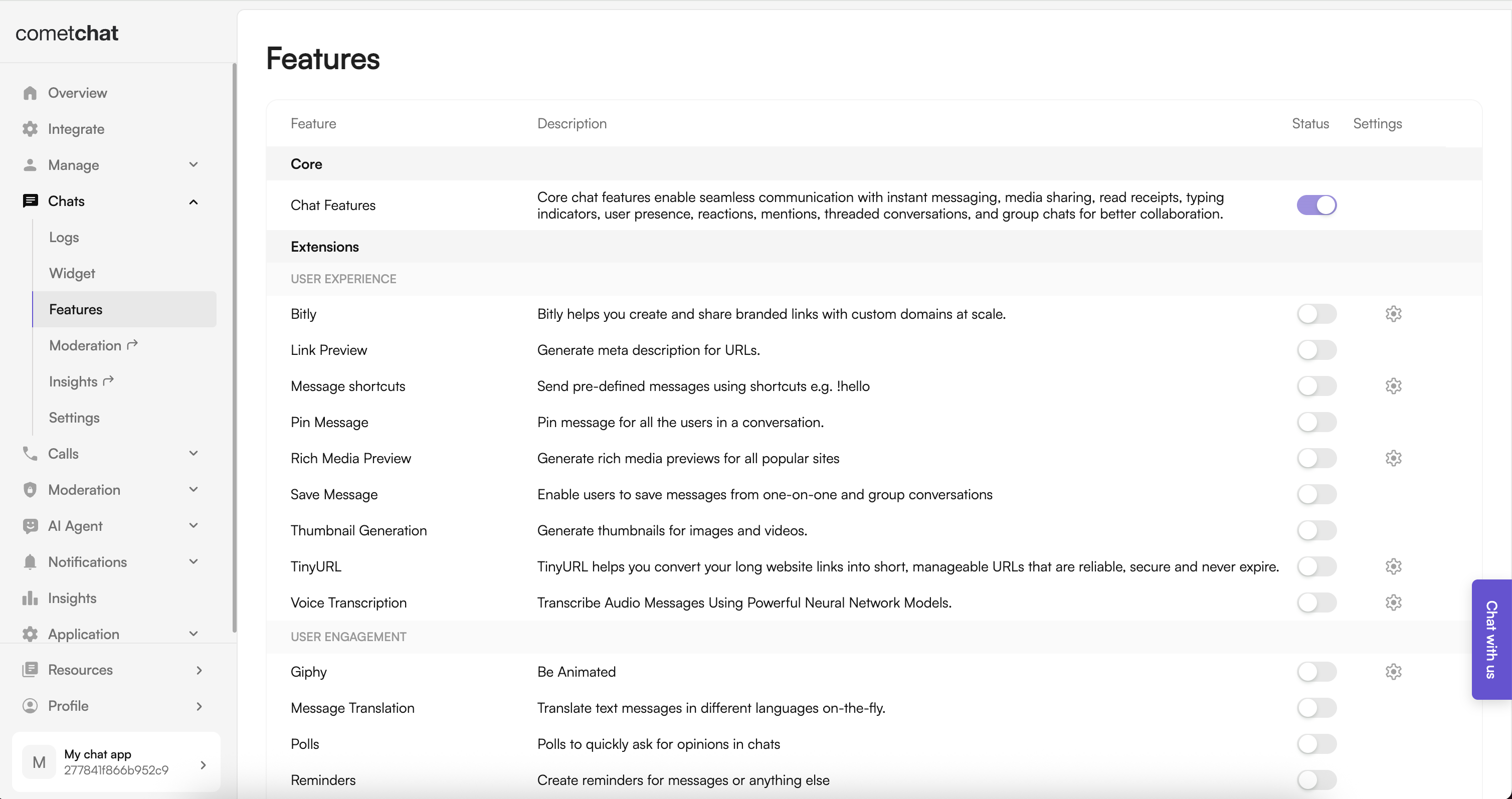 1. Log in to the Dashboard.
2. Select your app.
3. Navigate to Chat → Features.
4. Toggle ON the required features and Save.
***
## Integration with CometChat UI Kit Builder (Android)
Follow these steps in your existing Android app (from README):
### Step 1: Add CometChat Maven repository
Add to `settings.gradle.kts` (dependencyResolutionManagement):
```kotlin theme={null}
maven("https://dl.cloudsmith.io/public/cometchat/cometchat/maven/")
```
### Step 2: Add UI Kit dependencies
In your app module `build.gradle`:
```gradle theme={null}
dependencies {
// CometChat UIKit
implementation 'com.cometchat:chat-uikit-android:5.2.2'
// Optional: voice/video calling
implementation 'com.cometchat:calls-sdk-android:4.3.1'
}
```
### Step 3: Apply the Builder Settings plugin
In your app module `build.gradle` plugins block:
```gradle theme={null}
plugins {
id("com.cometchat.builder.settings") version "5.0.1"
}
```
Sync the project to download plugin dependencies.
### Step 4: Add Builder configuration JSON
Place `cometchat-builder-settings.json` at your app module root (same level as `build.gradle`).
### Step 5: Build to generate settings and styles
Run a build to generate `CometChatBuilderSettings.kt` and add required theme styles:
```bash theme={null}
./gradlew build
```
### Step 6: Copy the helper utility
Copy `BuilderSettingsHelper.kt` from the sample app into your project package (adjust package name):
* Source: `src/main/java/com/cometchat/sampleapp/kotlin/buildersetup/BuilderSettingsHelper.kt`
* Destination: `src/main/java//BuilderSettingsHelper.kt`
### Step 7: Add font resources
Copy the `font` folder from the sample app into your project under `src/main/res/font`.
### Step 8: Set the Builder theme
In `AndroidManifest.xml`:
```xml theme={null}
...
```
### Step 9: Apply settings to UI components
Use the helper to apply settings on CometChat UI components:
```kotlin theme={null}
BuilderSettingsHelper.applySettingsToMessageHeader(binding.messageHeader)
BuilderSettingsHelper.applySettingsToMessageList(binding.messageList)
BuilderSettingsHelper.applySettingsToMessageComposer(binding.messageComposer)
// Other components
BuilderSettingsHelper.applySettingsToUsers(binding.users)
BuilderSettingsHelper.applySettingsToCallLogs(binding.callLog)
BuilderSettingsHelper.applySettingToGroupMembers(binding.groupMembers)
```
### Step 10: Access generated constants directly
```kotlin theme={null}
import com.cometchat.builder.CometChatBuilderSettings
if (CometChatBuilderSettings.ChatFeatures.CoreMessagingExperience.PHOTOSSHARING) {
// Enable photo sharing logic
}
val brandColor = CometChatBuilderSettings.Style.Color.BRANDCOLOR
```
***
## Alternative: Import the Sample App as a Module
Prefer plug‑and‑play? Import the preconfigured Builder sample app (from README):
1. Download the sample from your CometChat Dashboard.
2. In the imported module’s `AndroidManifest.xml`, keep only `android:name` under `` (or extend your `Application` from `BuilderApplication`).
3. In project Gradle, comment out any CometChat Builder plugin config in the sample.
4. In the sample’s `build.gradle`, remove `com.cometchat.builder.settings`, and change `id("com.android.application")` → `id("com.android.library")`.
5. Import module in Android Studio: File → New → Import Module.
6. Add dependency in your app module: `implementation(project(":builder-android"))`.
7. Add Jetifier in `gradle.properties`: `android.enableJetifier=true`.
8. Ensure CometChat Maven repository is present in `settings.gradle.kts`.
9. Launch activities:
* Not initialized / not logged in → `SplashActivity`
* Logged in → `HomeActivity`
### Launch Messages screen (examples)
For a User:
```kotlin theme={null}
val UID: String = "UID"
val intent = Intent(this, MessagesActivity::class.java)
CometChat.getUser(UID, object : CometChat.CallbackListener() {
override fun onSuccess(user: User?) {
intent.putExtra("user", com.google.gson.Gson().toJson(user))
startActivity(intent)
}
override fun onError(e: CometChatException?) {
Log.e("TAG", "Error fetching user: ${e?.message}")
}
})
```
For a Group:
```kotlin theme={null}
val GUID: String = "GUID"
val intent = Intent(this, MessagesActivity::class.java)
CometChat.getGroup(GUID, object : CometChat.CallbackListener() {
override fun onSuccess(group: Group?) {
intent.putExtra("group", com.google.gson.Gson().toJson(group))
startActivity(intent)
}
override fun onError(e: CometChatException?) {
Log.e("TAG", "Error fetching group: ${e?.message}")
}
})
```
***
## Run the App
Build and run on a device/emulator from Android Studio. Ensure a CometChat user is created and logged in via your app logic.
***
## Additional Notes
* Ensure features (translation, polls, stickers, whiteboard, document, AI copilot) are enabled in Dashboard → Chat → Features.
* If Gradle sync fails to fetch the plugin, verify the plugin version and Maven repo are configured correctly.
***
## Understanding Your Generated Code
* `CometChatBuilderSettings.kt`: Type‑safe flags and styling constants generated from your Builder config.
* Theme updates: The plugin injects required styles for Builder themes.
***
## Troubleshooting
* Plugin not found: Check internet connectivity and use `5.0.0`.
* Settings not generated: Confirm JSON path and rebuild (Clean/Build).
* Import errors: Verify package names and imports for `BuilderSettingsHelper` and `CometChatBuilderSettings`.
***
## Next Steps
* UI Kit Theme: [Theme introduction](/ui-kit/android/theme-introduction)
* Components Overview: [UI Kit overview](/ui-kit/android/overview)
* Methods & APIs: [Methods & APIs](/ui-kit/android/methods)
1. Log in to the Dashboard.
2. Select your app.
3. Navigate to Chat → Features.
4. Toggle ON the required features and Save.
***
## Integration with CometChat UI Kit Builder (Android)
Follow these steps in your existing Android app (from README):
### Step 1: Add CometChat Maven repository
Add to `settings.gradle.kts` (dependencyResolutionManagement):
```kotlin theme={null}
maven("https://dl.cloudsmith.io/public/cometchat/cometchat/maven/")
```
### Step 2: Add UI Kit dependencies
In your app module `build.gradle`:
```gradle theme={null}
dependencies {
// CometChat UIKit
implementation 'com.cometchat:chat-uikit-android:5.2.2'
// Optional: voice/video calling
implementation 'com.cometchat:calls-sdk-android:4.3.1'
}
```
### Step 3: Apply the Builder Settings plugin
In your app module `build.gradle` plugins block:
```gradle theme={null}
plugins {
id("com.cometchat.builder.settings") version "5.0.1"
}
```
Sync the project to download plugin dependencies.
### Step 4: Add Builder configuration JSON
Place `cometchat-builder-settings.json` at your app module root (same level as `build.gradle`).
### Step 5: Build to generate settings and styles
Run a build to generate `CometChatBuilderSettings.kt` and add required theme styles:
```bash theme={null}
./gradlew build
```
### Step 6: Copy the helper utility
Copy `BuilderSettingsHelper.kt` from the sample app into your project package (adjust package name):
* Source: `src/main/java/com/cometchat/sampleapp/kotlin/buildersetup/BuilderSettingsHelper.kt`
* Destination: `src/main/java//BuilderSettingsHelper.kt`
### Step 7: Add font resources
Copy the `font` folder from the sample app into your project under `src/main/res/font`.
### Step 8: Set the Builder theme
In `AndroidManifest.xml`:
```xml theme={null}
...
```
### Step 9: Apply settings to UI components
Use the helper to apply settings on CometChat UI components:
```kotlin theme={null}
BuilderSettingsHelper.applySettingsToMessageHeader(binding.messageHeader)
BuilderSettingsHelper.applySettingsToMessageList(binding.messageList)
BuilderSettingsHelper.applySettingsToMessageComposer(binding.messageComposer)
// Other components
BuilderSettingsHelper.applySettingsToUsers(binding.users)
BuilderSettingsHelper.applySettingsToCallLogs(binding.callLog)
BuilderSettingsHelper.applySettingToGroupMembers(binding.groupMembers)
```
### Step 10: Access generated constants directly
```kotlin theme={null}
import com.cometchat.builder.CometChatBuilderSettings
if (CometChatBuilderSettings.ChatFeatures.CoreMessagingExperience.PHOTOSSHARING) {
// Enable photo sharing logic
}
val brandColor = CometChatBuilderSettings.Style.Color.BRANDCOLOR
```
***
## Alternative: Import the Sample App as a Module
Prefer plug‑and‑play? Import the preconfigured Builder sample app (from README):
1. Download the sample from your CometChat Dashboard.
2. In the imported module’s `AndroidManifest.xml`, keep only `android:name` under `` (or extend your `Application` from `BuilderApplication`).
3. In project Gradle, comment out any CometChat Builder plugin config in the sample.
4. In the sample’s `build.gradle`, remove `com.cometchat.builder.settings`, and change `id("com.android.application")` → `id("com.android.library")`.
5. Import module in Android Studio: File → New → Import Module.
6. Add dependency in your app module: `implementation(project(":builder-android"))`.
7. Add Jetifier in `gradle.properties`: `android.enableJetifier=true`.
8. Ensure CometChat Maven repository is present in `settings.gradle.kts`.
9. Launch activities:
* Not initialized / not logged in → `SplashActivity`
* Logged in → `HomeActivity`
### Launch Messages screen (examples)
For a User:
```kotlin theme={null}
val UID: String = "UID"
val intent = Intent(this, MessagesActivity::class.java)
CometChat.getUser(UID, object : CometChat.CallbackListener() {
override fun onSuccess(user: User?) {
intent.putExtra("user", com.google.gson.Gson().toJson(user))
startActivity(intent)
}
override fun onError(e: CometChatException?) {
Log.e("TAG", "Error fetching user: ${e?.message}")
}
})
```
For a Group:
```kotlin theme={null}
val GUID: String = "GUID"
val intent = Intent(this, MessagesActivity::class.java)
CometChat.getGroup(GUID, object : CometChat.CallbackListener() {
override fun onSuccess(group: Group?) {
intent.putExtra("group", com.google.gson.Gson().toJson(group))
startActivity(intent)
}
override fun onError(e: CometChatException?) {
Log.e("TAG", "Error fetching group: ${e?.message}")
}
})
```
***
## Run the App
Build and run on a device/emulator from Android Studio. Ensure a CometChat user is created and logged in via your app logic.
***
## Additional Notes
* Ensure features (translation, polls, stickers, whiteboard, document, AI copilot) are enabled in Dashboard → Chat → Features.
* If Gradle sync fails to fetch the plugin, verify the plugin version and Maven repo are configured correctly.
***
## Understanding Your Generated Code
* `CometChatBuilderSettings.kt`: Type‑safe flags and styling constants generated from your Builder config.
* Theme updates: The plugin injects required styles for Builder themes.
***
## Troubleshooting
* Plugin not found: Check internet connectivity and use `5.0.0`.
* Settings not generated: Confirm JSON path and rebuild (Clean/Build).
* Import errors: Verify package names and imports for `BuilderSettingsHelper` and `CometChatBuilderSettings`.
***
## Next Steps
* UI Kit Theme: [Theme introduction](/ui-kit/android/theme-introduction)
* Components Overview: [UI Kit overview](/ui-kit/android/overview)
* Methods & APIs: [Methods & APIs](/ui-kit/android/methods)