> ## Documentation Index
> Fetch the complete documentation index at: https://cometchat-22654f5b-feature-react-native-sdk-quotedmessage-a.mintlify.site/llms.txt
> Use this file to discover all available pages before exploring further.
# Customizing Your UI Kit Builder Integration
While the `CometChatSettings.ts` file allows basic toggling of features in the UI Kit Builder, **deeper customizations** require a more hands-on approach. Follow the steps below to tailor the UI Kit to your exact needs.
***
## **How to Customize Components**
1. **Refer to the UI Kit Documentation**\
Browse the [**UI Kit components overview**](/ui-kit/react/components-overview) to find the component you'd like to customize.\
*Example*: [**Message List**](/ui-kit/react/message-list)
2. **Locate Customization Options**\
Once you've identified the component, explore its props and features within the documentation.\
*Example*: [**Sticky DateTime Format**](/ui-kit/react/message-list#sticky-datetime-format)
3. **Update Props or Modify Code**\
Use supported props to tweak behavior or look. For advanced changes, navigate through the folder structure and directly edit component logic or styling.
***
Applying Customizations
Changes made to the UI Kit Builder settings or components **will not reflect automatically** in your app.\
If you make additional modifications in the UI Kit Builder after initial setup:
* Re-download the updated code package
* Reintegrate it into your application
This ensures all customizations are applied correctly.
***
## **Example: Customizing Date & Time Format in Message List**
### Goal
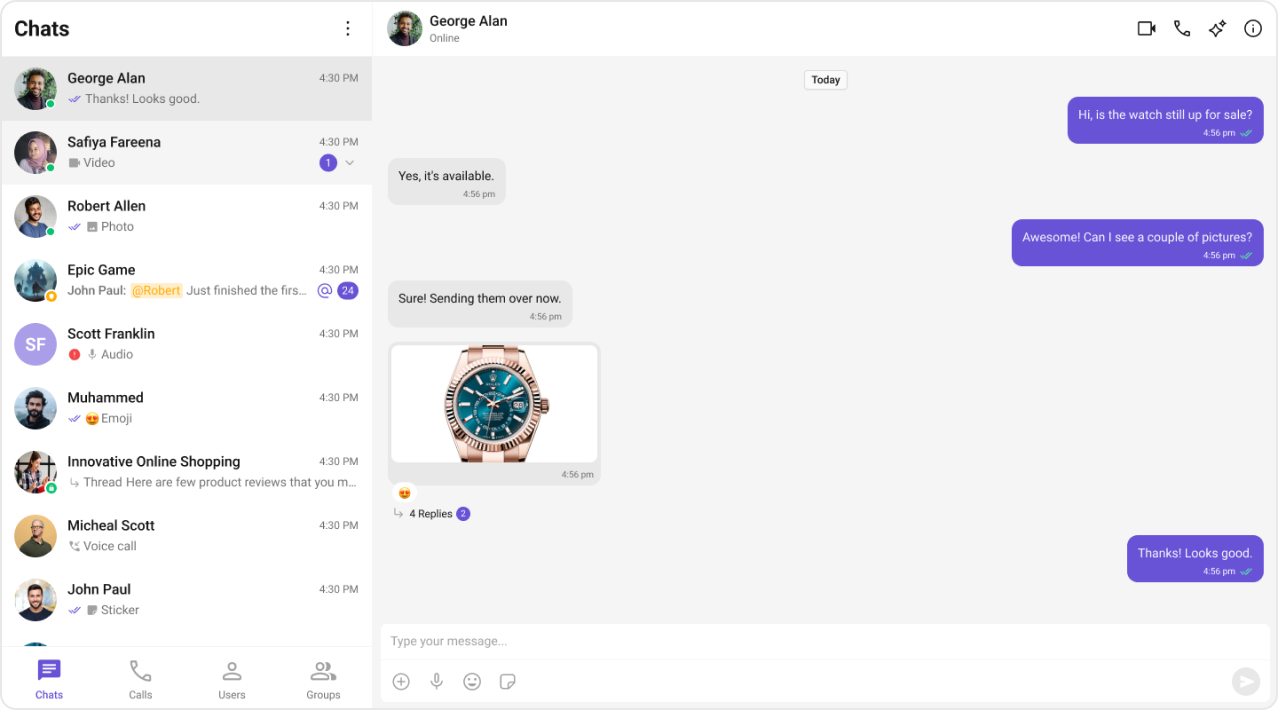
Update how the sticky date headers appear in the chat message list.
### Step-by-Step
1. **Component to Customize**:\
[Message List](/ui-kit/react/message-list)
2. **Customization Option**:\
[`stickyDateTimeFormat`](/ui-kit/react/message-list#sticky-datetime-format)
3. **Apply the Prop**:
```javascript theme={null}
import {
CometChatMessageList,
CalendarObject
} from "@cometchat/chat-uikit-react";
function getDateFormat() {
return new CalendarObject({
today: `hh:mm A`, // e.g., "10:30 AM"
yesterday: `[Yesterday]`, // Displays literally as "Yesterday"
otherDays: `DD/MM/YYYY`, // e.g., "25/05/2025"
});
}
```
 ***
### Default Format Used
```javascript theme={null}
new CalendarObject({
today: "today",
yesterday: "yesterday",
otherDays: "DD MMM, YYYY", // e.g., "25 Jan, 2025"
});
```
***
Why Customize This?
Sticky date headers enhance the chat experience by improving message navigation and giving users better temporal context. Adjust the format based on your target locale, tone of voice, or branding needs.
***
***
### Default Format Used
```javascript theme={null}
new CalendarObject({
today: "today",
yesterday: "yesterday",
otherDays: "DD MMM, YYYY", // e.g., "25 Jan, 2025"
});
```
***
Why Customize This?
Sticky date headers enhance the chat experience by improving message navigation and giving users better temporal context. Adjust the format based on your target locale, tone of voice, or branding needs.
***