> ## Documentation Index
> Fetch the complete documentation index at: https://cometchat-22654f5b-feature-react-native-sdk-quotedmessage-a.mintlify.site/llms.txt
> Use this file to discover all available pages before exploring further.
# Getting Started With UI Kit Builder
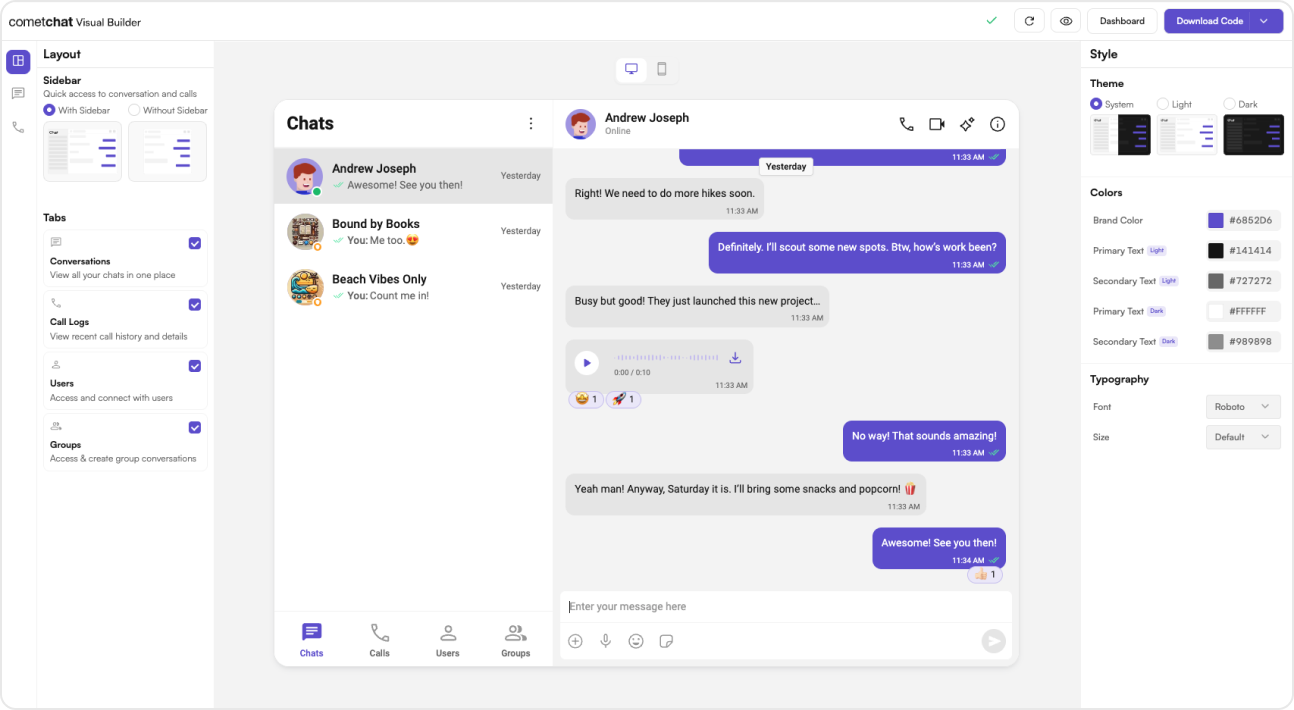
**UI Kit Builder** is a powerful tool designed to simplify the integration of CometChat's UI Kit into your existing React application.
With the **UI Kit Builder**, you can quickly set up chat functionalities, customize UI elements, and integrate essential features without extensive coding.
## **Complete Integration Workflow**
1. **Design Your Chat Experience** - Use the **UI Kit Builder** to customize layouts, features, and styling.
2. **Export Your Code** - Once satisfied, download the generated code package.
3. **Enable Features** - Enable additional features in the CometChat Dashboard if required.
4. **Preview Customizations** - Optionally, preview the chat experience before integrating it into your project.
5. **Integration** - Integrate into your existing application.
6. **Customize Further** - Explore advanced customization options to tailor the chat experience.
***
## **Launch the UI Kit Builder**
1. Log in to your [**CometChat Dashboard**](https://app.cometchat.com).
2. Select your application from the list.
3. Navigate to **Integrate** > **React** > **Launch UI Kit Builder**.
***
## **Enable Features in CometChat Dashboard**
If your app requires any of the following features, make sure to enable them from the **[CometChat Dashboard](https://app.cometchat.com/)**
* **Stickers** – Allow users to send expressive stickers.
* **Polls** – Enable in-chat polls for user engagement.
* **Collaborative Whiteboard** – Let users draw and collaborate in real time.
* **Collaborative Document** – Allow multiple users to edit documents together.
* **Message Translation** – Translate messages between different languages.
* **AI User Copilot**
* Conversation Starter – Suggests conversation openers.
* Conversation Summary – Generates AI-powered chat summaries.
* Smart Reply – Provides quick reply suggestions.
### **How to Enable These Features?**
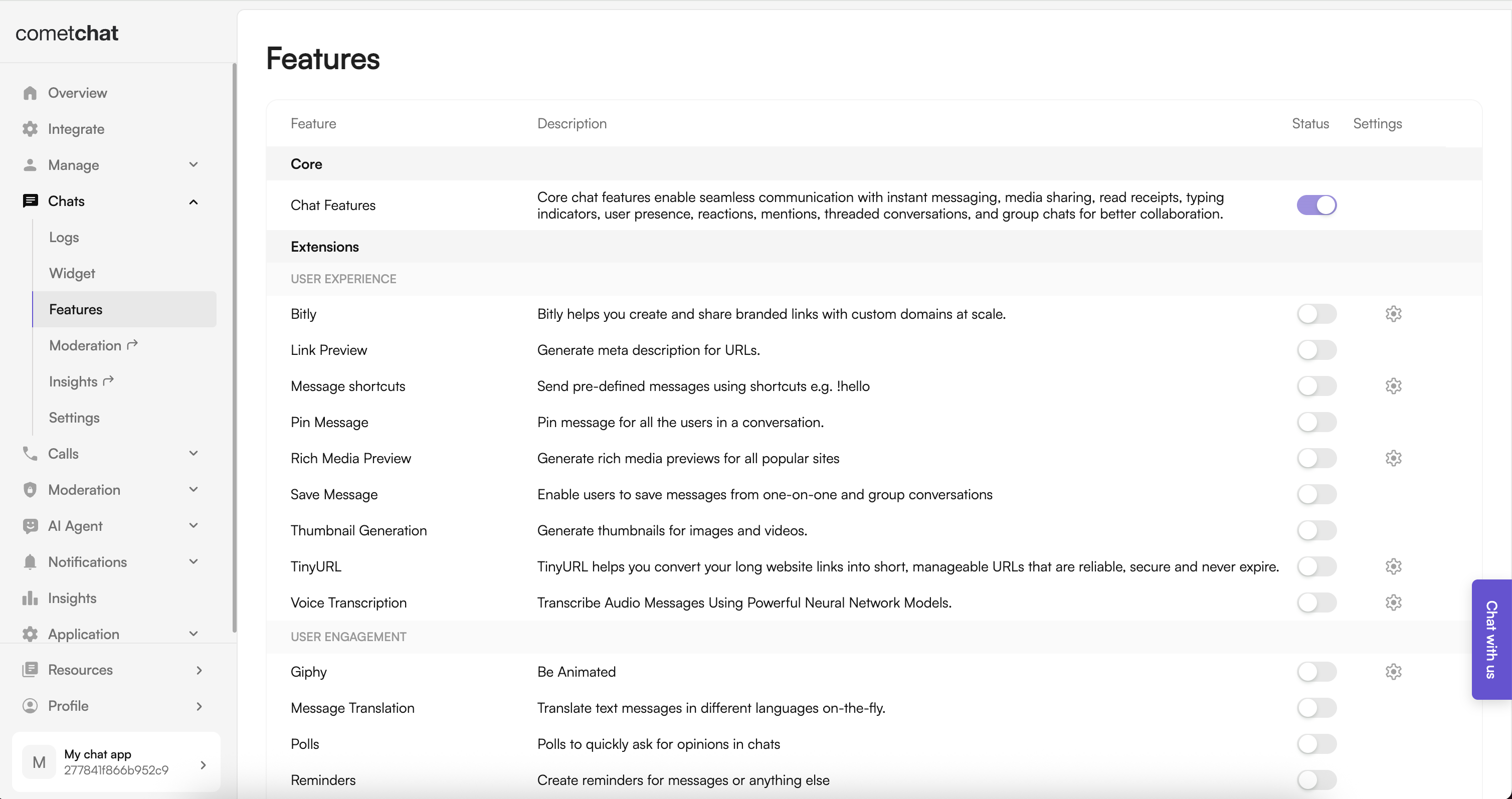
1. Log in to your **[CometChat Dashboard](https://app.cometchat.com)**
2. Select your application.
3. Navigate to **Chat > Features**.
4. Toggle **ON** the required features.
5. Click **Save Changes**.
***
## **Preview Customizations (Optional)**
Before integrating the **UI Kit Builder** into your project, you can preview the chat experience by following these steps. This step is completely optional and can be skipped if you want to directly integrate the **UI Kit Builder** into your project.
> You can preview the experience:
>
> 1. Open the `cometchat-app-react` folder.
> 2. Add credentials for your app in `src/index.tsx` (`src/main.tsx` incase for Vite):
>
> ```javascript theme={null}
> export const COMETCHAT_CONSTANTS = {
> APP_ID: "", // Replace with your App ID
> REGION: "", // Replace with your App Region
> AUTH_KEY: "", // Replace with your Auth Key or leave blank if you are authenticating using Auth Token
> };
> ```
>
> 3. Install dependencies:
>
> ```
> npm i
> ```
>
> 4. Run the app:
>
> ```powershell theme={null}
> npm start
> ```
***
## **Integration with CometChat UI Kit Builder (React.js)**
Follow these steps to integrate CometChat UI Kit Builder into your existing React project:
### **Step 1: Install Dependencies**
Run the following command to install the required dependencies:
```ruby theme={null}
npm install @cometchat/chat-uikit-react@6.3.2 @cometchat/calls-sdk-javascript
```
### **Step 2: Copy CometChat Folder**
Copy the `cometchat-app-react/src/CometChat` folder into your project's `src` directory.
### **Step 3: Initialize CometChat UI Kit**
The initialization process varies depending on your setup. Select your framework:
```tsx src/main.tsx theme={null}
import { createRoot } from "react-dom/client";
import "./index.css";
import App from "./App.tsx";
import {
UIKitSettingsBuilder,
CometChatUIKit,
} from "@cometchat/chat-uikit-react";
import { setupLocalization } from "./CometChat/utils/utils.ts";
import { CometChatProvider } from "./CometChat/context/CometChatContext";
export const COMETCHAT_CONSTANTS = {
APP_ID: "", // Replace with your App ID
REGION: "", // Replace with your App Region
AUTH_KEY: "", // Replace with your Auth Key or leave blank if you are authenticating using Auth Token
};
const uiKitSettings = new UIKitSettingsBuilder()
.setAppId(COMETCHAT_CONSTANTS.APP_ID)
.setRegion(COMETCHAT_CONSTANTS.REGION)
.setAuthKey(COMETCHAT_CONSTANTS.AUTH_KEY)
.subscribePresenceForAllUsers()
.build();
CometChatUIKit.init(uiKitSettings)?.then(() => {
setupLocalization();
createRoot(document.getElementById("root")!).render(
);
});
```
```tsx src/index.tsx theme={null}
import React from "react";
import ReactDOM from "react-dom/client";
import App from "./App";
import {
UIKitSettingsBuilder,
CometChatUIKit,
} from "@cometchat/chat-uikit-react";
import { setupLocalization } from "./CometChat/utils/utils";
import { CometChatProvider } from "./CometChat/context/CometChatContext";
export const COMETCHAT_CONSTANTS = {
APP_ID: "", // Replace with your App ID
REGION: "", // Replace with your App Region
AUTH_KEY: "", // Replace with your Auth Key or leave blank if you are authenticating using Auth Token
};
const uiKitSettings = new UIKitSettingsBuilder()
.setAppId(COMETCHAT_CONSTANTS.APP_ID)
.setRegion(COMETCHAT_CONSTANTS.REGION)
.setAuthKey(COMETCHAT_CONSTANTS.AUTH_KEY)
.subscribePresenceForAllUsers()
.build();
CometChatUIKit.init(uiKitSettings)?.then(() => {
setupLocalization();
ReactDOM.createRoot(document.getElementById("root") as HTMLElement).render(
);
});
```
Ensure you replace the following placeholders with your actual CometChat credentials:
* APP\_ID → Your CometChat App ID
* AUTH\_KEY → Your CometChat Auth Key
* REGION → Your App Region
These values are required for proper authentication and seamless integration.
### **Step 4: User Login**
To authenticate a user, you need a **`UID`**. You can either:
1. **Create new users** on the **[CometChat Dashboard](https://app.cometchat.com)**, **[CometChat SDK Method](/ui-kit/react/methods#create-user)** or **[via the API](https://api-explorer.cometchat.com/reference/creates-user)**.
2. **Use pre-generated test users**:
* `cometchat-uid-1`
* `cometchat-uid-2`
* `cometchat-uid-3`
* `cometchat-uid-4`
* `cometchat-uid-5`
The **Login** method returns a **User object** containing all relevant details of the logged-in user.
***
**Security Best Practices**
* The **Auth Key** method is recommended for **proof-of-concept (POC) development** and early-stage testing.
* For **production environments**, it is strongly advised to use an **[Auth Token](/ui-kit/react/methods#login-using-auth-token)** instead of an **Auth Key** to enhance security and prevent unauthorized access.
**User Login After Initialization**
Once the CometChat UI Kit is initialized, you can log in the user **whenever it fits your app’s workflow.**
```ts theme={null}
import { CometChatUIKit } from "@cometchat/chat-uikit-react";
const UID = "UID"; // Replace with your actual UID
CometChatUIKit.getLoggedinUser().then((user: CometChat.User | null) => {
if (!user) {
// If no user is logged in, proceed with login
CometChatUIKit.login(UID)
.then((user: CometChat.User) => {
console.log("Login Successful:", { user });
// Mount your app
})
.catch(console.log);
} else {
// If user is already logged in, mount your app
}
});
```
However, **if you prefer to log in the user immediately after initialization,** you can do so within the then block of CometChatUIKit.init().
```ts theme={null}
import React from "react";
import ReactDOM from "react-dom/client";
import App from "./App";
import {
UIKitSettingsBuilder,
CometChatUIKit,
} from "@cometchat/chat-uikit-react";
import { setupLocalization } from "./CometChat/utils/utils";
import { CometChatProvider } from "./CometChat/context/CometChatContext";
export const COMETCHAT_CONSTANTS = {
APP_ID: "", // Replace with your App ID
REGION: "", // Replace with your App Region
AUTH_KEY: "", // Replace with your Auth Key or leave blank if you are authenticating using Auth Token
};
const uiKitSettings = new UIKitSettingsBuilder()
.setAppId(COMETCHAT_CONSTANTS.APP_ID)
.setRegion(COMETCHAT_CONSTANTS.REGION)
.setAuthKey(COMETCHAT_CONSTANTS.AUTH_KEY)
.subscribePresenceForAllUsers()
.build();
CometChatUIKit.init(uiKitSettings)?.then(() => {
setupLocalization();
const UID = "UID"; // Replace with your actual UID
CometChatUIKit.getLoggedinUser().then((user: CometChat.User | null) => {
if (!user) {
CometChatUIKit.login(UID)
.then((loggedUser: CometChat.User) => {
console.log("Login Successful:", loggedUser);
// Mount your app
ReactDOM.createRoot(document.getElementById("root") as HTMLElement).render(
);
})
.catch((error) => console.error("Login Failed:", error));
} else {
// User already logged in, mount app directly
console.log("User already logged in:", user);
ReactDOM.createRoot(document.getElementById("root") as HTMLElement).render(
);
}
});
});
```
**Group Action Messages**
You can control the visibility of group action messages using the showGroupActionMessages prop:
```
```
* If `showGroupActionMessages` is `true (default)`, group action messages will be **visible**.
* If `showGroupActionMessages` is `false`, group action messages will be **hidden**.
***
### **Step 5: Render the CometChatApp Component**
Add the `CometChatApp` component to your app:
```javascript theme={null}
import CometChatApp from "./CometChat/CometChatApp";
const App = () => {
return (
/* CometChatApp requires a parent with explicit height & width to render correctly.
Adjust the height and width as needed.
*/
);
};
export default App;
```
#### **Render with Default User and Group**
You can also render the component with default user and group selection:
```javascript theme={null}
import { useEffect, useState } from "react";
import { CometChat } from "@cometchat/chat-sdk-javascript";
import CometChatApp from "./CometChat/CometChatApp";
const App = () => {
const [selectedUser, setSelectedUser] = useState(
undefined
);
const [selectedGroup, setSelectedGroup] = useState<
CometChat.Group | undefined
>(undefined);
useEffect(() => {
const UID = "cometchat-uid-2"; // Replace with your User ID
CometChat.getUser(UID).then(setSelectedUser).catch(console.error);
// const GUID = "cometchat-guid-1"; // Replace with your Group ID
// CometChat.getGroup(GUID).then(setSelectedGroup).catch(console.error);
}, []);
return (
/* CometChatApp requires a parent with explicit height & width to render correctly.
Adjust the height and width as needed.
*/
);
};
export default App;
```
When you enable the **Without Sidebar** option for the Sidebar, the following behavior applies:
* **User Chats (`chatType = "user"`)**: Displays one-on-one chats only, either for a currently selected user or the default user.
* **Group Chats (`chatType = "group"`)**: Displays group chats exclusively, either for a currently selected group or the default group.
### **Step 6: Run the App**
Start your application with the appropriate command based on your setup:
* Vite / Next.js:
```
npm run dev
```
* Create React App (CRA):
```powershell theme={null}
npm start
```
***
## **Additional Configuration Notes**
Ensure the following features are also turned on in your app > Chat > Features for full functionality:
* Message translation
* Polls
* Stickers
* Collaborative whiteboard
* Collaborative document
* Conversation starter
* Conversation summary
* Smart reply
If you face any issues while integrating the builder in your app project, please check if you have the following configurations added to your `tsConfig.json`:
```json theme={null}
{
"compilerOptions": {
"jsx": "react-jsx",
"resolveJsonModule": true
}
}
```
If your development server is running, restart it to ensure the new TypeScript configuration is picked up.
***
## **Understanding Your Generated Code**
The exported package includes several important elements to help you further customize your chat experience:
### **Directory Structure**
The `CometChat` folder contains:
* **Components** - Individual UI elements (message bubbles, input fields, etc.)
* **Layouts** - Pre-configured arrangement of components
* **Context** - State management for your chat application
* **Hooks** - Custom React hooks for chat functionality
* **Utils** - Helper functions and configuration
### **Configuration Files**
* **CometChat Settings File** - Controls the appearance and behavior of your chat UI
* **Theme Configuration** - Customize colors, typography, and spacing
* **Localization Files** - Add support for different languages
***
## **Next Steps**
Now that you've set up your **chat experience**, explore further configuration options:
* **[Builder Configuration File](/ui-kit/react/builder-settings)** – Learn how to customize your integration.
* **[Builder Directory Structure](/ui-kit/react/builder-dir-structure)** – Understand the organization of the builder components.
* **[Advanced Theming](/ui-kit/react/theme)** – Modify themes and UI elements to match your brand.
* **[Additional Customizations](/ui-kit/react/builder-customisations)** – Customise the UI the way you want.
***
 ## **Complete Integration Workflow**
1. **Design Your Chat Experience** - Use the **UI Kit Builder** to customize layouts, features, and styling.
2. **Export Your Code** - Once satisfied, download the generated code package.
3. **Enable Features** - Enable additional features in the CometChat Dashboard if required.
4. **Preview Customizations** - Optionally, preview the chat experience before integrating it into your project.
5. **Integration** - Integrate into your existing application.
6. **Customize Further** - Explore advanced customization options to tailor the chat experience.
***
## **Launch the UI Kit Builder**
1. Log in to your [**CometChat Dashboard**](https://app.cometchat.com).
2. Select your application from the list.
3. Navigate to **Integrate** > **React** > **Launch UI Kit Builder**.
***
## **Enable Features in CometChat Dashboard**
If your app requires any of the following features, make sure to enable them from the **[CometChat Dashboard](https://app.cometchat.com/)**
* **Stickers** – Allow users to send expressive stickers.
* **Polls** – Enable in-chat polls for user engagement.
* **Collaborative Whiteboard** – Let users draw and collaborate in real time.
* **Collaborative Document** – Allow multiple users to edit documents together.
* **Message Translation** – Translate messages between different languages.
* **AI User Copilot**
* Conversation Starter – Suggests conversation openers.
* Conversation Summary – Generates AI-powered chat summaries.
* Smart Reply – Provides quick reply suggestions.
### **How to Enable These Features?**
## **Complete Integration Workflow**
1. **Design Your Chat Experience** - Use the **UI Kit Builder** to customize layouts, features, and styling.
2. **Export Your Code** - Once satisfied, download the generated code package.
3. **Enable Features** - Enable additional features in the CometChat Dashboard if required.
4. **Preview Customizations** - Optionally, preview the chat experience before integrating it into your project.
5. **Integration** - Integrate into your existing application.
6. **Customize Further** - Explore advanced customization options to tailor the chat experience.
***
## **Launch the UI Kit Builder**
1. Log in to your [**CometChat Dashboard**](https://app.cometchat.com).
2. Select your application from the list.
3. Navigate to **Integrate** > **React** > **Launch UI Kit Builder**.
***
## **Enable Features in CometChat Dashboard**
If your app requires any of the following features, make sure to enable them from the **[CometChat Dashboard](https://app.cometchat.com/)**
* **Stickers** – Allow users to send expressive stickers.
* **Polls** – Enable in-chat polls for user engagement.
* **Collaborative Whiteboard** – Let users draw and collaborate in real time.
* **Collaborative Document** – Allow multiple users to edit documents together.
* **Message Translation** – Translate messages between different languages.
* **AI User Copilot**
* Conversation Starter – Suggests conversation openers.
* Conversation Summary – Generates AI-powered chat summaries.
* Smart Reply – Provides quick reply suggestions.
### **How to Enable These Features?**
 1. Log in to your **[CometChat Dashboard](https://app.cometchat.com)**
2. Select your application.
3. Navigate to **Chat > Features**.
4. Toggle **ON** the required features.
5. Click **Save Changes**.
***
## **Preview Customizations (Optional)**
Before integrating the **UI Kit Builder** into your project, you can preview the chat experience by following these steps. This step is completely optional and can be skipped if you want to directly integrate the **UI Kit Builder** into your project.
> You can preview the experience:
>
> 1. Open the `cometchat-app-react` folder.
> 2. Add credentials for your app in `src/index.tsx` (`src/main.tsx` incase for Vite):
>
> ```javascript theme={null}
> export const COMETCHAT_CONSTANTS = {
> APP_ID: "", // Replace with your App ID
> REGION: "", // Replace with your App Region
> AUTH_KEY: "", // Replace with your Auth Key or leave blank if you are authenticating using Auth Token
> };
> ```
>
> 3. Install dependencies:
>
> ```
> npm i
> ```
>
> 4. Run the app:
>
> ```powershell theme={null}
> npm start
> ```
***
## **Integration with CometChat UI Kit Builder (React.js)**
Follow these steps to integrate CometChat UI Kit Builder into your existing React project:
### **Step 1: Install Dependencies**
Run the following command to install the required dependencies:
```ruby theme={null}
npm install @cometchat/chat-uikit-react@6.3.2 @cometchat/calls-sdk-javascript
```
### **Step 2: Copy CometChat Folder**
Copy the `cometchat-app-react/src/CometChat` folder into your project's `src` directory.
### **Step 3: Initialize CometChat UI Kit**
The initialization process varies depending on your setup. Select your framework:
1. Log in to your **[CometChat Dashboard](https://app.cometchat.com)**
2. Select your application.
3. Navigate to **Chat > Features**.
4. Toggle **ON** the required features.
5. Click **Save Changes**.
***
## **Preview Customizations (Optional)**
Before integrating the **UI Kit Builder** into your project, you can preview the chat experience by following these steps. This step is completely optional and can be skipped if you want to directly integrate the **UI Kit Builder** into your project.
> You can preview the experience:
>
> 1. Open the `cometchat-app-react` folder.
> 2. Add credentials for your app in `src/index.tsx` (`src/main.tsx` incase for Vite):
>
> ```javascript theme={null}
> export const COMETCHAT_CONSTANTS = {
> APP_ID: "", // Replace with your App ID
> REGION: "", // Replace with your App Region
> AUTH_KEY: "", // Replace with your Auth Key or leave blank if you are authenticating using Auth Token
> };
> ```
>
> 3. Install dependencies:
>
> ```
> npm i
> ```
>
> 4. Run the app:
>
> ```powershell theme={null}
> npm start
> ```
***
## **Integration with CometChat UI Kit Builder (React.js)**
Follow these steps to integrate CometChat UI Kit Builder into your existing React project:
### **Step 1: Install Dependencies**
Run the following command to install the required dependencies:
```ruby theme={null}
npm install @cometchat/chat-uikit-react@6.3.2 @cometchat/calls-sdk-javascript
```
### **Step 2: Copy CometChat Folder**
Copy the `cometchat-app-react/src/CometChat` folder into your project's `src` directory.
### **Step 3: Initialize CometChat UI Kit**
The initialization process varies depending on your setup. Select your framework: