> ## Documentation Index
> Fetch the complete documentation index at: https://cometchat-22654f5b-feature-react-native-sdk-quotedmessage-a.mintlify.site/llms.txt
> Use this file to discover all available pages before exploring further.
# Direct Call
## Overview
This guide demonstrates how to start call in to an Android application. Before you begin, we strongly recommend you read the calling setup guide.
## Add Multiple Calls Event Listeners
For every activity or fragment you wish to receive call listeners, you need to register the \_\_CallsEventListeners using the `addCallsEventListeners`()\`\` method.
```dart theme={null}
String listenerId = "UNIQUE_LISTENER_ID";
class YourClassName extends State with CometChatCallsEventsListener {
@override
void initState() {
super.initState();
CometChatCalls.addCallsEventListeners(listenerId, this); //Register call listener
}
@override
void dispose() {
super.dispose();
CometChatCalls.removeCallsEventListeners(listenerId); //Remove call listener
}
@override
void onCallEndButtonPressed() {
if(isDefaultCall){
isCallEndedByMe = true;
}else {
//Leave the current call
CometChatCalls.endSession();
}
}
@override
void onCallEnded() {
if(isDefaultCall){
if(isCallEndedByMe){
//Call CometChat.endCall() method
}else {
//Call CometChatCalls.endSession() and CometChat.clearActiveCall() methods
}
} else{
//If a group call has ended and there is only one user left on the call
//you can end the call session for that user by calling the CometChatCalls.endSession()
}
}
@override
void onSessionTimeout() {
}
@override
void onAudioModeChanged(List devices) {
}
@override
void onCallSwitchedToVideo(CallSwitchRequestInfo info) {
}
@override
void onError(CometChatCallsException ce) {
}
@override
void onRecordingToggled(RTCRecordingInfo info) {
}
@override
void onUserJoined(RTCUser user) {
}
@override
void onUserLeft(RTCUser user) {
}
@override
void onUserListChanged(List users) {
}
@override
void onUserMuted(RTCMutedUser muteObj) {
}
}
```
## Generate Call Token
Before start call session you have to generate call token. You need to call this method for call token.
```dart theme={null}
String sessionId = "" //Random or available in call obecjt in case of default calling
String userAuthToken = CometChat.getUserAuthToken() //Logged in user auth token
CometChatCalls.generateToken(sessionId, userAuthToken, onSuccess: (GenerateToken generateToken){
debugPrint("Success: ${generateToken.token}");
}, onError: (CometChatCallsException e){
debugPrint("Error: $e");
});
```
To get the logged-in user auth token, call `CometChat.getUserAuthToken()` method which is present in CometChat Chat SDK
| Parameter | Description |
| ------------- | ------------------------------------------------------------------------------------------------------------------------------------ |
| sessionId | The unique random session ID. In case you are using default call then session ID is available in the `Call` object. |
| userAuthToken | The use auth token is logged in user auth tooken which you can get by calling CometChat Chat SDK method CometChat.getUserAuthToken() |
On success of generate token method you will get call token. To access it from GenerateToken object "generateToken.getToken()"
## Start Call Session
The most important class that will be used in the implementation is the `CallSettings` class. This class allows you to set the various parameters for the call/conference. In order to set the various parameters of the `CallSettings` class, you need to use the `CallSettingsBuilder` class.
A basic example of how to start a call:
```dart theme={null}
Stringg generatedToken = "" //Your Generated Token
CallSettings callSettings= (CallSettingsBuilder()
..defaultLayout = true
..setAudioOnlyCall = true
..listener = this //CometChatCallsEventsListener
).build();
CometChatCalls.startSession(generatedToken, callSettings, onSuccess: (Widget? callingWidget){
debugPrint("Success");
}, onError: (CometChatCallsException e){
debugPrint("Error: $e");
});
```
The `setIsAudioOnly()` method allows you to set if the call is supposed to be an audio call or an audio-video call. If set to true, the call will be an audio-only call else when set to false the call will be an audio-video call. The default will is false, so if not set, the call will be an audio-video call.
The `CometChatCallsEventsListener` listener provides you with the below callback methods:
| Callback Method | Description |
| --------------------------------------------------- | ---------------------------------------------------------------------------------------------------------------------------------------------------------------------------------------------------------------------------------------------------------------------------------------------------------------------------------------------------------------------------------------------------------------------------------------------------------------------------------------------------------------------------------------------------------------------------------------------------------- |
| `onCallEnded()` | The onCallEnded() event is triggered when a call between two users ends. This event is triggered for both users, regardless of who ended the call. The onCallEnded() event does not trigger if there are more than two users in the call, or if there are fewer than two users in the call.. The best use case for the onCallEnded() event is in the default calling flow. In the default calling flow, the call ends when either user hangs up. In this case, both users will receive the onCallEnded() event. However, the user who ended the call will also receive the onCallEndButtonPressed() event. |
| `onSessionTimeout()` Available since v4.1.0 | This method is called when the call is ended due to session timeout. |
| `onCallEndButtonPressed()` | This method is called when the user press end call button.. The user who leaves the call or who ends the call by clicking on the calling end call UI button will get the onCallEndButtonPressed() event. |
| `onUserJoined(RTCUser user)` | This method is called when any other user joins the call. The user details can be obtained from the User object provided. |
| `onUserLeft(RTCUser user)` | This method is called when a user leaves the call. The details of the user can be obtained from the provided User object. |
| `onUserListChanged(List users)` | This method is triggered every time a participant joins or leaves the call providing the list of users active in the call |
| `onAudioModeChanged(List devices)` | This callback is triggered if any new audio output source is available or becomes unavailable. |
| `onCallSwitchedToVideo(CallSwitchRequestInfo info)` | This callback is triggered when an audio call is converted into a video call. |
| `onUserMuted(RTCMutedUser muteObj)` | This method is triggered when a user is muted in the ongoing call. |
| `onRecordingToggled(RTCRecordingInfo info)` | This method is triggered when a recording start/stop. |
| `onError(CometChatCallsException e)` | This method is called when there is some error in establishing the call. |
## End Call Session
To release the acquired calling resource and end the call, the end call session must be called.
### For Default Call
You only need to call the end call method of the chat SDK for default calling flows. Direct calling flows do not require it.
To end a call in the default call flow, you must call the `CometChat.endCall()` method, which belongs to the CometChat Chat SDK, and the `CometChatCalls.endSession()` method, which belongs to the CometChat Calls SDK.
The user who pressed the end call button will call the `CometChat.endCall()` method, and the another user how was on call will call the two methods which is `CometChat.clearActiveCall()` and `CometChatCalls.endSession()` methods to release the calling resources
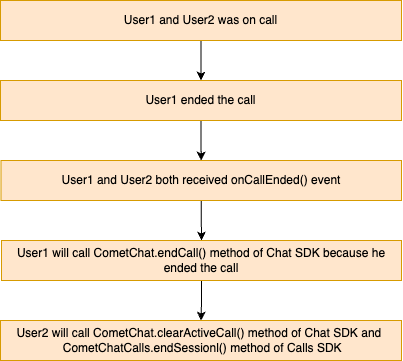 The user who ended the call
```dart theme={null}
CometChat.endCall(
sessionId,
onSuccess: (call) {
debugPrint("Success");
},
onError: (error) {
debugPrint("Error ${error.toString()}");
},
);
```
The another user who was on call
```dart theme={null}
CometChat.clearActiveCall();
CometChatCalls.endSession(onSuccess: (onSuccess) {
debugPrint("End session successful");
}, onError: (e) {
debugPrint("End session failed with error ${e.toString()}");
},);
```
### For Direct Call
```dart theme={null}
CometChatCalls.endSession(onSuccess: (onSuccess) {
debugPrint("End session successful");
}, onError: (e) {
debugPrint("End session failed with error ${e.toString()}");
},);
```
```kotlin theme={null}
//onCallEndButtonPressed() event call the below method of calls SDK
CometChatCalls.endSession(sessionId)
```
## Settings
The `CallSettings` class is the most important class when it comes to the implementation of the Calling feature. This is the class that allows you to customize the overall calling experience. The properties for the call/conference can be set using the `CallSettingsBuilder` class. This will eventually give you and object of the `CallSettings` class which you can pass to the `startSession()` method to start the call.
The **mandatory** parameters that are required to be present for any call/conference to work are:
1. Context - context of the activity/application
2. RelativeLayout - A RelativeLayout object in which the calling UI is loaded.
The options available for customization of calls are:
| Setting | Description |
| -------------------------------------------------------- | -------------------------------------------------------------------------------------------------------------------------------------------------------------------------------------------------------------------------------------------------------------------------------------------- |
| `bool enableDefaultLayout` | If set to `true` enables the default layout for handling the call operations. If set to `false` it hides the button layout and just displays the Call View Default value = `true` |
| `bool setAudioOnlyCall` | If set to true call is supposed to be an audio call If set to false call is supposed to be a video call Default Value = `false` |
| `bool showEndCallButton` | If set to `true` it displays the EndCallButton in Button Layout. If set to `false` it hides the EndCallButton in Button Layout Default value = `true` |
| `bool showSwitchCameraButton` | If set to `true` it displays the SwitchCameraButton in Button Layout. If set to `false` it hides the SwitchCameraButton in Button Layout Default value = `true` |
| `bool showMuteAudioButton` | If set to `true` it displays the MuteAudioButton in Button Layout. If set to `false` it hides the MuteAudioButton in Button Layout Default value = `true` |
| `bool showPauseVideoButton` | If set to `true` it displays the PauseVideoButton in Button Layout. If set to `false` it hides the PauseVideoButton in Button Layout Default value = `true` |
| `bool showAudioModeButton` | If set to `true` it displays the AudioModeButton in Button Layout. If set to `false` it hides the AudioModeButton in Button Layout Default value = `true` |
| `Mode setMode` | CometChat provides 3 options for the calling UI.
The user who ended the call
```dart theme={null}
CometChat.endCall(
sessionId,
onSuccess: (call) {
debugPrint("Success");
},
onError: (error) {
debugPrint("Error ${error.toString()}");
},
);
```
The another user who was on call
```dart theme={null}
CometChat.clearActiveCall();
CometChatCalls.endSession(onSuccess: (onSuccess) {
debugPrint("End session successful");
}, onError: (e) {
debugPrint("End session failed with error ${e.toString()}");
},);
```
### For Direct Call
```dart theme={null}
CometChatCalls.endSession(onSuccess: (onSuccess) {
debugPrint("End session successful");
}, onError: (e) {
debugPrint("End session failed with error ${e.toString()}");
},);
```
```kotlin theme={null}
//onCallEndButtonPressed() event call the below method of calls SDK
CometChatCalls.endSession(sessionId)
```
## Settings
The `CallSettings` class is the most important class when it comes to the implementation of the Calling feature. This is the class that allows you to customize the overall calling experience. The properties for the call/conference can be set using the `CallSettingsBuilder` class. This will eventually give you and object of the `CallSettings` class which you can pass to the `startSession()` method to start the call.
The **mandatory** parameters that are required to be present for any call/conference to work are:
1. Context - context of the activity/application
2. RelativeLayout - A RelativeLayout object in which the calling UI is loaded.
The options available for customization of calls are:
| Setting | Description |
| -------------------------------------------------------- | -------------------------------------------------------------------------------------------------------------------------------------------------------------------------------------------------------------------------------------------------------------------------------------------- |
| `bool enableDefaultLayout` | If set to `true` enables the default layout for handling the call operations. If set to `false` it hides the button layout and just displays the Call View Default value = `true` |
| `bool setAudioOnlyCall` | If set to true call is supposed to be an audio call If set to false call is supposed to be a video call Default Value = `false` |
| `bool showEndCallButton` | If set to `true` it displays the EndCallButton in Button Layout. If set to `false` it hides the EndCallButton in Button Layout Default value = `true` |
| `bool showSwitchCameraButton` | If set to `true` it displays the SwitchCameraButton in Button Layout. If set to `false` it hides the SwitchCameraButton in Button Layout Default value = `true` |
| `bool showMuteAudioButton` | If set to `true` it displays the MuteAudioButton in Button Layout. If set to `false` it hides the MuteAudioButton in Button Layout Default value = `true` |
| `bool showPauseVideoButton` | If set to `true` it displays the PauseVideoButton in Button Layout. If set to `false` it hides the PauseVideoButton in Button Layout Default value = `true` |
| `bool showAudioModeButton` | If set to `true` it displays the AudioModeButton in Button Layout. If set to `false` it hides the AudioModeButton in Button Layout Default value = `true` |
| `Mode setMode` | CometChat provides 3 options for the calling UI.
1. `Mode.MODE_SPOTLIGHT`
2. `Mode.MODE_SINGLE`
3. `Mode.MODE_DEFAULT`
Default value = `Mode.MODE_SPOTLIGHT` |
| `bool startWithAudioMuted` | This ensures the call is started with the audio muted if set to true Default value = `false` |
| `bool startWithVideoMuted` | This ensures the call is started with the video muted if set to true Default value = `false` |
| `AudioModes setDefaultAudioMode` | This method can be used if you wish to start the call with a specific audio mode. The available options are:
1. `AudioModes.AUDIO_MODE_SPEAKER`
2. `AudioModes.AUDIO_MODE_EARPIECE`
3. `AudioModes.AUDIO_MODE_BLUETOOTH`
4. `AudioModes.AUDIO_MODE_HEADPHONES` |
| `bool showSwitchToVideoCallButton` | This method shows/hides the switch to video call button. If set to true it will display the switch to video call button. If set to false it will hide the switch to video call button. Default value = `true` |
| `bool showCallRecordButton` | If set to `true` it displays the Recording Button If set to `false` it hides the Recording Button Default value = `false` |
| `bool startRecordingOnCallStart` | If set to `true` it start recording automatically once call is connected Default value = `false` |
| `AvatarModes setAvatarMode` | This method sets the mode of avatar. The avatar mode can be one of the below constants:
1. `AvatarModes.AVATAR_MODE_CIRCLE`
2. `AvatarModes.AVATAR_MODE_SQUARE`
3. `AvatarModes.AVATAR_MODE_FULLSCREEN`
Default value = `CometChatCallsConstants.AVATAR_MODE_CIRCLE` |
| `MainVideoContainerSetting setMainVideoContainerSetting` | This method can be used to customize the main video container. You can read more about this [here](/sdk/flutter/video-view-customisation) |
| `bool enableVideoTileDrag` | This method can be used to enable/disable video tile drag functionality in Spotlight mode. Default value = `true` |
| `bool enableVideoTileClick` | This method can be used to enable/disable video tile click functionality in Spotlight mode. Default value = `true` |
| `int setIdleTimeoutPeriod` Available since v4.1.0 | Sets the idle timeout duration for the call. If the user remains the only participant for the specified time, a prompt will appear 60 seconds before the call is automatically ended. **Default value = 180 seconds** |
| `CometChatCallsEventsListener listener` | The `CometChatCallsEventsListener` listener provides you callbacks" |
In case you wish to achieve a completely customised UI for the Calling experience, you can do so by embedding default android buttons to the screen as per your requirement and then use the below methods to achieve different functionalities for the embedded buttons.
For the use case where you wish to align your own custom buttons and not use the default layout provided by CometChat you can embed the buttons in your layout and use the below methods to perform the corresponding operations:
### Switch Camera
You can call `switchCamera()` Method to toggle between camera sources.
```dart theme={null}
CometChatCalls.switchCamera(onSuccess: (success) {
debugPrint("Success $success");
}, onError: (error) {
debugPrint("Error: ${error");
});
```
### Mute Audio
You can call `muteAudio()` Method to mute your Audio Stream to the end-user.
```dart theme={null}
CometChatCalls.muteAudio(true ,onSuccess: (success) {
debugPrint("Success $success");
}, onError: (error) {
debugPrint("Error: ${error");
});
```
if set to `true` the audio Stream is muted and if set to`false` the audio Stream is transmitted.
### Pause Video
You can call `pauseVideo()` Method to pause Video Stream to the end-user.
```dart theme={null}
CometChatCalls.pauseVideo(true, onSuccess: (success) {
debugPrint("Success $success");
}, onError: (error) {
debugPrint("Error: ${error");
});
```
if set to `true` the video Stream is muted and if set to`false` video Stream is transmitted.
### Set Audio Mode
You can call `setAudioMode()` to set the output of the audio stream.
```dart theme={null}
CometChatCalls.setAudioMode("", onSuccess: (success) {
debugPrint("Success $success");
}, onError: (error) {
debugPrint("Error: ${error");
});
```
The audio mode string can have either one of the below 4 values:
1. `AudioModes.AUDIO_MODE_SPEAKER`
2. `AudioModes.AUDIO_MODE_EARPIECE`
3. `AudioModes.AUDIO_MODE_BLUETOOTH`
4. `AudioModes.AUDIO_MODE_HEADPHONES`
### Enter PIP Mode
If you are using a PIP (Picture-In-Picture) mode in your app and you want to render calling view in PIP then you can call `enterPIPMode()` method.
```dart theme={null}
CometChatCalls.enterPIPMode(onSuccess: (success) {
debugPrint("Success $success");
}, onError: (error) {
debugPrint("Error: ${error");
});
```
### Exit PIP Mode
You can call `exitPIPMode()` to enter in PIP mode.
```dart theme={null}
CometChatCalls.exitPIPMode(onSuccess: (success) {
debugPrint("Success $success");
}, onError: (error) {
debugPrint("Error: ${error");
});
```
### Switch to Video Call
You can call `switchToVideoCall()` to switch from audio call to video call
```dart theme={null}
CometChatCalls.switchToVideoCall(onSuccess: (success) {
debugPrint("Success $success");
}, onError: (error) {
debugPrint("Error: ${error");
});
```
### Start Recording
You can call `startRecording()` to start the recording
```dart theme={null}
CometChatCalls.startRecording(onSuccess: (success) {
debugPrint("Success $success");
}, onError: (error) {
debugPrint("Error: ${error");
});
```
### Stop Recording
You can call `stopRecording()` to stop the recording
```dart theme={null}
CometChatCalls.stopRecording(onSuccess: (success) {
debugPrint("Success $success");
}, onError: (error) {
debugPrint("Error: ${error");
});
```
### End Call
You can call `CometChatCalls.endSession()` to end the call
```dart theme={null}
CometChatCalls.endSession(onSuccess: (success) {
debugPrint("Success");
}, onError: (error) {
debugPrint("Error: ${error");
});
```