> ## Documentation Index
> Fetch the complete documentation index at: https://cometchat-22654f5b-feature-react-native-sdk-quotedmessage-a.mintlify.site/llms.txt
> Use this file to discover all available pages before exploring further.
# Users
## Overview
The Users is a [Component](/ui-kit/android/components-overview#components), showcasing an accessible list of all available users. It provides an integral search functionality, allowing you to locate any specific user swiftly and easily. For each user listed, the widget displays the user's name by default, in conjunction with their avatar when available. Furthermore, it includes a status indicator, visually informing you whether a user is currently online or offline.
 ***
## Usage
### Integration
The following code snippet illustrates how you can directly incorporate the Users component into your `layout.xml` file.
```xml theme={null}
```
### Actions
[Actions](/ui-kit/android/components-overview#actions) dictate how a component functions. They are divided into two types: Predefined and User-defined. You can override either type, allowing you to tailor the behavior of the component to fit your specific needs.
##### setOnItemClick
Function invoked when a user item is clicked, typically used to open a user profile or chat screen.
```java YourActivity.java theme={null}
cometchatUsers.setOnItemClick((view1, position, user) -> {
});
```
```kotlin YourActivity.kt theme={null}
cometchatUsers.onItemClick = OnItemClick { view, position, user ->
}
```
***
##### setOnItemLongClick
Function executed when a user item is long-pressed, allowing additional actions like delete or block.
```java YourActivity.java theme={null}
cometchatUsers.setOnItemLongClick((view1, position, user) -> {
});
```
```kotlin YourActivity.kt theme={null}
cometchatUsers.onItemLongClick = OnItemLongClick({ view, position, user ->
})
```
***
##### setOnBackPressListener
`OnBackPressListener` is triggered when you press the back button in the app bar. It has a predefined behavior; when clicked, it navigates to the previous activity. However, you can override this action using the following code snippet.
```java YourActivity.java theme={null}
cometchatUsers.setOnBackPressListener(() -> {
});
```
```kotlin YourActivity.kt theme={null}
cometchatUsers.onBackPressListener = OnBackPress {
}
```
***
##### setOnSelect
Called when a item from the fetched list is selected, useful for multi-selection features.
```java YourActivity.java theme={null}
cometchatUsers.setOnSelect(t -> {
});
```
```kotlin YourActivity.kt theme={null}
cometchatUsers.setOnSelect(object : OnSelection {
override fun onSelection(t: MutableList?) {
}
})
```
***
##### OnError
This action doesn't change the behavior of the component but rather listens for any errors that occur in the Users component.
```java YourActivity.java theme={null}
cometchatUsers.setOnError(cometchatException -> {
});
```
```kotlin YourActivity.kt theme={null}
cometchatUsers.setOnError {
}
```
***
##### setOnLoad
Invoked when the list is successfully fetched and loaded, helping track component readiness.
```java YourActivity.java theme={null}
cometchatUsers.setOnLoad(list -> {
});
```
```kotlin YourActivity.kt theme={null}
cometchatUsers.setOnLoad(object : OnLoad {
override fun onLoad(list: MutableList?) {
}
})
```
***
##### setOnEmpty
Called when the list is empty, enabling custom handling such as showing a placeholder message.
```java YourActivity.java theme={null}
cometchatUsers.setOnEmpty(() -> {
});
```
```kotlin YourActivity.kt theme={null}
cometchatUsers.setOnEmpty{
}
```
***
### Filters
**Filters** allow you to customize the data displayed in a list within a Component. You can filter the list based on your specific criteria, allowing for a more customized. Filters can be applied using RequestBuilders of Chat SDK.
##### 1. UserRequestBuilder
The [UserRequestBuilder](/sdk/android/retrieve-users) enables you to filter and customize the user list based on available parameters in UserRequestBuilder. This feature allows you to create more specific and targeted queries when fetching users. The following are the parameters available in [UserRequestBuilder](/sdk/android/retrieve-users)
| Methods | Type | Description |
| -------------------- | ------------- | -------------------------------------------------------------------------------------- |
| **setLimit** | int | sets the number users that can be fetched in a single request, suitable for pagination |
| **setSearchKeyword** | String | used for fetching users matching the passed string |
| **hideBlockedUsers** | bool | used for fetching all those users who are not blocked by the logged in user |
| **friendsOnly** | bool | used for fetching only those users in which logged in user is a member |
| **setRoles** | List\ | used for fetching users containing the passed tags |
| **setTags** | List\ | used for fetching users containing the passed tags |
| **withTags** | bool | used for fetching users containing tags |
| **setUserStatus** | String | used for fetching users by their status online or offline |
| **setUIDs** | List\ | used for fetching users containing the passed users |
**Example**
In the example below, we are applying a filter to the UserList based on Friends.
```java theme={null}
UsersRequest.UsersRequestBuilder builder=new UsersRequest.UsersRequestBuilder()
.friendsOnly(false)
.setLimit(10);
cometChatUsers.setUsersRequestBuilder(builder);
```
```kotlin theme={null}
val builder = UsersRequest.UsersRequestBuilder()
.friendsOnly(false)
.setLimit(10)
cometChatUsers.setUsersRequestBuilder(builder)
```
##### 2. SearchRequestBuilder
The SearchRequestBuilder uses [UserRequestBuilder](/sdk/android/retrieve-users) enables you to filter and customize the search list based on available parameters in UserRequestBuilder. This feature allows you to keep uniformity between the displayed UserList and searched UserList.
**Example**
```java theme={null}
UsersRequest.UsersRequestBuilder builder = new UsersRequest.UsersRequestBuilder()
.setSearchKeyword("**");
users.setSearchRequestBuilder(builder);
```
```kotlin theme={null}
val builder = UsersRequest.UsersRequestBuilder()
.setSearchKeyword("**")
users.searchRequestBuilder = builder
```
### Events
[Events](/ui-kit/android/components-overview#events) are emitted by a `Component`. By using event you can extend existing functionality. Being global events, they can be applied in Multiple Locations and are capable of being Added or Removed.
To handle events supported by Users you have to add corresponding listeners by using `CometChatUserEvents`
| Events | Description |
| --------------- | --------------------------------------------------------------------- |
| ccUserBlocked | This will get triggered when the logged in user blocks another user |
| ccUserUnblocked | This will get triggered when the logged in user unblocks another user |
```java theme={null}
CometChatUserEvents.addUserListener("LISTENER_TAG", new CometChatUserEvents() {
@Override
public void ccUserBlocked(User user) {
super.ccUserBlocked(user);
}
@Override
public void ccUserUnblocked(User user) {
super.ccUserUnblocked(user);
}
});
```
Remove Listener
```
CometChatUserEvents.removeListener("YOUR_LISTENER_TAG");
```
```kotlin theme={null}
CometChatUserEvents.addUserListener("LISTENER_TAG", object : CometChatUserEvents() {
override fun ccUserBlocked(user: User?) {
super.ccUserBlocked(user)
}
override fun ccUserUnblocked(user: User?) {
super.ccUserUnblocked(user)
}
})
```
Remove Listener
```
CometChatUserEvents.removeListener("LISTENER_TAG");
```
## Customization
To fit your app's design requirements, you can customize the appearance of the User component. We provide exposed methods that allow you to modify the experience and behavior according to your specific needs.
### Style
Using Style you can customize the look and feel of the component in your app, These parameters typically control elements such as the color, size, shape, and fonts used within the component.
You can set the styling object to the `CometChatUsers` Component to customize the styling.
***
## Usage
### Integration
The following code snippet illustrates how you can directly incorporate the Users component into your `layout.xml` file.
```xml theme={null}
```
### Actions
[Actions](/ui-kit/android/components-overview#actions) dictate how a component functions. They are divided into two types: Predefined and User-defined. You can override either type, allowing you to tailor the behavior of the component to fit your specific needs.
##### setOnItemClick
Function invoked when a user item is clicked, typically used to open a user profile or chat screen.
```java YourActivity.java theme={null}
cometchatUsers.setOnItemClick((view1, position, user) -> {
});
```
```kotlin YourActivity.kt theme={null}
cometchatUsers.onItemClick = OnItemClick { view, position, user ->
}
```
***
##### setOnItemLongClick
Function executed when a user item is long-pressed, allowing additional actions like delete or block.
```java YourActivity.java theme={null}
cometchatUsers.setOnItemLongClick((view1, position, user) -> {
});
```
```kotlin YourActivity.kt theme={null}
cometchatUsers.onItemLongClick = OnItemLongClick({ view, position, user ->
})
```
***
##### setOnBackPressListener
`OnBackPressListener` is triggered when you press the back button in the app bar. It has a predefined behavior; when clicked, it navigates to the previous activity. However, you can override this action using the following code snippet.
```java YourActivity.java theme={null}
cometchatUsers.setOnBackPressListener(() -> {
});
```
```kotlin YourActivity.kt theme={null}
cometchatUsers.onBackPressListener = OnBackPress {
}
```
***
##### setOnSelect
Called when a item from the fetched list is selected, useful for multi-selection features.
```java YourActivity.java theme={null}
cometchatUsers.setOnSelect(t -> {
});
```
```kotlin YourActivity.kt theme={null}
cometchatUsers.setOnSelect(object : OnSelection {
override fun onSelection(t: MutableList?) {
}
})
```
***
##### OnError
This action doesn't change the behavior of the component but rather listens for any errors that occur in the Users component.
```java YourActivity.java theme={null}
cometchatUsers.setOnError(cometchatException -> {
});
```
```kotlin YourActivity.kt theme={null}
cometchatUsers.setOnError {
}
```
***
##### setOnLoad
Invoked when the list is successfully fetched and loaded, helping track component readiness.
```java YourActivity.java theme={null}
cometchatUsers.setOnLoad(list -> {
});
```
```kotlin YourActivity.kt theme={null}
cometchatUsers.setOnLoad(object : OnLoad {
override fun onLoad(list: MutableList?) {
}
})
```
***
##### setOnEmpty
Called when the list is empty, enabling custom handling such as showing a placeholder message.
```java YourActivity.java theme={null}
cometchatUsers.setOnEmpty(() -> {
});
```
```kotlin YourActivity.kt theme={null}
cometchatUsers.setOnEmpty{
}
```
***
### Filters
**Filters** allow you to customize the data displayed in a list within a Component. You can filter the list based on your specific criteria, allowing for a more customized. Filters can be applied using RequestBuilders of Chat SDK.
##### 1. UserRequestBuilder
The [UserRequestBuilder](/sdk/android/retrieve-users) enables you to filter and customize the user list based on available parameters in UserRequestBuilder. This feature allows you to create more specific and targeted queries when fetching users. The following are the parameters available in [UserRequestBuilder](/sdk/android/retrieve-users)
| Methods | Type | Description |
| -------------------- | ------------- | -------------------------------------------------------------------------------------- |
| **setLimit** | int | sets the number users that can be fetched in a single request, suitable for pagination |
| **setSearchKeyword** | String | used for fetching users matching the passed string |
| **hideBlockedUsers** | bool | used for fetching all those users who are not blocked by the logged in user |
| **friendsOnly** | bool | used for fetching only those users in which logged in user is a member |
| **setRoles** | List\ | used for fetching users containing the passed tags |
| **setTags** | List\ | used for fetching users containing the passed tags |
| **withTags** | bool | used for fetching users containing tags |
| **setUserStatus** | String | used for fetching users by their status online or offline |
| **setUIDs** | List\ | used for fetching users containing the passed users |
**Example**
In the example below, we are applying a filter to the UserList based on Friends.
```java theme={null}
UsersRequest.UsersRequestBuilder builder=new UsersRequest.UsersRequestBuilder()
.friendsOnly(false)
.setLimit(10);
cometChatUsers.setUsersRequestBuilder(builder);
```
```kotlin theme={null}
val builder = UsersRequest.UsersRequestBuilder()
.friendsOnly(false)
.setLimit(10)
cometChatUsers.setUsersRequestBuilder(builder)
```
##### 2. SearchRequestBuilder
The SearchRequestBuilder uses [UserRequestBuilder](/sdk/android/retrieve-users) enables you to filter and customize the search list based on available parameters in UserRequestBuilder. This feature allows you to keep uniformity between the displayed UserList and searched UserList.
**Example**
```java theme={null}
UsersRequest.UsersRequestBuilder builder = new UsersRequest.UsersRequestBuilder()
.setSearchKeyword("**");
users.setSearchRequestBuilder(builder);
```
```kotlin theme={null}
val builder = UsersRequest.UsersRequestBuilder()
.setSearchKeyword("**")
users.searchRequestBuilder = builder
```
### Events
[Events](/ui-kit/android/components-overview#events) are emitted by a `Component`. By using event you can extend existing functionality. Being global events, they can be applied in Multiple Locations and are capable of being Added or Removed.
To handle events supported by Users you have to add corresponding listeners by using `CometChatUserEvents`
| Events | Description |
| --------------- | --------------------------------------------------------------------- |
| ccUserBlocked | This will get triggered when the logged in user blocks another user |
| ccUserUnblocked | This will get triggered when the logged in user unblocks another user |
```java theme={null}
CometChatUserEvents.addUserListener("LISTENER_TAG", new CometChatUserEvents() {
@Override
public void ccUserBlocked(User user) {
super.ccUserBlocked(user);
}
@Override
public void ccUserUnblocked(User user) {
super.ccUserUnblocked(user);
}
});
```
Remove Listener
```
CometChatUserEvents.removeListener("YOUR_LISTENER_TAG");
```
```kotlin theme={null}
CometChatUserEvents.addUserListener("LISTENER_TAG", object : CometChatUserEvents() {
override fun ccUserBlocked(user: User?) {
super.ccUserBlocked(user)
}
override fun ccUserUnblocked(user: User?) {
super.ccUserUnblocked(user)
}
})
```
Remove Listener
```
CometChatUserEvents.removeListener("LISTENER_TAG");
```
## Customization
To fit your app's design requirements, you can customize the appearance of the User component. We provide exposed methods that allow you to modify the experience and behavior according to your specific needs.
### Style
Using Style you can customize the look and feel of the component in your app, These parameters typically control elements such as the color, size, shape, and fonts used within the component.
You can set the styling object to the `CometChatUsers` Component to customize the styling.
 ```xml themes.xml theme={null}
```
```java theme={null}
cometChatUsers.setStyle(R.style.CustomUsersStyle);
```
```kotlin theme={null}
cometChatUsers.setStyle(R.style.CustomUsersStyle)
```
***
To know more such attributes, visit the [attributes file](https://github.com/cometchat/cometchat-uikit-android/blob/v5/chatuikit/src/main/res/values/attr_cometchat_users.xml).
### Functionality
These are a set of small functional customizations that allow you to fine-tune the overall experience of the component. With these, you can toggle the visibility of UI elements.
Below is a list of customizations along with corresponding code snippets
| Methods | Description | Code |
| ------------------------- | ----------------------------------------------------------------------------------------------------------------------------- | ----------------------------------------------------------- |
| setBackIconVisibility | Used to toggle visibility for back button in the app bar | `.setBackIconVisibility(View.VISIBLE);` |
| setToolbarVisibility | Used to toggle visibility for back button in the app bar | `.setToolbarVisibility(View.GONE);` |
| setStickyHeaderVisibility | Used to toggle visibility for back button in the app bar | `.setStickyHeaderVisibility(View.GONE);` |
| setErrorStateVisibility | Used to hide error state on fetching Users | `.setErrorStateVisibility(View.GONE);` |
| setEmptyStateVisibility | Used to hide empty state on fetching Users | `.setEmptyStateVisibility(View.GONE);` |
| setLoadingStateVisibility | Used to hide loading state while fetching Users | `.setLoadingStateVisibility(View.GONE);` |
| setSeparatorVisibility | Used to control visibility of Separators in the list view | `.setSeparatorVisibility(View.GONE);` |
| setUsersStatusVisibility | Used to control visibility of status indicator shown if user is online | `.setUsersStatusVisibility(View.GONE);` |
| setSelectionMode | This method determines the selection mode for Users, enabling users to select either a single User or multiple Users at once. | `.setSelectionMode(UIKitConstants.SelectionMode.MULTIPLE);` |
| setSearchkeyword | Used for fetching users matching the passed keywords | `.setSearchkeyword("anything");` |
| setSearchBoxVisibility | Used to hide search box shown in the tool bar | `.setSearchBoxVisibility(View.GONE);` |
***
### Advanced
For advanced-level customization, you can set custom views to the component. This lets you tailor each aspect of the component to fit your exact needs and application aesthetics. You can create and define your views, layouts, and UI elements and then incorporate those into the component.
***
#### setOptions
This method sets a predefined list of actions that users can perform when they long press a user in the list. These options typically include:
* Muting notifications for a specific user
By customizing these options, developers can provide a streamlined and contextually relevant user experience.
```java theme={null}
cometchatUsers.setOptions((context, user) -> Collections.emptyList());
```
```kotlin theme={null}
cometchatUsers.options = Function2?> { context, user -> emptyList() }
```
***
#### addOptions
This method extends the existing set of actions available when users long press a user item. Unlike setOptionsDefines, which replaces the default options, addOptionsAdds allows developers to append additional actions without removing the default ones. Example use cases include:
* Adding a "Report Spam" action
* Introducing a "Save to Notes" option
* Integrating third-party actions such as "Share to Cloud Storage"
This method provides flexibility in modifying user interaction capabilities.
```java theme={null}
cometchatUsers.addOptions((context, user) -> Collections.emptyList());
```
```kotlin theme={null}
cometchatUsers.addOptions { context, user -> emptyList() }
```
***
#### setLoadingView
This method allows developers to set a custom loading view that is displayed when data is being fetched or loaded within the component. Instead of using a default loading spinner, a custom animation, progress bar, or branded loading screen can be displayed.
Use cases:
* Showing a skeleton loader for users while data loads
* Displaying a custom progress indicator with branding
* Providing an animated loading experience for a more engaging UI
```java theme={null}
cometchatUsers.setLoadingView(R.layout.your_loading_view);
```
```kotlin theme={null}
cometchatUsers.loadingView = R.layout.your_loading_view
```
***
#### setEmptyView
Configures a custom view to be displayed when there are no users. This improves the user experience by providing meaningful content instead of an empty screen.
Examples:
* Displaying a message like "No users yet. Start a new chat!"
* Showing an illustration or animation to make the UI visually appealing
* Providing a button to start a new user
```java theme={null}
cometchatUsers.setEmptyView(R.layout.your_empty_view);
```
```kotlin theme={null}
cometchatUsers.emptyView = R.layout.your_empty_view
```
***
#### setErrorView
Defines a custom error state view that appears when an issue occurs while loading users or messages. This enhances the user experience by displaying friendly error messages instead of generic system errors.
Common use cases:
* Showing "Something went wrong. Please try again." with a retry button
* Displaying a connection issue message if the user is offline
* Providing troubleshooting steps for the error
```java theme={null}
cometchatUsers.setErrorView(R.layout.your_empty_view);
```
```kotlin theme={null}
cometchatUsers.errorView = R.layout.your_error_view
```
***
#### setLeadingView
This method allows developers to set a custom leading view element that appears at the beginning of each user item. Typically, this space is used for profile pictures, avatars, or user badges.
Use Cases:
* Profile Pictures & Avatars – Display user profile images with online/offline indicators.
* Custom Icons or Badges – Show role-based badges (Admin, VIP, Verified) before the user name.
* Status Indicators – Add an active status ring or colored border based on availability.
```java theme={null}
cometchatUsers.setLeadingView(new UsersViewHolderListener() {
@Override
public View createView(Context context, CometchatListBaseItemsBinding listItem) {
return null;
}
@Override
public void bindView(Context context, View createdView, User user, RecyclerView.ViewHolder holder, List userList, int position) {
}
});
```
```kotlin theme={null}
cometchatUsers.setLeadingView(object: UsersViewHolderListener {
override fun createView(context: Context, cometChatListItem: CometChatListItem): View? {
return null
}
override fun bindView(context: Context, view: View, user: User, viewHolder: RecyclerView.ViewHolder, list: List, i: Int) {
}
})
```
***
#### setTitleView
This method customizes the title view of each user item, which typically displays the user’s name. It allows for styling modifications, additional metadata, or inline action buttons.
Use Cases:
* Styled Usernames – Customize fonts, colors, or text sizes for the name display.
* Additional Metadata – Show extra details like username handles or job roles.
* Inline Actions – Add a follow button or verification checkmark next to the name.
```java theme={null}
cometchatUsers.setTitleView(new UsersViewHolderListener() {
@Override
public View createView(Context context, CometchatListBaseItemsBinding listItem) {
return null;
}
@Override
public void bindView(Context context, View createdView, User user, RecyclerView.ViewHolder holder, List userList, int position) {
}
});
```
```kotlin theme={null}
cometchatUsers.setTitleView(object: UsersViewHolderListener {
override fun createView(context: Context, cometChatListItem: CometChatListItem): View? {
return null
}
override fun bindView(context: Context, view: View, user: User, viewHolder: RecyclerView.ViewHolder, list: List, i: Int) {
}
})
```
```xml themes.xml theme={null}
```
```java theme={null}
cometChatUsers.setStyle(R.style.CustomUsersStyle);
```
```kotlin theme={null}
cometChatUsers.setStyle(R.style.CustomUsersStyle)
```
***
To know more such attributes, visit the [attributes file](https://github.com/cometchat/cometchat-uikit-android/blob/v5/chatuikit/src/main/res/values/attr_cometchat_users.xml).
### Functionality
These are a set of small functional customizations that allow you to fine-tune the overall experience of the component. With these, you can toggle the visibility of UI elements.
Below is a list of customizations along with corresponding code snippets
| Methods | Description | Code |
| ------------------------- | ----------------------------------------------------------------------------------------------------------------------------- | ----------------------------------------------------------- |
| setBackIconVisibility | Used to toggle visibility for back button in the app bar | `.setBackIconVisibility(View.VISIBLE);` |
| setToolbarVisibility | Used to toggle visibility for back button in the app bar | `.setToolbarVisibility(View.GONE);` |
| setStickyHeaderVisibility | Used to toggle visibility for back button in the app bar | `.setStickyHeaderVisibility(View.GONE);` |
| setErrorStateVisibility | Used to hide error state on fetching Users | `.setErrorStateVisibility(View.GONE);` |
| setEmptyStateVisibility | Used to hide empty state on fetching Users | `.setEmptyStateVisibility(View.GONE);` |
| setLoadingStateVisibility | Used to hide loading state while fetching Users | `.setLoadingStateVisibility(View.GONE);` |
| setSeparatorVisibility | Used to control visibility of Separators in the list view | `.setSeparatorVisibility(View.GONE);` |
| setUsersStatusVisibility | Used to control visibility of status indicator shown if user is online | `.setUsersStatusVisibility(View.GONE);` |
| setSelectionMode | This method determines the selection mode for Users, enabling users to select either a single User or multiple Users at once. | `.setSelectionMode(UIKitConstants.SelectionMode.MULTIPLE);` |
| setSearchkeyword | Used for fetching users matching the passed keywords | `.setSearchkeyword("anything");` |
| setSearchBoxVisibility | Used to hide search box shown in the tool bar | `.setSearchBoxVisibility(View.GONE);` |
***
### Advanced
For advanced-level customization, you can set custom views to the component. This lets you tailor each aspect of the component to fit your exact needs and application aesthetics. You can create and define your views, layouts, and UI elements and then incorporate those into the component.
***
#### setOptions
This method sets a predefined list of actions that users can perform when they long press a user in the list. These options typically include:
* Muting notifications for a specific user
By customizing these options, developers can provide a streamlined and contextually relevant user experience.
```java theme={null}
cometchatUsers.setOptions((context, user) -> Collections.emptyList());
```
```kotlin theme={null}
cometchatUsers.options = Function2?> { context, user -> emptyList() }
```
***
#### addOptions
This method extends the existing set of actions available when users long press a user item. Unlike setOptionsDefines, which replaces the default options, addOptionsAdds allows developers to append additional actions without removing the default ones. Example use cases include:
* Adding a "Report Spam" action
* Introducing a "Save to Notes" option
* Integrating third-party actions such as "Share to Cloud Storage"
This method provides flexibility in modifying user interaction capabilities.
```java theme={null}
cometchatUsers.addOptions((context, user) -> Collections.emptyList());
```
```kotlin theme={null}
cometchatUsers.addOptions { context, user -> emptyList() }
```
***
#### setLoadingView
This method allows developers to set a custom loading view that is displayed when data is being fetched or loaded within the component. Instead of using a default loading spinner, a custom animation, progress bar, or branded loading screen can be displayed.
Use cases:
* Showing a skeleton loader for users while data loads
* Displaying a custom progress indicator with branding
* Providing an animated loading experience for a more engaging UI
```java theme={null}
cometchatUsers.setLoadingView(R.layout.your_loading_view);
```
```kotlin theme={null}
cometchatUsers.loadingView = R.layout.your_loading_view
```
***
#### setEmptyView
Configures a custom view to be displayed when there are no users. This improves the user experience by providing meaningful content instead of an empty screen.
Examples:
* Displaying a message like "No users yet. Start a new chat!"
* Showing an illustration or animation to make the UI visually appealing
* Providing a button to start a new user
```java theme={null}
cometchatUsers.setEmptyView(R.layout.your_empty_view);
```
```kotlin theme={null}
cometchatUsers.emptyView = R.layout.your_empty_view
```
***
#### setErrorView
Defines a custom error state view that appears when an issue occurs while loading users or messages. This enhances the user experience by displaying friendly error messages instead of generic system errors.
Common use cases:
* Showing "Something went wrong. Please try again." with a retry button
* Displaying a connection issue message if the user is offline
* Providing troubleshooting steps for the error
```java theme={null}
cometchatUsers.setErrorView(R.layout.your_empty_view);
```
```kotlin theme={null}
cometchatUsers.errorView = R.layout.your_error_view
```
***
#### setLeadingView
This method allows developers to set a custom leading view element that appears at the beginning of each user item. Typically, this space is used for profile pictures, avatars, or user badges.
Use Cases:
* Profile Pictures & Avatars – Display user profile images with online/offline indicators.
* Custom Icons or Badges – Show role-based badges (Admin, VIP, Verified) before the user name.
* Status Indicators – Add an active status ring or colored border based on availability.
```java theme={null}
cometchatUsers.setLeadingView(new UsersViewHolderListener() {
@Override
public View createView(Context context, CometchatListBaseItemsBinding listItem) {
return null;
}
@Override
public void bindView(Context context, View createdView, User user, RecyclerView.ViewHolder holder, List userList, int position) {
}
});
```
```kotlin theme={null}
cometchatUsers.setLeadingView(object: UsersViewHolderListener {
override fun createView(context: Context, cometChatListItem: CometChatListItem): View? {
return null
}
override fun bindView(context: Context, view: View, user: User, viewHolder: RecyclerView.ViewHolder, list: List, i: Int) {
}
})
```
***
#### setTitleView
This method customizes the title view of each user item, which typically displays the user’s name. It allows for styling modifications, additional metadata, or inline action buttons.
Use Cases:
* Styled Usernames – Customize fonts, colors, or text sizes for the name display.
* Additional Metadata – Show extra details like username handles or job roles.
* Inline Actions – Add a follow button or verification checkmark next to the name.
```java theme={null}
cometchatUsers.setTitleView(new UsersViewHolderListener() {
@Override
public View createView(Context context, CometchatListBaseItemsBinding listItem) {
return null;
}
@Override
public void bindView(Context context, View createdView, User user, RecyclerView.ViewHolder holder, List userList, int position) {
}
});
```
```kotlin theme={null}
cometchatUsers.setTitleView(object: UsersViewHolderListener {
override fun createView(context: Context, cometChatListItem: CometChatListItem): View? {
return null
}
override fun bindView(context: Context, view: View, user: User, viewHolder: RecyclerView.ViewHolder, list: List, i: Int) {
}
})
```
 You can indeed create a custom layout file named `custom_user_title_view.xml` for more complex or unique list items.
Once this layout file is made, you would inflate it inside the `createView()` method of the `UsersViewHolderListener`. The inflation process prepares the layout for use in your application:
Following this, you would use the `bindView()` method to initialize and assign values to your individual views. This could include setting text on TextViews, images on ImageViews, and so on based on the properties of the User object:
```xml custom_user_title_view.xml theme={null}
```
```java theme={null}
cometchatUsers.setTitleView(new UsersViewHolderListener() {
@Override
public View createView(Context context, CometchatListBaseItemsBinding listItem) {
return LayoutInflater.from(context).inflate(R.layout.custom_user_title_view, null);
}
@Override
public void bindView(Context context, View createdView, User user, RecyclerView.ViewHolder holder, List userList, int position) {
LinearLayout layout = createdView.findViewById(R.id.user_layout);
LinearLayout.LayoutParams layoutParams = new LinearLayout.LayoutParams(ViewGroup.LayoutParams.WRAP_CONTENT,
ViewGroup.LayoutParams.WRAP_CONTENT);
layout.setLayoutParams(layoutParams);
TextView name = createdView.findViewById(R.id.title);
name.setText(user.getName());
View role = createdView.findViewById(R.id.role);
if ("teacher".equals(user.getRole())) {
role.setVisibility(View.VISIBLE);
role.setBackground(ResourcesCompat.getDrawable(getResources(), R.drawable.teacher, null));
} else if ("student".equals(user.getRole())) {
role.setVisibility(View.VISIBLE);
role.setBackground(ResourcesCompat.getDrawable(getResources(), R.drawable.student, null));
} else if ("close_friend".equals(user.getRole())) {
role.setVisibility(View.VISIBLE);
role.setBackground(ResourcesCompat.getDrawable(getResources(), R.drawable.close_friend, null));
} else {
role.setVisibility(View.GONE);
}
}
});
```
```kotlin theme={null}
cometchatUsers.setTitleView(object : UsersViewHolderListener() {
override fun createView(context: Context?, listItem: CometchatListBaseItemsBinding?): View {
return LayoutInflater.from(context).inflate(R.layout.custom_user_title_view, null)
}
override fun bindView(
context: Context,
createdView: View,
user: User,
holder: RecyclerView.ViewHolder,
userList: List,
position: Int
) {
val layout = createdView.findViewById(R.id.user_layout)
val layoutParams = LinearLayout.LayoutParams(
ViewGroup.LayoutParams.WRAP_CONTENT,
ViewGroup.LayoutParams.WRAP_CONTENT
)
layout.layoutParams = layoutParams
val name = createdView.findViewById(R.id.title)
name.text = user.name
val role = createdView.findViewById(R.id.role)
if ("teacher" == user.role) {
role.visibility = View.VISIBLE
role.background = ResourcesCompat.getDrawable(resources, R.drawable.teacher, null)
} else if ("student" == user.role) {
role.visibility = View.VISIBLE
role.background = ResourcesCompat.getDrawable(resources, R.drawable.student, null)
} else if ("close_friend" == user.role) {
role.visibility = View.VISIBLE
role.background = ResourcesCompat.getDrawable(resources, R.drawable.close_friend, null)
} else {
role.visibility = View.GONE
}
}
})
```
***
#### setTrailingView
This method allows developers to customize the trailing (right-end) section of each user item, typically used for actions like buttons, icons, or extra information.
Use Cases:
* Quick Actions – Add a follow/unfollow button.
* Notification Indicators – Show unread message counts or alert icons.
* Custom Info Display – Display last active time or mutual connections.
```java theme={null}
cometchatUsers.setTrailingView(new UsersViewHolderListener() {
@Override
public View createView(Context context, CometchatListBaseItemsBinding listItem) {
return null;
}
@Override
public void bindView(Context context, View createdView, User user, RecyclerView.ViewHolder holder, List userList, int position) {
}
});
```
```kotlin theme={null}
cometchatUsers.setTrailingView(object: UsersViewHolderListener {
override fun createView(context: Context, cometChatListItem: CometChatListItem): View? {
return null
}
override fun bindView(context: Context, view: View, user: User, viewHolder: RecyclerView.ViewHolder, list: List, i: Int) {
}
})
```
You can indeed create a custom layout file named `custom_user_title_view.xml` for more complex or unique list items.
Once this layout file is made, you would inflate it inside the `createView()` method of the `UsersViewHolderListener`. The inflation process prepares the layout for use in your application:
Following this, you would use the `bindView()` method to initialize and assign values to your individual views. This could include setting text on TextViews, images on ImageViews, and so on based on the properties of the User object:
```xml custom_user_title_view.xml theme={null}
```
```java theme={null}
cometchatUsers.setTitleView(new UsersViewHolderListener() {
@Override
public View createView(Context context, CometchatListBaseItemsBinding listItem) {
return LayoutInflater.from(context).inflate(R.layout.custom_user_title_view, null);
}
@Override
public void bindView(Context context, View createdView, User user, RecyclerView.ViewHolder holder, List userList, int position) {
LinearLayout layout = createdView.findViewById(R.id.user_layout);
LinearLayout.LayoutParams layoutParams = new LinearLayout.LayoutParams(ViewGroup.LayoutParams.WRAP_CONTENT,
ViewGroup.LayoutParams.WRAP_CONTENT);
layout.setLayoutParams(layoutParams);
TextView name = createdView.findViewById(R.id.title);
name.setText(user.getName());
View role = createdView.findViewById(R.id.role);
if ("teacher".equals(user.getRole())) {
role.setVisibility(View.VISIBLE);
role.setBackground(ResourcesCompat.getDrawable(getResources(), R.drawable.teacher, null));
} else if ("student".equals(user.getRole())) {
role.setVisibility(View.VISIBLE);
role.setBackground(ResourcesCompat.getDrawable(getResources(), R.drawable.student, null));
} else if ("close_friend".equals(user.getRole())) {
role.setVisibility(View.VISIBLE);
role.setBackground(ResourcesCompat.getDrawable(getResources(), R.drawable.close_friend, null));
} else {
role.setVisibility(View.GONE);
}
}
});
```
```kotlin theme={null}
cometchatUsers.setTitleView(object : UsersViewHolderListener() {
override fun createView(context: Context?, listItem: CometchatListBaseItemsBinding?): View {
return LayoutInflater.from(context).inflate(R.layout.custom_user_title_view, null)
}
override fun bindView(
context: Context,
createdView: View,
user: User,
holder: RecyclerView.ViewHolder,
userList: List,
position: Int
) {
val layout = createdView.findViewById(R.id.user_layout)
val layoutParams = LinearLayout.LayoutParams(
ViewGroup.LayoutParams.WRAP_CONTENT,
ViewGroup.LayoutParams.WRAP_CONTENT
)
layout.layoutParams = layoutParams
val name = createdView.findViewById(R.id.title)
name.text = user.name
val role = createdView.findViewById(R.id.role)
if ("teacher" == user.role) {
role.visibility = View.VISIBLE
role.background = ResourcesCompat.getDrawable(resources, R.drawable.teacher, null)
} else if ("student" == user.role) {
role.visibility = View.VISIBLE
role.background = ResourcesCompat.getDrawable(resources, R.drawable.student, null)
} else if ("close_friend" == user.role) {
role.visibility = View.VISIBLE
role.background = ResourcesCompat.getDrawable(resources, R.drawable.close_friend, null)
} else {
role.visibility = View.GONE
}
}
})
```
***
#### setTrailingView
This method allows developers to customize the trailing (right-end) section of each user item, typically used for actions like buttons, icons, or extra information.
Use Cases:
* Quick Actions – Add a follow/unfollow button.
* Notification Indicators – Show unread message counts or alert icons.
* Custom Info Display – Display last active time or mutual connections.
```java theme={null}
cometchatUsers.setTrailingView(new UsersViewHolderListener() {
@Override
public View createView(Context context, CometchatListBaseItemsBinding listItem) {
return null;
}
@Override
public void bindView(Context context, View createdView, User user, RecyclerView.ViewHolder holder, List userList, int position) {
}
});
```
```kotlin theme={null}
cometchatUsers.setTrailingView(object: UsersViewHolderListener {
override fun createView(context: Context, cometChatListItem: CometChatListItem): View? {
return null
}
override fun bindView(context: Context, view: View, user: User, viewHolder: RecyclerView.ViewHolder, list: List, i: Int) {
}
})
```
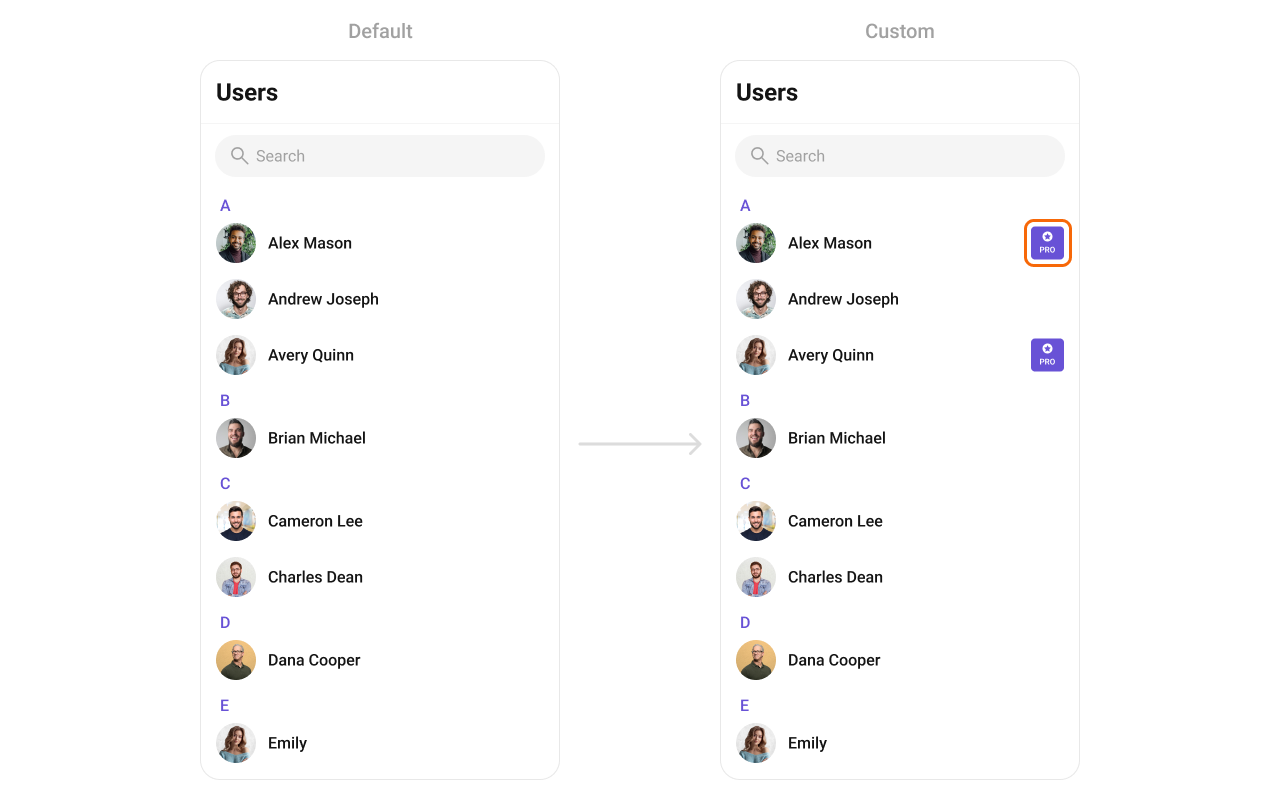 You can indeed create a custom layout file named `custom_user_tail_view.xml` for more complex or unique list items.
Once this layout file is made, you would inflate it inside the `createView()` method of the `UsersViewHolderListener`. The inflation process prepares the layout for use in your application:
Following this, you would use the `bindView()` method to initialize and assign values to your individual views. This could include setting text on TextViews, images on ImageViews, and so on based on the properties of the User object:
```xml custom_user_tail_view.xml theme={null}
```
```java theme={null}
cometchatUsers.setTrailingView(new UsersViewHolderListener() {
@Override
public View createView(Context context, CometchatListBaseItemsBinding listItem) {
return LayoutInflater.from(context).inflate(R.layout.custom_user_tail_view, null);
}
@Override
public void bindView(Context context, View createdView, User user, RecyclerView.ViewHolder holder, List userList, int position) {
View role = createdView.findViewById(R.id.tag);
if ("pro".equals(user.getRole())) {
role.setVisibility(View.VISIBLE);
role.setBackground(ResourcesCompat.getDrawable(getResources(), R.drawable.teacher, null));
} else {
role.setVisibility(View.GONE);
}
}
});
```
```kotlin theme={null}
cometchatUsers.setTrailingView(object : UsersViewHolderListener() {
override fun createView(context: Context?, listItem: CometchatListBaseItemsBinding?): View {
return LayoutInflater.from(context).inflate(R.layout.custom_user_tail_view, null)
}
override fun bindView(
context: Context,
createdView: View,
user: User,
holder: RecyclerView.ViewHolder,
userList: List,
position: Int
) {
val role = createdView.findViewById(R.id.tag)
if ("pro" == user.role) {
role.visibility = View.VISIBLE
role.background = ResourcesCompat.getDrawable(resources, R.drawable.teacher, null)
} else {
role.visibility = View.GONE
}
}
})
```
***
#### setItemView
This method allows developers to assign a fully custom ListItem layout to the Users component, replacing the default design. It provides complete control over the appearance and structure of each user item in the list.
Use Cases:
* Customizing User Display – Modify how user information (name, avatar, status) is presented.
* Adding Action Buttons – Include follow, message, or call buttons directly in the item view.
* Highlighting User Roles – Display user badges such as Admin, Moderator, or VIP.
```java theme={null}
cometchatUsers.seItemView(new UsersViewHolderListener() {
@Override
public View createView(Context context, CometchatListBaseItemsBinding listItem) {
return null;
}
@Override
public void bindView(Context context, View createdView, User user, RecyclerView.ViewHolder holder, List userList, int position) {
}
});
```
```kotlin theme={null}
cometchatUsers.setItemView(object: UsersViewHolderListener {
override fun createView(context: Context, cometChatListItem: CometChatListItem): View? {
return null
}
override fun bindView(context: Context, view: View, user: User, viewHolder: RecyclerView.ViewHolder, list: List, i: Int) {
}
})
```
**Example**
You can indeed create a custom layout file named `custom_user_tail_view.xml` for more complex or unique list items.
Once this layout file is made, you would inflate it inside the `createView()` method of the `UsersViewHolderListener`. The inflation process prepares the layout for use in your application:
Following this, you would use the `bindView()` method to initialize and assign values to your individual views. This could include setting text on TextViews, images on ImageViews, and so on based on the properties of the User object:
```xml custom_user_tail_view.xml theme={null}
```
```java theme={null}
cometchatUsers.setTrailingView(new UsersViewHolderListener() {
@Override
public View createView(Context context, CometchatListBaseItemsBinding listItem) {
return LayoutInflater.from(context).inflate(R.layout.custom_user_tail_view, null);
}
@Override
public void bindView(Context context, View createdView, User user, RecyclerView.ViewHolder holder, List userList, int position) {
View role = createdView.findViewById(R.id.tag);
if ("pro".equals(user.getRole())) {
role.setVisibility(View.VISIBLE);
role.setBackground(ResourcesCompat.getDrawable(getResources(), R.drawable.teacher, null));
} else {
role.setVisibility(View.GONE);
}
}
});
```
```kotlin theme={null}
cometchatUsers.setTrailingView(object : UsersViewHolderListener() {
override fun createView(context: Context?, listItem: CometchatListBaseItemsBinding?): View {
return LayoutInflater.from(context).inflate(R.layout.custom_user_tail_view, null)
}
override fun bindView(
context: Context,
createdView: View,
user: User,
holder: RecyclerView.ViewHolder,
userList: List,
position: Int
) {
val role = createdView.findViewById(R.id.tag)
if ("pro" == user.role) {
role.visibility = View.VISIBLE
role.background = ResourcesCompat.getDrawable(resources, R.drawable.teacher, null)
} else {
role.visibility = View.GONE
}
}
})
```
***
#### setItemView
This method allows developers to assign a fully custom ListItem layout to the Users component, replacing the default design. It provides complete control over the appearance and structure of each user item in the list.
Use Cases:
* Customizing User Display – Modify how user information (name, avatar, status) is presented.
* Adding Action Buttons – Include follow, message, or call buttons directly in the item view.
* Highlighting User Roles – Display user badges such as Admin, Moderator, or VIP.
```java theme={null}
cometchatUsers.seItemView(new UsersViewHolderListener() {
@Override
public View createView(Context context, CometchatListBaseItemsBinding listItem) {
return null;
}
@Override
public void bindView(Context context, View createdView, User user, RecyclerView.ViewHolder holder, List userList, int position) {
}
});
```
```kotlin theme={null}
cometchatUsers.setItemView(object: UsersViewHolderListener {
override fun createView(context: Context, cometChatListItem: CometChatListItem): View? {
return null
}
override fun bindView(context: Context, view: View, user: User, viewHolder: RecyclerView.ViewHolder, list: List, i: Int) {
}
})
```
**Example**
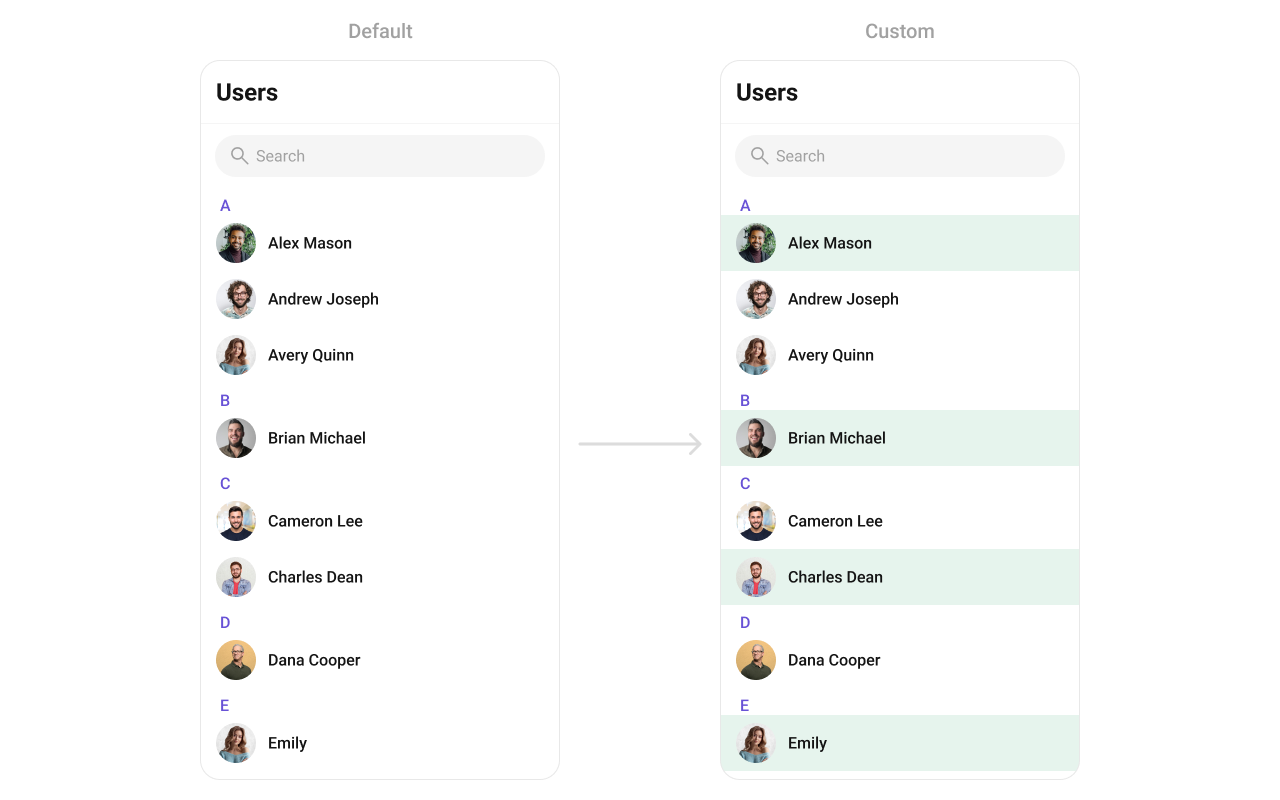 You can indeed create a custom layout file named `custom_list_item_view.xml` for more complex or unique list items.
Once this layout file is made, you would inflate it inside the `createView()` method of the `UsersViewHolderListener`. The inflation process prepares the layout for use in your application:
Following this, you would use the `bindView()` method to initialize and assign values to your individual views. This could include setting text on TextViews, images on ImageViews, and so on based on the properties of the User object:
```xml custom_list_item_view.xml theme={null}
```
```java YourActivity.java theme={null}
binding.users.setListItemView(new UsersViewHolderListener() {
@Override
public View createView(Context context, CometchatListBaseItemsBinding listItem) {
return LayoutInflater.from(context).inflate(R.layout.custom_list_item_view, null, false);
}
@Override
public void bindView(Context context, View createdView, User user, RecyclerView.ViewHolder holder, List userList, int position) {
CometChatAvatar avatar = createdView.findViewById(R.id.custom_avatar);
TextView title = createdView.findViewById(R.id.tvName);
LinearLayout parentLayout = createdView.findViewById(R.id.parent_lay);
String name = user.getName();
title.setText(name);
avatar.setStyle(com.cometchat.chatuikit.R.style.CometChatAvatarStyle);
avatar.setAvatarPlaceHolderTextAppearance(com.cometchat.chatuikit.R.style.CometChatTextAppearanceHeading4_Bold);
avatar.setAvatar(name,user.getAvatar());
if(user.getStatus().equals(UIKitConstants.UserStatus.ONLINE)) {
parentLayout.setBackgroundColor(Color.parseColor("#E6F4ED"));
} else {
parentLayout.setBackgroundColor(Color.parseColor("#00000000"));
}
}
});
```
```kotlin YourActivity.kt theme={null}
users.setListItemView(object : UsersViewHolderListener() {
override fun createView(
context: Context?,
listItem: CometchatListBaseItemsBinding?
): View {
return LayoutInflater.from(context)
.inflate(R.layout.custom_list_item_view, null, false)
}
override fun bindView(
context: Context,
createdView: View,
user: User,
holder: RecyclerView.ViewHolder,
userList: List,
position: Int
) {
val avatar = createdView.findViewById(R.id.custom_avatar)
val title = createdView.findViewById(R.id.tvName)
val parentLayout = createdView.findViewById(R.id.parent_lay)
val name = user.name
title.text = name
avatar.setStyle(com.cometchat.chatuikit.R.style.CometChatAvatarStyle)
avatar.avatarPlaceHolderTextAppearance =
com.cometchat.chatuikit.R.style.CometChatTextAppearanceHeading4_Bold
avatar.setAvatar(name, user.avatar)
if (user.status == UIKitConstants.UserStatus.ONLINE) {
parentLayout.setBackgroundColor(Color.parseColor("#E6F4ED"))
} else {
parentLayout.setBackgroundColor(Color.parseColor("#00000000"))
}
}
})
```
***
#### setSubtitleView
This method customizes the subtitle view of each user item, typically shown below the user's name. It can display additional details such as user status, last seen time, or a brief bio.
Use Cases:
* Last Active Time – Show "Online Now", "Last seen 2 hours ago".
* User Status – Display status messages like "Offine", "Available".
```java theme={null}
cometChatUsers.setSubtitleView(new UsersViewHolderListener() {
@Override
public View createView(Context context, CometchatListBaseItemsBinding listItem) {
return null;
}
@Override
public void bindView(Context context, View createdView, User user, RecyclerView.ViewHolder holder, List userList, int position) {
}
});
```
```kotlin theme={null}
cometChatUsers.setSubtitleView(object : UsersViewHolderListener() {
override fun createView(
context: Context?,
listItem: CometchatListBaseItemsBinding?
): View? {
return null
}
override fun bindView(
context: Context,
createdView: View,
user: User,
holder: RecyclerView.ViewHolder,
userList: List,
position: Int
) {
}
})
```
**Example**
You can indeed create a custom layout file named `custom_list_item_view.xml` for more complex or unique list items.
Once this layout file is made, you would inflate it inside the `createView()` method of the `UsersViewHolderListener`. The inflation process prepares the layout for use in your application:
Following this, you would use the `bindView()` method to initialize and assign values to your individual views. This could include setting text on TextViews, images on ImageViews, and so on based on the properties of the User object:
```xml custom_list_item_view.xml theme={null}
```
```java YourActivity.java theme={null}
binding.users.setListItemView(new UsersViewHolderListener() {
@Override
public View createView(Context context, CometchatListBaseItemsBinding listItem) {
return LayoutInflater.from(context).inflate(R.layout.custom_list_item_view, null, false);
}
@Override
public void bindView(Context context, View createdView, User user, RecyclerView.ViewHolder holder, List userList, int position) {
CometChatAvatar avatar = createdView.findViewById(R.id.custom_avatar);
TextView title = createdView.findViewById(R.id.tvName);
LinearLayout parentLayout = createdView.findViewById(R.id.parent_lay);
String name = user.getName();
title.setText(name);
avatar.setStyle(com.cometchat.chatuikit.R.style.CometChatAvatarStyle);
avatar.setAvatarPlaceHolderTextAppearance(com.cometchat.chatuikit.R.style.CometChatTextAppearanceHeading4_Bold);
avatar.setAvatar(name,user.getAvatar());
if(user.getStatus().equals(UIKitConstants.UserStatus.ONLINE)) {
parentLayout.setBackgroundColor(Color.parseColor("#E6F4ED"));
} else {
parentLayout.setBackgroundColor(Color.parseColor("#00000000"));
}
}
});
```
```kotlin YourActivity.kt theme={null}
users.setListItemView(object : UsersViewHolderListener() {
override fun createView(
context: Context?,
listItem: CometchatListBaseItemsBinding?
): View {
return LayoutInflater.from(context)
.inflate(R.layout.custom_list_item_view, null, false)
}
override fun bindView(
context: Context,
createdView: View,
user: User,
holder: RecyclerView.ViewHolder,
userList: List,
position: Int
) {
val avatar = createdView.findViewById(R.id.custom_avatar)
val title = createdView.findViewById(R.id.tvName)
val parentLayout = createdView.findViewById(R.id.parent_lay)
val name = user.name
title.text = name
avatar.setStyle(com.cometchat.chatuikit.R.style.CometChatAvatarStyle)
avatar.avatarPlaceHolderTextAppearance =
com.cometchat.chatuikit.R.style.CometChatTextAppearanceHeading4_Bold
avatar.setAvatar(name, user.avatar)
if (user.status == UIKitConstants.UserStatus.ONLINE) {
parentLayout.setBackgroundColor(Color.parseColor("#E6F4ED"))
} else {
parentLayout.setBackgroundColor(Color.parseColor("#00000000"))
}
}
})
```
***
#### setSubtitleView
This method customizes the subtitle view of each user item, typically shown below the user's name. It can display additional details such as user status, last seen time, or a brief bio.
Use Cases:
* Last Active Time – Show "Online Now", "Last seen 2 hours ago".
* User Status – Display status messages like "Offine", "Available".
```java theme={null}
cometChatUsers.setSubtitleView(new UsersViewHolderListener() {
@Override
public View createView(Context context, CometchatListBaseItemsBinding listItem) {
return null;
}
@Override
public void bindView(Context context, View createdView, User user, RecyclerView.ViewHolder holder, List userList, int position) {
}
});
```
```kotlin theme={null}
cometChatUsers.setSubtitleView(object : UsersViewHolderListener() {
override fun createView(
context: Context?,
listItem: CometchatListBaseItemsBinding?
): View? {
return null
}
override fun bindView(
context: Context,
createdView: View,
user: User,
holder: RecyclerView.ViewHolder,
userList: List,
position: Int
) {
}
})
```
**Example**
 You can indeed create a custom layout file named `subtitle_layout.xml` for more complex or unique list items.
Once this layout file is made, you would inflate it inside the `createView()` method of the `UsersViewHolderListener`. The inflation process prepares the layout for use in your application:
Following this, you would use the `bindView()` method to initialize and assign values to your individual views. This could include setting text on TextViews, images on ImageViews, and so on based on the properties of the User object:
```java theme={null}
cometChatUsers.setSubtitleView(new UsersViewHolderListener() {
@Override
public View createView(Context context, CometchatListBaseItemsBinding listItem) {
return new TextView(context);
}
@Override
public void bindView(Context context, View createdView, User user, RecyclerView.ViewHolder holder, List userList, int position) {
TextView tvSubtitle = (TextView) createdView;
tvSubtitle.setText("Last Active at: "+new SimpleDateFormat("dd/mm/yyyy, HH:MM:SS").format(user.getLastActiveAt() * 1000));
tvSubtitle.setTextColor(Color.BLACK);
}
});
```
```kotlin theme={null}
cometChatUsers.setSubtitleView(object : UsersViewHolderListener() {
override fun createView(
context: Context?,
listItem: CometchatListBaseItemsBinding?
): View {
return TextView(context)
}
override fun bindView(
context: Context,
createdView: View,
user: User,
holder: RecyclerView.ViewHolder,
userList: List,
position: Int
) {
val tvSubtitle = createdView as TextView
tvSubtitle.text =
"Last Active at: " + SimpleDateFormat("dd/mm/yyyy, HH:MM:SS").format(user.lastActiveAt * 1000)
tvSubtitle.setTextColor(Color.BLACK)
}
})
```
***
#### setOverflowMenu
This method customizes the overflow menu, typically appearing as a three-dot (⋮) icon, allowing additional options for each user in the list.
Use Cases:
* User Management Actions – "Block User", "Report", "Add to Favorites".
* Friendship & Communication – "Send Message", "Follow/Unfollow".
* Profile Settings – "View Profile", "Edit Contact Info".
```java theme={null}
users.setOverflowMenu(v);
```
```kotlin theme={null}
users.setOverflowMenu(v)
```
**Example**
You can indeed create a custom layout file named `subtitle_layout.xml` for more complex or unique list items.
Once this layout file is made, you would inflate it inside the `createView()` method of the `UsersViewHolderListener`. The inflation process prepares the layout for use in your application:
Following this, you would use the `bindView()` method to initialize and assign values to your individual views. This could include setting text on TextViews, images on ImageViews, and so on based on the properties of the User object:
```java theme={null}
cometChatUsers.setSubtitleView(new UsersViewHolderListener() {
@Override
public View createView(Context context, CometchatListBaseItemsBinding listItem) {
return new TextView(context);
}
@Override
public void bindView(Context context, View createdView, User user, RecyclerView.ViewHolder holder, List userList, int position) {
TextView tvSubtitle = (TextView) createdView;
tvSubtitle.setText("Last Active at: "+new SimpleDateFormat("dd/mm/yyyy, HH:MM:SS").format(user.getLastActiveAt() * 1000));
tvSubtitle.setTextColor(Color.BLACK);
}
});
```
```kotlin theme={null}
cometChatUsers.setSubtitleView(object : UsersViewHolderListener() {
override fun createView(
context: Context?,
listItem: CometchatListBaseItemsBinding?
): View {
return TextView(context)
}
override fun bindView(
context: Context,
createdView: View,
user: User,
holder: RecyclerView.ViewHolder,
userList: List,
position: Int
) {
val tvSubtitle = createdView as TextView
tvSubtitle.text =
"Last Active at: " + SimpleDateFormat("dd/mm/yyyy, HH:MM:SS").format(user.lastActiveAt * 1000)
tvSubtitle.setTextColor(Color.BLACK)
}
})
```
***
#### setOverflowMenu
This method customizes the overflow menu, typically appearing as a three-dot (⋮) icon, allowing additional options for each user in the list.
Use Cases:
* User Management Actions – "Block User", "Report", "Add to Favorites".
* Friendship & Communication – "Send Message", "Follow/Unfollow".
* Profile Settings – "View Profile", "Edit Contact Info".
```java theme={null}
users.setOverflowMenu(v);
```
```kotlin theme={null}
users.setOverflowMenu(v)
```
**Example**
 ```java theme={null}
ImageView imageView = new ImageView(requireContext());
imageView.setImageResource(R.drawable.ic_user_menu);
users.setOverflowMenu(imageView);
```
```kotlin theme={null}
val imageView = ImageView(requireContext())
imageView.setImageResource(android.R.drawable.ic_user_menu)
users.setOverflowMenu(imageView)
```
```java theme={null}
ImageView imageView = new ImageView(requireContext());
imageView.setImageResource(R.drawable.ic_user_menu);
users.setOverflowMenu(imageView);
```
```kotlin theme={null}
val imageView = ImageView(requireContext())
imageView.setImageResource(android.R.drawable.ic_user_menu)
users.setOverflowMenu(imageView)
```