> ## Documentation Index
> Fetch the complete documentation index at: https://cometchat-22654f5b-feature-react-native-sdk-quotedmessage-a.mintlify.site/llms.txt
> Use this file to discover all available pages before exploring further.
# Building A Messaging UI With Tabs, Sidebar, And Message View
This guide walks you through creating a **tab-based messaging UI** using **React** and **CometChat UIKit**. The UI will include different sections for **Chats, Calls, Users, and Groups**, allowing seamless navigation.
***
## **User Interface Preview**
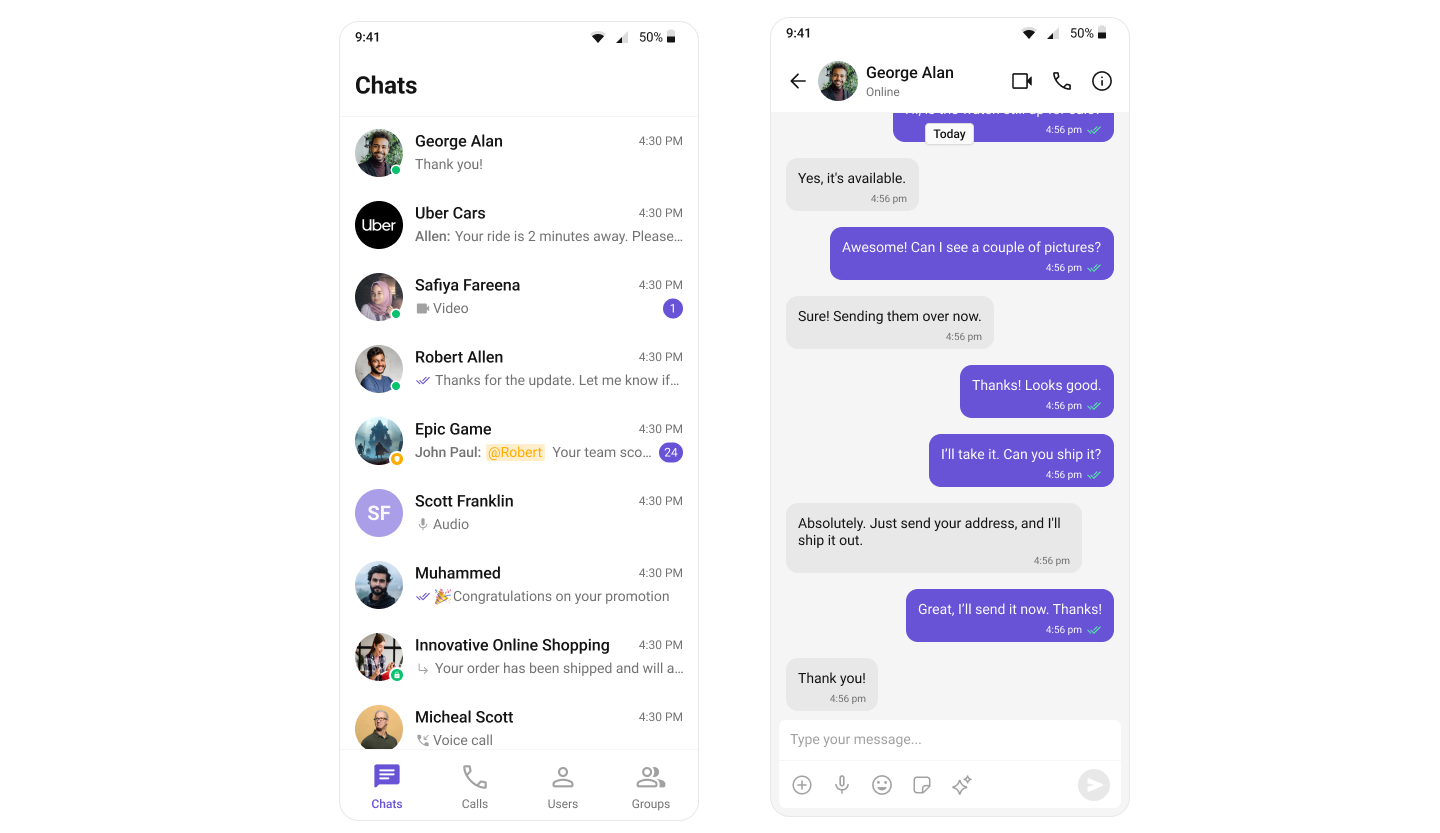 This layout consists of:
1. **Sidebar (Conversation List)** – Displays recent conversations with active users and groups.
2. **Message View** – Shows the selected chat with real-time messages.
3. **Message Input Box** – Allows users to send messages seamlessly.
***
### **Step 1: Render the Tab Component**
The `CometChatConversations` widget displays all conversations related to the currently logged-in user. Follow the steps below to render this component:
```dart main.dart theme={null}
@override
Widget build(BuildContext context) {
return Scaffold(
appBar: CometChatMessageHeader(
user: widget.user,
group: widget.group,
),
body: SafeArea(
child: Column(
children: [
Expanded(
child: CometChatMessageList(
user: widget.user,
group: widget.group,
),
),
CometChatMessageComposer(
user: widget.user,
group: widget.group,
),
],
),
),
);
}
```
#### **Full Example: main.dart**
```dart main.dart theme={null}
import 'package:flutter/material.dart';
import 'package:cometchat_chat_uikit/cometchat_chat_uikit.dart';
import 'package:cometchat_calls_uikit/cometchat_calls_uikit.dart'; //Optional: Include if you're using Audio/Video Calling
import 'messages_screen.dart';
import 'cometchat_config.dart';
void main() => runApp(const MyApp());
class MyApp extends StatelessWidget {
const MyApp({super.key});
@override
Widget build(BuildContext context) {
return MaterialApp(
title: 'CometChat UI Kit',
theme: ThemeData(
colorScheme: ColorScheme.fromSeed(seedColor: Colors.deepPurple),
useMaterial3: true,
),
home: const Home(),
);
}
}
class Home extends StatelessWidget {
const Home({super.key});
Future _initializeAndLogin() async {
final settings = UIKitSettingsBuilder()
..subscriptionType = CometChatSubscriptionType.allUsers
..autoEstablishSocketConnection = true
..appId = CometChatConfig.appId
..region = CometChatConfig.region
..authKey = CometChatConfig.authKey
..extensions = CometChatUIKitChatExtensions.getDefaultExtensions() //Replace this with empty array, if you want to disable all extensions
..callingExtension = CometChatCallingExtension(); //Optional: Include if you're using Audio/Video Calling
await CometChatUIKit.init(uiKitSettings: settings.build());
await CometChatUIKit.login(
'cometchat-uid-1',
onSuccess: (_) => debugPrint('✅ Login Successful'),
onError: (err) => throw Exception('Login Failed: $err'),
);
}
@override
Widget build(BuildContext context) {
return FutureBuilder(
future: _initializeAndLogin(),
builder: (ctx, snap) {
if (snap.connectionState != ConnectionState.done) {
return const Scaffold(
body: SafeArea(
child: Center(child: CircularProgressIndicator()),
),
);
}
if (snap.hasError) {
return Scaffold(
body: SafeArea(
child: Center(
child: Text(
'Error starting app:\n${snap.error}',
textAlign: TextAlign.center,
),
),
),
);
}
return const TabsScreen();
},
);
}
}
class TabsScreen extends StatefulWidget {
const TabsScreen({super.key});
@override
State createState() => _TabsScreenState();
}
class _TabsScreenState extends State {
int _selectedIndex = 0;
final PageController _pageController = PageController();
void _onItemTapped(int index) {
setState(() {
_selectedIndex = index;
});
_pageController.jumpToPage(index);
}
@override
Widget build(BuildContext context) {
return Scaffold(
body: PageView(
controller: _pageController,
onPageChanged: (index) {
setState(() {
_selectedIndex = index;
});
},
children: [
CometChatConversations(
showBackButton: false,
onItemTap: (conversation) {
Navigator.push(
context,
MaterialPageRoute(
builder: (context) => MessagesScreen(
user: conversation.conversationWith is User
? conversation.conversationWith as User
: null,
group: conversation.conversationWith is Group
? conversation.conversationWith as Group
: null,
),
),
);
},
),
CometChatCallLogs(),
CometChatUsers(),
CometChatGroups(),
],
),
bottomNavigationBar: BottomNavigationBar(
currentIndex: _selectedIndex,
onTap: _onItemTapped,
items: const [
BottomNavigationBarItem(
icon: Icon(Icons.chat),
label: "Chat",
),
BottomNavigationBarItem(
icon: Icon(Icons.call),
label: "Calls",
),
BottomNavigationBarItem(
icon: Icon(Icons.person),
label: "Users",
),
BottomNavigationBarItem(
icon: Icon(Icons.group),
label: "Groups",
),
],
),
);
}
}
```
### **Step 2: Render the Messages Component**
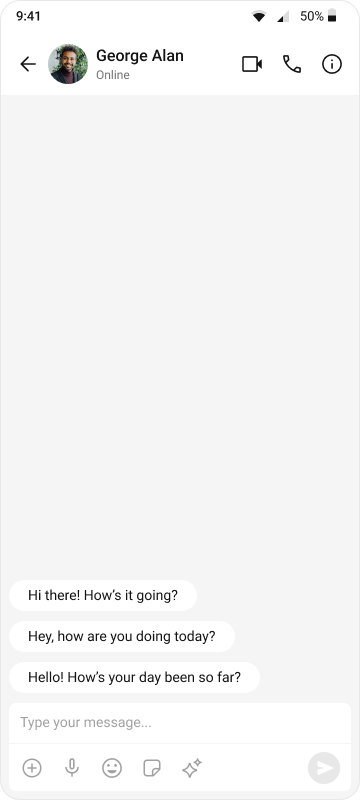
To create a complete messaging view, include the following components in `messages_screen.dart`:
* [Message Header](/ui-kit/flutter/message-header)
* [Message List](/ui-kit/flutter/message-list)
* [Message Composer](/ui-kit/flutter/message-composer)
This layout consists of:
1. **Sidebar (Conversation List)** – Displays recent conversations with active users and groups.
2. **Message View** – Shows the selected chat with real-time messages.
3. **Message Input Box** – Allows users to send messages seamlessly.
***
### **Step 1: Render the Tab Component**
The `CometChatConversations` widget displays all conversations related to the currently logged-in user. Follow the steps below to render this component:
```dart main.dart theme={null}
@override
Widget build(BuildContext context) {
return Scaffold(
appBar: CometChatMessageHeader(
user: widget.user,
group: widget.group,
),
body: SafeArea(
child: Column(
children: [
Expanded(
child: CometChatMessageList(
user: widget.user,
group: widget.group,
),
),
CometChatMessageComposer(
user: widget.user,
group: widget.group,
),
],
),
),
);
}
```
#### **Full Example: main.dart**
```dart main.dart theme={null}
import 'package:flutter/material.dart';
import 'package:cometchat_chat_uikit/cometchat_chat_uikit.dart';
import 'package:cometchat_calls_uikit/cometchat_calls_uikit.dart'; //Optional: Include if you're using Audio/Video Calling
import 'messages_screen.dart';
import 'cometchat_config.dart';
void main() => runApp(const MyApp());
class MyApp extends StatelessWidget {
const MyApp({super.key});
@override
Widget build(BuildContext context) {
return MaterialApp(
title: 'CometChat UI Kit',
theme: ThemeData(
colorScheme: ColorScheme.fromSeed(seedColor: Colors.deepPurple),
useMaterial3: true,
),
home: const Home(),
);
}
}
class Home extends StatelessWidget {
const Home({super.key});
Future _initializeAndLogin() async {
final settings = UIKitSettingsBuilder()
..subscriptionType = CometChatSubscriptionType.allUsers
..autoEstablishSocketConnection = true
..appId = CometChatConfig.appId
..region = CometChatConfig.region
..authKey = CometChatConfig.authKey
..extensions = CometChatUIKitChatExtensions.getDefaultExtensions() //Replace this with empty array, if you want to disable all extensions
..callingExtension = CometChatCallingExtension(); //Optional: Include if you're using Audio/Video Calling
await CometChatUIKit.init(uiKitSettings: settings.build());
await CometChatUIKit.login(
'cometchat-uid-1',
onSuccess: (_) => debugPrint('✅ Login Successful'),
onError: (err) => throw Exception('Login Failed: $err'),
);
}
@override
Widget build(BuildContext context) {
return FutureBuilder(
future: _initializeAndLogin(),
builder: (ctx, snap) {
if (snap.connectionState != ConnectionState.done) {
return const Scaffold(
body: SafeArea(
child: Center(child: CircularProgressIndicator()),
),
);
}
if (snap.hasError) {
return Scaffold(
body: SafeArea(
child: Center(
child: Text(
'Error starting app:\n${snap.error}',
textAlign: TextAlign.center,
),
),
),
);
}
return const TabsScreen();
},
);
}
}
class TabsScreen extends StatefulWidget {
const TabsScreen({super.key});
@override
State createState() => _TabsScreenState();
}
class _TabsScreenState extends State {
int _selectedIndex = 0;
final PageController _pageController = PageController();
void _onItemTapped(int index) {
setState(() {
_selectedIndex = index;
});
_pageController.jumpToPage(index);
}
@override
Widget build(BuildContext context) {
return Scaffold(
body: PageView(
controller: _pageController,
onPageChanged: (index) {
setState(() {
_selectedIndex = index;
});
},
children: [
CometChatConversations(
showBackButton: false,
onItemTap: (conversation) {
Navigator.push(
context,
MaterialPageRoute(
builder: (context) => MessagesScreen(
user: conversation.conversationWith is User
? conversation.conversationWith as User
: null,
group: conversation.conversationWith is Group
? conversation.conversationWith as Group
: null,
),
),
);
},
),
CometChatCallLogs(),
CometChatUsers(),
CometChatGroups(),
],
),
bottomNavigationBar: BottomNavigationBar(
currentIndex: _selectedIndex,
onTap: _onItemTapped,
items: const [
BottomNavigationBarItem(
icon: Icon(Icons.chat),
label: "Chat",
),
BottomNavigationBarItem(
icon: Icon(Icons.call),
label: "Calls",
),
BottomNavigationBarItem(
icon: Icon(Icons.person),
label: "Users",
),
BottomNavigationBarItem(
icon: Icon(Icons.group),
label: "Groups",
),
],
),
);
}
}
```
### **Step 2: Render the Messages Component**
To create a complete messaging view, include the following components in `messages_screen.dart`:
* [Message Header](/ui-kit/flutter/message-header)
* [Message List](/ui-kit/flutter/message-list)
* [Message Composer](/ui-kit/flutter/message-composer)
 ```dart messages_screen.dart theme={null}
import 'package:flutter/material.dart';
import 'package:cometchat_chat_uikit/cometchat_chat_uikit.dart';
class MessagesScreen extends StatefulWidget {
final User? user;
final Group? group;
const MessagesScreen({Key? key, this.user, this.group}) : super(key: key);
@override
State createState() => _MessagesScreenState();
}
class _MessagesScreenState extends State {
@override
Widget build(BuildContext context) {
return Scaffold(
appBar: CometChatMessageHeader(
user: widget.user,
group: widget.group,
),
body: SafeArea(
child: Column(
children: [
Expanded(
child: CometChatMessageList(
user: widget.user,
group: widget.group,
),
),
CometChatMessageComposer(
user: widget.user,
group: widget.group,
),
],
),
),
);
}
}
```
***
### **Step 3: Run the App**
Use the following command to run the app on a connected device or emulator:
```
flutter run
```
This will launch the app, and you should see the tab-based chat experience with the sidebar and message view. You can navigate between different tabs (Chats, Calls, Users, and Groups) and interact with the messaging features seamlessly.
***
## **Next Steps**
### **Enhance the User Experience**
* **[Advanced Customizations](/ui-kit/flutter/theme-introduction)** – Personalize the chat UI to align with your brand.
***
```dart messages_screen.dart theme={null}
import 'package:flutter/material.dart';
import 'package:cometchat_chat_uikit/cometchat_chat_uikit.dart';
class MessagesScreen extends StatefulWidget {
final User? user;
final Group? group;
const MessagesScreen({Key? key, this.user, this.group}) : super(key: key);
@override
State createState() => _MessagesScreenState();
}
class _MessagesScreenState extends State {
@override
Widget build(BuildContext context) {
return Scaffold(
appBar: CometChatMessageHeader(
user: widget.user,
group: widget.group,
),
body: SafeArea(
child: Column(
children: [
Expanded(
child: CometChatMessageList(
user: widget.user,
group: widget.group,
),
),
CometChatMessageComposer(
user: widget.user,
group: widget.group,
),
],
),
),
);
}
}
```
***
### **Step 3: Run the App**
Use the following command to run the app on a connected device or emulator:
```
flutter run
```
This will launch the app, and you should see the tab-based chat experience with the sidebar and message view. You can navigate between different tabs (Chats, Calls, Users, and Groups) and interact with the messaging features seamlessly.
***
## **Next Steps**
### **Enhance the User Experience**
* **[Advanced Customizations](/ui-kit/flutter/theme-introduction)** – Personalize the chat UI to align with your brand.
***