> ## Documentation Index
> Fetch the complete documentation index at: https://cometchat-22654f5b-feature-react-native-sdk-quotedmessage-a.mintlify.site/llms.txt
> Use this file to discover all available pages before exploring further.
# AI Assistant Chat History
## Overview
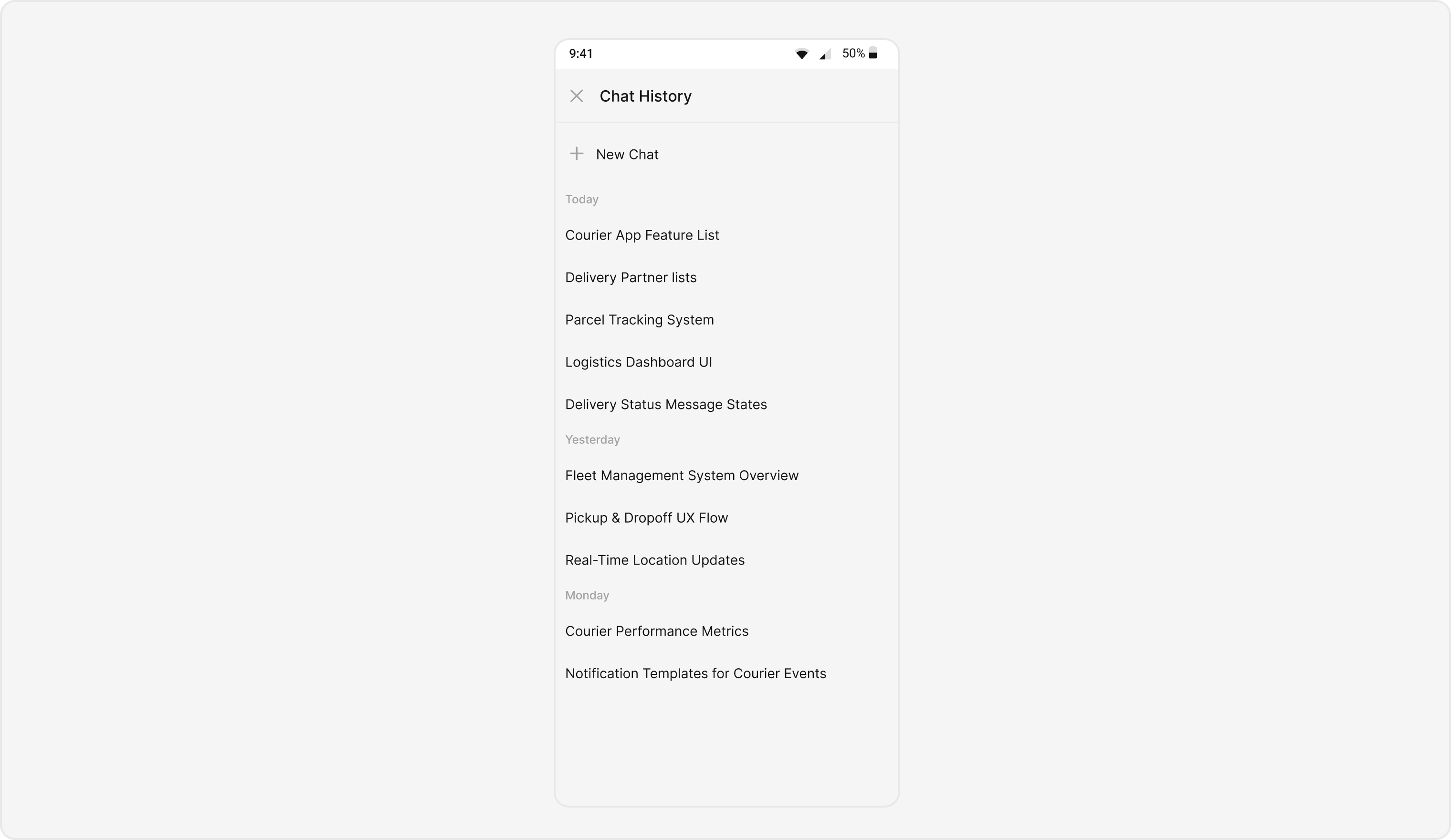
The `AI Assistant Chat History` component is a pre-built user interface component designed to display the conversation history between users and an AI assistant within a chat application. It provides a structured and visually appealing way to present past interactions, making it easy for users to review previous messages and context.
 ## Usage
### Integration
##### Using Navigation Controller to Present `CometChatAIAssistantChatHistory`
The `CometChatAIAssistanceChatHistory` component can be launched using a navigation controller.
This approach is ideal when you want to present the chat history as a standalone screen within your app’s navigation flow
```swift theme={null}
let chatHistory = CometChatAIAssistanceChatHistory()
chatHistory.user = user // A User or Group object is required to launch this component.
self.navigationController?.pushViewController(chatHistory, animated: true)
```
Simply adding the CometChatAIAssistanceChatHistory component to your view hierarchy without providing a User or Group object will only display a loading indicator.
To fetch and display actual messages, you must assign either a User or a Group object to the component.
***
### Actions
[Actions](/ui-kit/ios/components-overview#actions) define how a component behaves and responds to user interactions.
##### onNewChatButtonClicked
`onNewChatButtonClicked` The `onNewChatButtonClicked` action is triggered when the user taps on the “New Chat” button.\
You can override it to define custom functionality, such as navigating to a new chat creation screen or initiating a new AI chat session.
```swift theme={null}
let chatHistory = CometChatAIAssistanceChatHistory()
chatHistory.user = user // A User or Group object is required to launch this component.
chatHistory.onNewChatButtonClicked = {
// TODO: Implement custom behavior here
}
```
***
##### onMessageClicked
You can customize this behavior by using the provided code snippet to override the onMessageClicked callback.
This allows you to define custom actions when a user taps on a message inside the AI Assistant Chat History component.
```swift theme={null}
let chatHistory = CometChatAIAssistanceChatHistory()
chatHistory.user = user // A User or Group object is required to launch this component.
chatHistory.onMessageClicked = { message in
// TODO: Implement custom behavior when a message is clicked
}
```
***
##### onError
You can customize this behavior by overriding the `onError` callback to improve error handling within the component.\
This is useful for displaying custom error messages or performing recovery actions when data fetching fails.
```swift theme={null}
let chatHistory = CometChatAIAssistanceChatHistory()
chatHistory.user = user // A User or Group object is required to launch this component.
chatHistory.set(onError: { error in
// Override on error
})
```
##### onLoad
The `onLoad` callback is invoked when the message list is successfully fetched and loaded.
This can be used to track component readiness or perform actions once messages are displayed.
```swift theme={null}
let chatHistory = CometChatAIAssistanceChatHistory()
chatHistory.user = user // A User or Group object is required to launch this component.
chatHistory.set(onLoad: { history in
// Handle loaded ai chat history
})
```
***
##### onEmpty
The `onEmpty` callback is triggered when no messages are available.
You can use this to show placeholder content, such as an empty state message or an illustration.
```swift theme={null}
let chatHistory = CometChatAIAssistanceChatHistory()
chatHistory.user = user // A User or Group object is required to launch this component.
chatHistory.set(onEmpty: {
// Handle empty state
})
```
***
### Filters
You can customize the message list displayed in the `CometChatAIAssistanceChatHistory` component by modifying the `MessagesRequestBuilder`.
This allows you to filter messages according to your app’s needs — for example, fetching messages that match a search term or belong to a specific user or group.
In the example below, we are applying a filter to the messages based on a search substring and for a specific user. This means that only messages that contain the search term and are associated with the specified user will be displayed
```swift theme={null}
swift let builder = MessagesRequest.MessageRequestBuilder()
.set(uid: user.uid) // Example: filter messages by user UID
let chatHistory = CometChatAIAssistanceChatHistory()
chatHistory.user = user // A User or Group object is required to launch this component.
chatHistory.set(messagesRequestBuilder: builder)
```
The following parameters in `messagesRequestBuilder` will always be modified internally by the component:
1. `uid`
2. `guid`
3. `types`
4. `categories`
***
### Events
[Events](/ui-kit/flutter/components-overview#events) are emitted by a `Component`.
By using events, you can extend existing functionality. Since events are global in nature, they can be added or removed from multiple locations within the app.
The CometChatAIAssistanceChatHistory component does not emit any events of its own.
***
## Customization
To meet your app’s design and UX requirements, you can customize the appearance and functionality of the `CometChatAIAssistanceChatHistory` component.
We provide multiple exposed properties and methods that allow you to modify both the visual style and interactive behavior according to your needs.
### Style
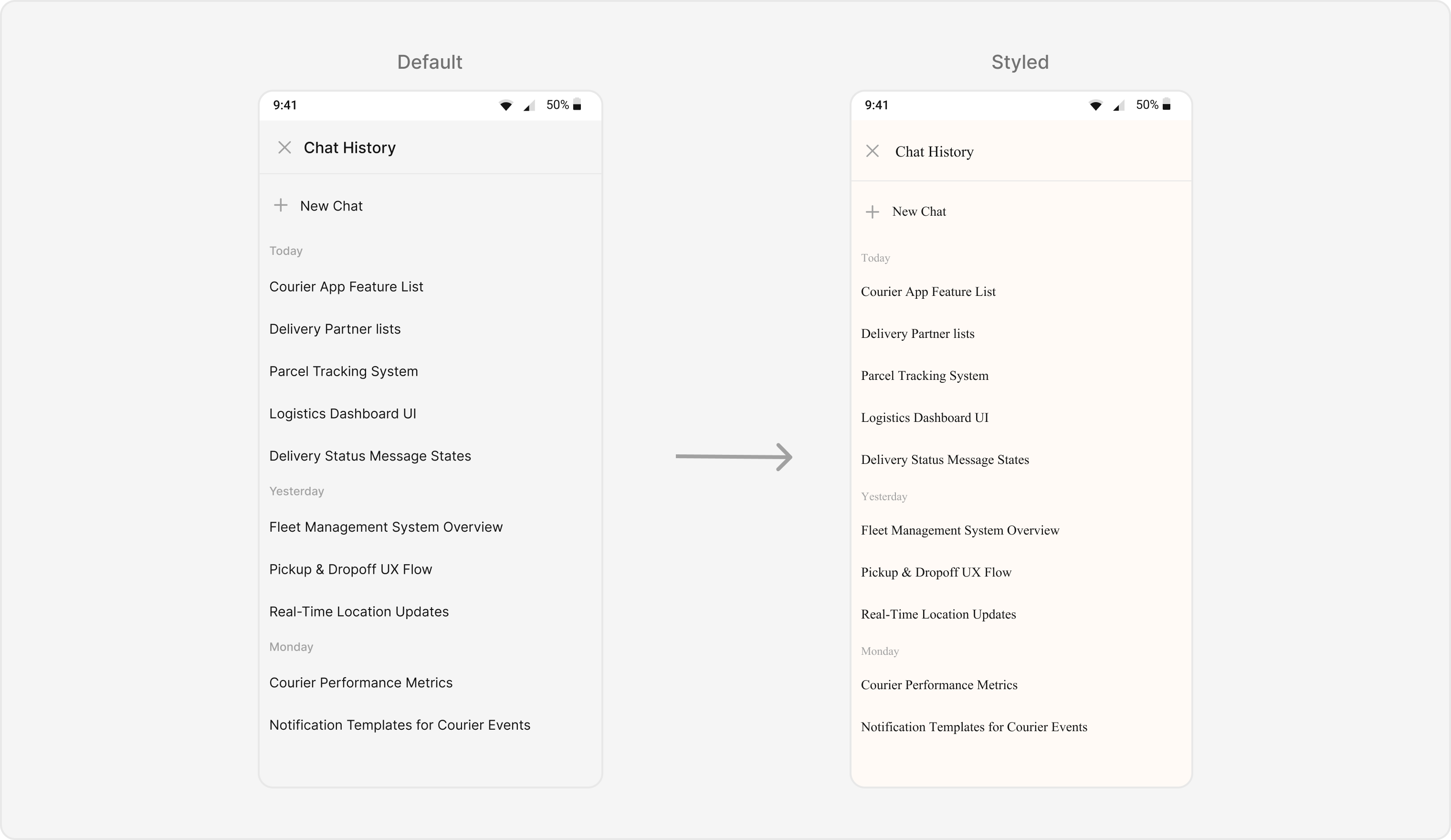
The style property allows you to customize the look and feel of the component in your app.
These parameters control key design aspects such as colors, fonts, text styles, and background appearance for various subviews like headers, date separators, and message items
##### 1. AiAssistantChatHistoryStyle
You can assign a custom `AiAssistantChatHistoryStyle` to the component to override the default visual theme.
**Global level styling**
```swift theme={null}
CometChatAIAssistanceChatHistory.style.backgroundColor =
CometChatAIAssistanceChatHistory.style.itemTextFont =
CometChatAIAssistanceChatHistory.style.newChatTitleFont =
```
**Instance level styling**
```swift theme={null}
let aiAssistantChatHistoryStyle = AiAssistantChatHistoryStyle()
aiAssistantChatHistoryStyle.backgroundColor =
aiAssistantChatHistoryStyle.itemTextFont =
aiAssistantChatHistoryStyle.newChatTitleFont =
let aIAssistanceChatHistory = CometChatAIAssistanceChatHistory()
aIAssistanceChatHistory.style = aiAssistantChatHistoryStyle
```
## Usage
### Integration
##### Using Navigation Controller to Present `CometChatAIAssistantChatHistory`
The `CometChatAIAssistanceChatHistory` component can be launched using a navigation controller.
This approach is ideal when you want to present the chat history as a standalone screen within your app’s navigation flow
```swift theme={null}
let chatHistory = CometChatAIAssistanceChatHistory()
chatHistory.user = user // A User or Group object is required to launch this component.
self.navigationController?.pushViewController(chatHistory, animated: true)
```
Simply adding the CometChatAIAssistanceChatHistory component to your view hierarchy without providing a User or Group object will only display a loading indicator.
To fetch and display actual messages, you must assign either a User or a Group object to the component.
***
### Actions
[Actions](/ui-kit/ios/components-overview#actions) define how a component behaves and responds to user interactions.
##### onNewChatButtonClicked
`onNewChatButtonClicked` The `onNewChatButtonClicked` action is triggered when the user taps on the “New Chat” button.\
You can override it to define custom functionality, such as navigating to a new chat creation screen or initiating a new AI chat session.
```swift theme={null}
let chatHistory = CometChatAIAssistanceChatHistory()
chatHistory.user = user // A User or Group object is required to launch this component.
chatHistory.onNewChatButtonClicked = {
// TODO: Implement custom behavior here
}
```
***
##### onMessageClicked
You can customize this behavior by using the provided code snippet to override the onMessageClicked callback.
This allows you to define custom actions when a user taps on a message inside the AI Assistant Chat History component.
```swift theme={null}
let chatHistory = CometChatAIAssistanceChatHistory()
chatHistory.user = user // A User or Group object is required to launch this component.
chatHistory.onMessageClicked = { message in
// TODO: Implement custom behavior when a message is clicked
}
```
***
##### onError
You can customize this behavior by overriding the `onError` callback to improve error handling within the component.\
This is useful for displaying custom error messages or performing recovery actions when data fetching fails.
```swift theme={null}
let chatHistory = CometChatAIAssistanceChatHistory()
chatHistory.user = user // A User or Group object is required to launch this component.
chatHistory.set(onError: { error in
// Override on error
})
```
##### onLoad
The `onLoad` callback is invoked when the message list is successfully fetched and loaded.
This can be used to track component readiness or perform actions once messages are displayed.
```swift theme={null}
let chatHistory = CometChatAIAssistanceChatHistory()
chatHistory.user = user // A User or Group object is required to launch this component.
chatHistory.set(onLoad: { history in
// Handle loaded ai chat history
})
```
***
##### onEmpty
The `onEmpty` callback is triggered when no messages are available.
You can use this to show placeholder content, such as an empty state message or an illustration.
```swift theme={null}
let chatHistory = CometChatAIAssistanceChatHistory()
chatHistory.user = user // A User or Group object is required to launch this component.
chatHistory.set(onEmpty: {
// Handle empty state
})
```
***
### Filters
You can customize the message list displayed in the `CometChatAIAssistanceChatHistory` component by modifying the `MessagesRequestBuilder`.
This allows you to filter messages according to your app’s needs — for example, fetching messages that match a search term or belong to a specific user or group.
In the example below, we are applying a filter to the messages based on a search substring and for a specific user. This means that only messages that contain the search term and are associated with the specified user will be displayed
```swift theme={null}
swift let builder = MessagesRequest.MessageRequestBuilder()
.set(uid: user.uid) // Example: filter messages by user UID
let chatHistory = CometChatAIAssistanceChatHistory()
chatHistory.user = user // A User or Group object is required to launch this component.
chatHistory.set(messagesRequestBuilder: builder)
```
The following parameters in `messagesRequestBuilder` will always be modified internally by the component:
1. `uid`
2. `guid`
3. `types`
4. `categories`
***
### Events
[Events](/ui-kit/flutter/components-overview#events) are emitted by a `Component`.
By using events, you can extend existing functionality. Since events are global in nature, they can be added or removed from multiple locations within the app.
The CometChatAIAssistanceChatHistory component does not emit any events of its own.
***
## Customization
To meet your app’s design and UX requirements, you can customize the appearance and functionality of the `CometChatAIAssistanceChatHistory` component.
We provide multiple exposed properties and methods that allow you to modify both the visual style and interactive behavior according to your needs.
### Style
The style property allows you to customize the look and feel of the component in your app.
These parameters control key design aspects such as colors, fonts, text styles, and background appearance for various subviews like headers, date separators, and message items
##### 1. AiAssistantChatHistoryStyle
You can assign a custom `AiAssistantChatHistoryStyle` to the component to override the default visual theme.
**Global level styling**
```swift theme={null}
CometChatAIAssistanceChatHistory.style.backgroundColor =
CometChatAIAssistanceChatHistory.style.itemTextFont =
CometChatAIAssistanceChatHistory.style.newChatTitleFont =
```
**Instance level styling**
```swift theme={null}
let aiAssistantChatHistoryStyle = AiAssistantChatHistoryStyle()
aiAssistantChatHistoryStyle.backgroundColor =
aiAssistantChatHistoryStyle.itemTextFont =
aiAssistantChatHistoryStyle.newChatTitleFont =
let aIAssistanceChatHistory = CometChatAIAssistanceChatHistory()
aIAssistanceChatHistory.style = aiAssistantChatHistoryStyle
```
 ***
### Functionality
These functional customizations allow you to fine-tune the overall behavior and user experience of the component.
With these options, you can modify text, customize icons, and toggle visibility for specific UI elements within the `CometChatAIAssistanceChatHistory` component.
```swift theme={null}
swift let chatHistory = CometChatAIAssistanceChatHistory()
chatHistory.user = user // A User or Group object is required to launch this component.
// Example: Adding a custom back button
let backButton = UIButton(type: .system)
backButton.setImage(UIImage(systemName: "snowflake"), for: .normal)
backButton.tintColor = .systemRed
backButton.addTarget(self, action: #selector(didTapBackButton), for: .touchUpInside)
chatHistory.backButton = backButton
```
## CometChatMessageList Properties
Below is a list of customizations along with corresponding code snippets:
| **Property** | **Description** | **Code** |
| ------------------------------ | ----------------------------------------------------------------------- | -------------------------------------------------------------------------------------- |
| **User** | Used to set the user for displaying their AI chat history. | `CometChatAIAssistantChatHistory.set(user: user)` |
| **Group** | Used to set the group for displaying its AI chat history. | `CometChatAIAssistantChatHistory.set(group: group)` |
| **Messages Request Builder** | Used to pass a custom message request builder to fetch AI chat history. | `CometChatAIAssistantChatHistory.set(messagesRequestBuilder: customBuilder)` |
| **Loading State View** | Used to set a custom loading view when fetching AI chat history. | `CometChatAIAssistantChatHistory.set(loadingStateView: customLoadingView)` |
| **Empty State View** | Used to set a custom view when no messages are available. | `CometChatAIAssistantChatHistory.set(emptyStateView: customEmptyView)` |
| **Error State View** | Used to set a custom error view when message fetching fails. | `CometChatAIAssistantChatHistory.set(errorStateView: customErrorView)` |
| **On Message Clicked** | Used to handle actions when a message is clicked. | `CometChatAIAssistantChatHistory.set(onMessageClicked: { message in })` |
| **On Error** | Used to handle actions when an error occurs while fetching data. | `CometChatAIAssistantChatHistory.set(onError: { })` |
| **On Load** | Used to handle actions when chat history is successfully loaded. | `CometChatAIAssistantChatHistory.set(onLoad: { })` |
| **On Empty** | Used to handle actions when chat history is empty. | `CometChatAIAssistantChatHistory.set(onEmpty: { })` |
| **On New Chat Button Clicked** | Used to handle actions when the “New Chat” button is clicked. | `CometChatAIAssistantChatHistory.set(onNewChatButtonClicked: { user in })` |
| **On Close** | Used to handle actions when the back button is pressed. | `CometChatAIAssistantChatHistory.set(onClose: { })` |
| **Empty State Text** | Used to set the text when the chat history list is empty. | `CometChatAIAssistantChatHistory.emptyStateText = "No conversations yet"` |
| **Empty State Subtitle Text** | Used to set a subtitle when the chat history list is empty. | `CometChatAIAssistantChatHistory.emptyStateSubtitleText = "Start a new chat to begin"` |
| **Error State Text** | Used to set the text when an error occurs. | `CometChatAIAssistantChatHistory.errorStateText = "Failed to load history"` |
| **Error State Subtitle Text** | Used to set a subtitle when an error occurs. | `CometChatAIAssistantChatHistory.errorStateSubtitleText = "Please try again later"` |
| **Hide Date Separator** | Used to hide or show the date separator in the chat history list. | `CometChatAIAssistantChatHistory.hideDateSeparator = true` |
***
### Advance
For advanced-level customization, you can inject custom views or functions into the component.
This allows you to tailor the `CometChatAIAssistanceChatHistory` experience to align perfectly with your app’s interface and logic.
#### dateSeparatorPattern
You can modify the format of the date separator displayed between messages using the `dateSeparatorPattern` property.
This closure accepts a `Date` object and returns a formatted `String`.
**Example**
Here is the complete example for reference:
```swift theme={null}
let chatHistory = CometChatAIAssistanceChatHistory()
chatHistory.user = user // A User or Group object is required to launch this component.
chatHistory.dateTimeFormatter.time = { timestamp in
return "at " + DateFormatter.localizedString(from: Date(timeIntervalSince1970: TimeInterval(timestamp)), dateStyle: .none, timeStyle: .short)
}
chatHistory.dateTimeFormatter.today = { timestamp in
return "Today • \(formattedTime(from: timestamp))"
}
// for global level
CometChatAIAssistanceChatHistory.dateTimeFormatter.otherDay = { timestamp in // This will display older dates as "24 Apr 2025" instead of the default relative format.
let formatter = DateFormatter()
formatter.dateFormat = "dd MMM yyyy"
return formatter.string(from: Date(timeIntervalSince1970: TimeInterval(timestamp)))
}
```
***
#### loadingStateView
Customize the loading view displayed when messages are being fetched.
Use this property to show a spinner, skeleton loader, or a custom loading message for better UX.
Use Cases:
* Show a spinner or skeleton loader for smooth UX.
* Display a "Fetching history..." text.
```swift theme={null}
let loadingView = UIActivityIndicatorView(style: .large)
loadingView.startAnimating()
let chatHistory = CometChatAIAssistanceChatHistory()
chatHistory.set(loadingView: loadingView)
```
***
#### emptyStateView
Customize the view displayed when there are no messages in the chat history.\
This is typically used to show a friendly placeholder or an illustration..
Use Cases:
* Display “No chat history yet” text.
* Add a button prompting users to start a new chat.
```swift theme={null}
let emptyView = UILabel()
emptyView.text = "No chat history yet."
emptyView.textAlignment = .center
emptyView.textColor = .gray
let chatHistory = CometChatAIAssistanceChatHistory()
chatHistory.set(emptyView: emptyView)
```
***
#### errorStateView
You can define a custom view to display when an error occurs during message loading.
This could include a retry button or a helpful error message for better recovery..
Use Cases:
* Show a retry option on network failure.
* Display “Unable to load messages. Check your connection.".
```swift theme={null}
let errorView = UIView()
let errorLabel = UILabel()
errorLabel.text = "Couldn't load history. Check your connection."
errorLabel.textAlignment = .center
errorLabel.textColor = .systemRed
errorView.addSubview(errorLabel)
errorLabel.translatesAutoresizingMaskIntoConstraints = false
NSLayoutConstraint.activate([
errorLabel.centerXAnchor.constraint(equalTo: errorView.centerXAnchor),
errorLabel.centerYAnchor.constraint(equalTo: errorView.centerYAnchor)
])
let chatHistory = CometChatAIAssistanceChatHistory()
chatHistory.set(errorView: errorView)
```
***
***
### Functionality
These functional customizations allow you to fine-tune the overall behavior and user experience of the component.
With these options, you can modify text, customize icons, and toggle visibility for specific UI elements within the `CometChatAIAssistanceChatHistory` component.
```swift theme={null}
swift let chatHistory = CometChatAIAssistanceChatHistory()
chatHistory.user = user // A User or Group object is required to launch this component.
// Example: Adding a custom back button
let backButton = UIButton(type: .system)
backButton.setImage(UIImage(systemName: "snowflake"), for: .normal)
backButton.tintColor = .systemRed
backButton.addTarget(self, action: #selector(didTapBackButton), for: .touchUpInside)
chatHistory.backButton = backButton
```
## CometChatMessageList Properties
Below is a list of customizations along with corresponding code snippets:
| **Property** | **Description** | **Code** |
| ------------------------------ | ----------------------------------------------------------------------- | -------------------------------------------------------------------------------------- |
| **User** | Used to set the user for displaying their AI chat history. | `CometChatAIAssistantChatHistory.set(user: user)` |
| **Group** | Used to set the group for displaying its AI chat history. | `CometChatAIAssistantChatHistory.set(group: group)` |
| **Messages Request Builder** | Used to pass a custom message request builder to fetch AI chat history. | `CometChatAIAssistantChatHistory.set(messagesRequestBuilder: customBuilder)` |
| **Loading State View** | Used to set a custom loading view when fetching AI chat history. | `CometChatAIAssistantChatHistory.set(loadingStateView: customLoadingView)` |
| **Empty State View** | Used to set a custom view when no messages are available. | `CometChatAIAssistantChatHistory.set(emptyStateView: customEmptyView)` |
| **Error State View** | Used to set a custom error view when message fetching fails. | `CometChatAIAssistantChatHistory.set(errorStateView: customErrorView)` |
| **On Message Clicked** | Used to handle actions when a message is clicked. | `CometChatAIAssistantChatHistory.set(onMessageClicked: { message in })` |
| **On Error** | Used to handle actions when an error occurs while fetching data. | `CometChatAIAssistantChatHistory.set(onError: { })` |
| **On Load** | Used to handle actions when chat history is successfully loaded. | `CometChatAIAssistantChatHistory.set(onLoad: { })` |
| **On Empty** | Used to handle actions when chat history is empty. | `CometChatAIAssistantChatHistory.set(onEmpty: { })` |
| **On New Chat Button Clicked** | Used to handle actions when the “New Chat” button is clicked. | `CometChatAIAssistantChatHistory.set(onNewChatButtonClicked: { user in })` |
| **On Close** | Used to handle actions when the back button is pressed. | `CometChatAIAssistantChatHistory.set(onClose: { })` |
| **Empty State Text** | Used to set the text when the chat history list is empty. | `CometChatAIAssistantChatHistory.emptyStateText = "No conversations yet"` |
| **Empty State Subtitle Text** | Used to set a subtitle when the chat history list is empty. | `CometChatAIAssistantChatHistory.emptyStateSubtitleText = "Start a new chat to begin"` |
| **Error State Text** | Used to set the text when an error occurs. | `CometChatAIAssistantChatHistory.errorStateText = "Failed to load history"` |
| **Error State Subtitle Text** | Used to set a subtitle when an error occurs. | `CometChatAIAssistantChatHistory.errorStateSubtitleText = "Please try again later"` |
| **Hide Date Separator** | Used to hide or show the date separator in the chat history list. | `CometChatAIAssistantChatHistory.hideDateSeparator = true` |
***
### Advance
For advanced-level customization, you can inject custom views or functions into the component.
This allows you to tailor the `CometChatAIAssistanceChatHistory` experience to align perfectly with your app’s interface and logic.
#### dateSeparatorPattern
You can modify the format of the date separator displayed between messages using the `dateSeparatorPattern` property.
This closure accepts a `Date` object and returns a formatted `String`.
**Example**
Here is the complete example for reference:
```swift theme={null}
let chatHistory = CometChatAIAssistanceChatHistory()
chatHistory.user = user // A User or Group object is required to launch this component.
chatHistory.dateTimeFormatter.time = { timestamp in
return "at " + DateFormatter.localizedString(from: Date(timeIntervalSince1970: TimeInterval(timestamp)), dateStyle: .none, timeStyle: .short)
}
chatHistory.dateTimeFormatter.today = { timestamp in
return "Today • \(formattedTime(from: timestamp))"
}
// for global level
CometChatAIAssistanceChatHistory.dateTimeFormatter.otherDay = { timestamp in // This will display older dates as "24 Apr 2025" instead of the default relative format.
let formatter = DateFormatter()
formatter.dateFormat = "dd MMM yyyy"
return formatter.string(from: Date(timeIntervalSince1970: TimeInterval(timestamp)))
}
```
***
#### loadingStateView
Customize the loading view displayed when messages are being fetched.
Use this property to show a spinner, skeleton loader, or a custom loading message for better UX.
Use Cases:
* Show a spinner or skeleton loader for smooth UX.
* Display a "Fetching history..." text.
```swift theme={null}
let loadingView = UIActivityIndicatorView(style: .large)
loadingView.startAnimating()
let chatHistory = CometChatAIAssistanceChatHistory()
chatHistory.set(loadingView: loadingView)
```
***
#### emptyStateView
Customize the view displayed when there are no messages in the chat history.\
This is typically used to show a friendly placeholder or an illustration..
Use Cases:
* Display “No chat history yet” text.
* Add a button prompting users to start a new chat.
```swift theme={null}
let emptyView = UILabel()
emptyView.text = "No chat history yet."
emptyView.textAlignment = .center
emptyView.textColor = .gray
let chatHistory = CometChatAIAssistanceChatHistory()
chatHistory.set(emptyView: emptyView)
```
***
#### errorStateView
You can define a custom view to display when an error occurs during message loading.
This could include a retry button or a helpful error message for better recovery..
Use Cases:
* Show a retry option on network failure.
* Display “Unable to load messages. Check your connection.".
```swift theme={null}
let errorView = UIView()
let errorLabel = UILabel()
errorLabel.text = "Couldn't load history. Check your connection."
errorLabel.textAlignment = .center
errorLabel.textColor = .systemRed
errorView.addSubview(errorLabel)
errorLabel.translatesAutoresizingMaskIntoConstraints = false
NSLayoutConstraint.activate([
errorLabel.centerXAnchor.constraint(equalTo: errorView.centerXAnchor),
errorLabel.centerYAnchor.constraint(equalTo: errorView.centerYAnchor)
])
let chatHistory = CometChatAIAssistanceChatHistory()
chatHistory.set(errorView: errorView)
```
***