> ## Documentation Index
> Fetch the complete documentation index at: https://cometchat-22654f5b-feature-react-native-sdk-quotedmessage-a.mintlify.site/llms.txt
> Use this file to discover all available pages before exploring further.
# Getting Started With CometChat iOS UI Kit
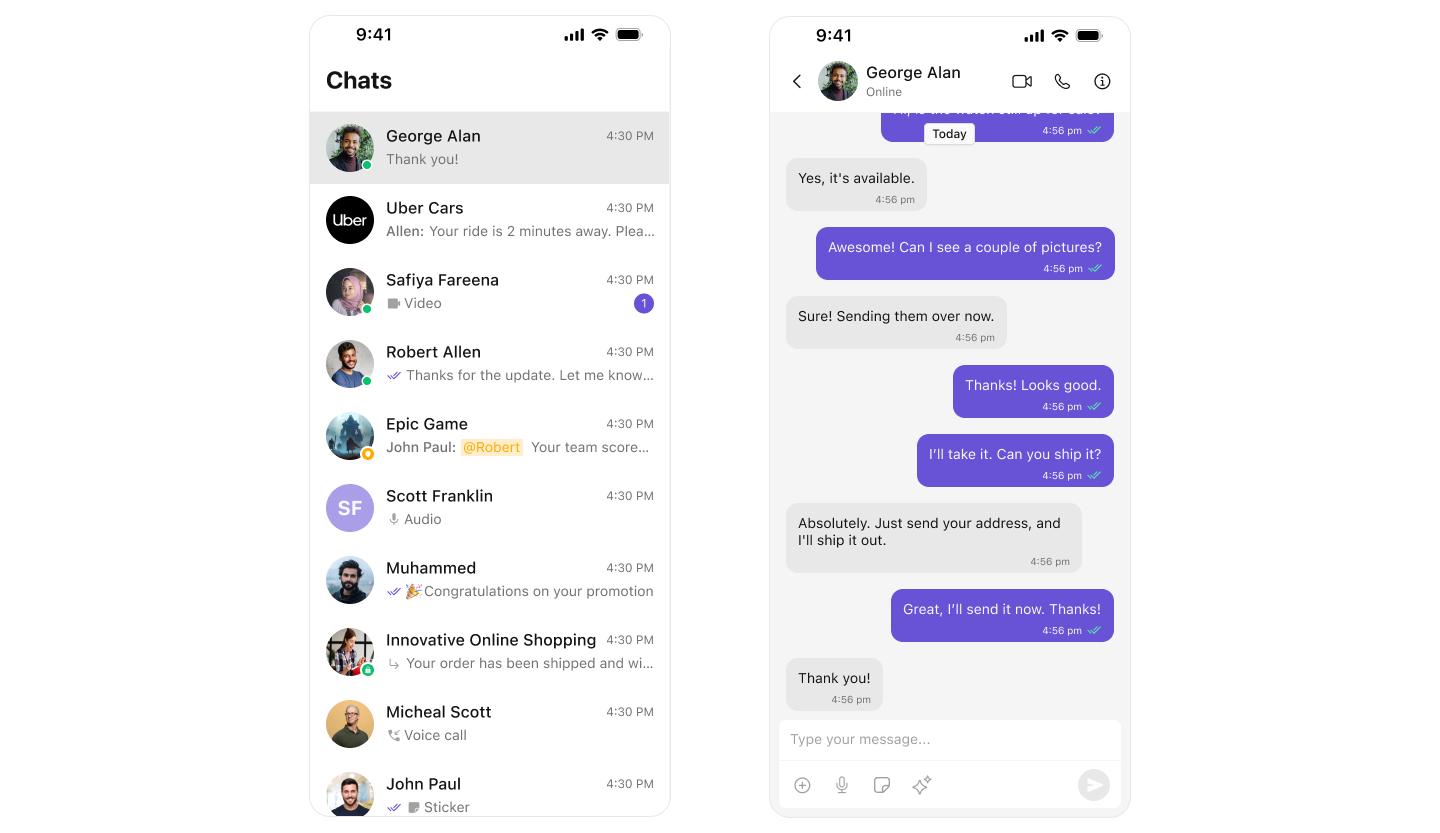
The **CometChat UI Kit for iOS** streamlines the integration of in-app chat functionality by providing a **comprehensive set of prebuilt UI elements**. It offers seamless **theming options**, including **light and dark modes**, customizable fonts, colors, and extensive styling capabilities.
With built-in support for **one-to-one and group conversations**, developers can efficiently enable chat features within their applications. Follow this guide to **quickly integrate chat functionality** using the CometChat iOS UI Kit.
 ***
## **Prerequisites**
Before installing the **CometChat UI Kit for iOS**, you must first **create a CometChat application** via the **[CometChat Dashboard](https://app.cometchat.com/)**. The dashboard provides all the essential chat service components, including:
* **User Management**
* **Group Chat & Messaging**
* **Voice & Video Calling**
* **Real-time Notifications**
To initialize the **UI Kit**, you will need the following credentials from your **CometChat application**:
1. **App ID**
2. **Auth Key**
3. **Region**
Ensure you have these details ready before proceeding with the installation and configuration.
***
## **Register & Set Up CometChat**
Follow these steps to **register on CometChat** and **set up your development environment**.
### **Step 1: Register on CometChat**
To use **CometChat UI Kit**, you first need to register on the **CometChat Dashboard**.
🔗 **[Click here to Sign Up](https://app.cometchat.com/login)**
### **Step 2: Get Your Application Keys**
After registering, create a **new app** and retrieve your **authentication details**:
1. Navigate to the **QuickStart** or **API & Auth Keys section**.
2. Note down the following keys:
* **App ID**
* **Auth Key**
* **Region**
Each CometChat application can be integrated with a **single client app**. Users within the same application can communicate across multiple platforms, including **web and mobile**.
### **Step 3: Set Up Your Development Environment**
Ensure your system meets the following **prerequisites** before proceeding with integration.
**System Requirements:**
* **Xcode 16 or later** installed on your machine.
* An **iOS device or simulator** with iOS version 13.0 or above.
* **Swift 5.0**.
* **macOS**.
***
## **Integration Steps**
### **Create an iOS Project**
To get started, open Xcode and create a new project for UI Kit in the Project window as follows:
1. Select **iOS App** in the **Choose a template for your new project** window and click Next.
2. Enter your project name in the **Name** field in the **Choose options for your new project** window.
3. Enter your identifier in the **Bundle Identifier** field in the **Choose options for your new project** window.
4. Select **Storyboard** in the **Interface** field in the **Choose options for your new project** window.
5. Select **Swift** in the **Language** field in the **Choose options for your new project** window.
***
### **Install Dependencies**
This developer kit is an add-on feature to CometChat iOS SDK so installing it will also install the core Chat SDK. You can install CometChat UI Kit into your iOS project using CocoaPods or Swift Package Manager (SPM).
We recommend using CocoaPods, as they are the most advanced way of managing iOS project dependencies.
1. Create pod file by running the following command in your project's base level:
```ruby Swift theme={null}
pod init
```
2. Add CometChat SDKs to Your Podfile:
```ruby Swift theme={null}
platform :ios, '13.0'
use_frameworks!
target 'YourApp' do
# CometChat UI Kit for Swift
pod 'CometChatUIKitSwift', '5.0.10'
# Optional: Include if you're using Audio/Video Calling
pod 'CometChatCallsSDK', '4.2.0'
end
```
3. Install the CometChat UI Kit framework through CocoaPods:
```ruby Swift theme={null}
pod install
```
If you're facing any issues while installing pods, use the following command:
```ruby Swift theme={null}
pod install --repo-update
```
To get the latest version of CometChat UI Kit, use:
```ruby Swift theme={null}
pod update CometChatUIKitSwift
pod update CometChatCallsSDK
```
Always ensure to open the XCFramework file after adding the dependencies.
**Swift Package Manager** (SPM) is Apple's built-in tool for managing dependencies in Swift projects. It allows developers to integrate and manage third-party libraries seamlessly.
1. Go to **File** tab and select **Add Package Dependencies.**
2. Enter the repository URL of the Swift package:
```
https://github.com/cometchat/cometchat-uikit-ios
```
3. To add the package, select Version Rules, enter Up to Exact Version and click Add package.
Exact Version:
```
5.0.10
```
4. Add `CometChatSDK` repeating the above steps for following link and exact version:
Link:
```
https://github.com/cometchat/chat-sdk-ios
```
Exact Version:
```
4.0.69
```
***
### **Configure Privacy Permissions**
1. To enable media messaging in your app, you must allow **Camera**, **Microphone**, and **Photo Library** access in `Info.plist`. These permissions are required for sending and receiving media files.
```ruby Info.plist theme={null}
NSCameraUsageDescription
Allow access to the camera to capture photos and videos.
NSMicrophoneUsageDescription
Enable microphone access for voice and video communication.
NSPhotoLibraryAddUsageDescription
Allow saving photos and videos to your device's photo library.
NSPhotoLibraryUsageDescription
Grant access to select and upload photos from your library.
```
***
## **Prerequisites**
Before installing the **CometChat UI Kit for iOS**, you must first **create a CometChat application** via the **[CometChat Dashboard](https://app.cometchat.com/)**. The dashboard provides all the essential chat service components, including:
* **User Management**
* **Group Chat & Messaging**
* **Voice & Video Calling**
* **Real-time Notifications**
To initialize the **UI Kit**, you will need the following credentials from your **CometChat application**:
1. **App ID**
2. **Auth Key**
3. **Region**
Ensure you have these details ready before proceeding with the installation and configuration.
***
## **Register & Set Up CometChat**
Follow these steps to **register on CometChat** and **set up your development environment**.
### **Step 1: Register on CometChat**
To use **CometChat UI Kit**, you first need to register on the **CometChat Dashboard**.
🔗 **[Click here to Sign Up](https://app.cometchat.com/login)**
### **Step 2: Get Your Application Keys**
After registering, create a **new app** and retrieve your **authentication details**:
1. Navigate to the **QuickStart** or **API & Auth Keys section**.
2. Note down the following keys:
* **App ID**
* **Auth Key**
* **Region**
Each CometChat application can be integrated with a **single client app**. Users within the same application can communicate across multiple platforms, including **web and mobile**.
### **Step 3: Set Up Your Development Environment**
Ensure your system meets the following **prerequisites** before proceeding with integration.
**System Requirements:**
* **Xcode 16 or later** installed on your machine.
* An **iOS device or simulator** with iOS version 13.0 or above.
* **Swift 5.0**.
* **macOS**.
***
## **Integration Steps**
### **Create an iOS Project**
To get started, open Xcode and create a new project for UI Kit in the Project window as follows:
1. Select **iOS App** in the **Choose a template for your new project** window and click Next.
2. Enter your project name in the **Name** field in the **Choose options for your new project** window.
3. Enter your identifier in the **Bundle Identifier** field in the **Choose options for your new project** window.
4. Select **Storyboard** in the **Interface** field in the **Choose options for your new project** window.
5. Select **Swift** in the **Language** field in the **Choose options for your new project** window.
***
### **Install Dependencies**
This developer kit is an add-on feature to CometChat iOS SDK so installing it will also install the core Chat SDK. You can install CometChat UI Kit into your iOS project using CocoaPods or Swift Package Manager (SPM).
We recommend using CocoaPods, as they are the most advanced way of managing iOS project dependencies.
1. Create pod file by running the following command in your project's base level:
```ruby Swift theme={null}
pod init
```
2. Add CometChat SDKs to Your Podfile:
```ruby Swift theme={null}
platform :ios, '13.0'
use_frameworks!
target 'YourApp' do
# CometChat UI Kit for Swift
pod 'CometChatUIKitSwift', '5.0.10'
# Optional: Include if you're using Audio/Video Calling
pod 'CometChatCallsSDK', '4.2.0'
end
```
3. Install the CometChat UI Kit framework through CocoaPods:
```ruby Swift theme={null}
pod install
```
If you're facing any issues while installing pods, use the following command:
```ruby Swift theme={null}
pod install --repo-update
```
To get the latest version of CometChat UI Kit, use:
```ruby Swift theme={null}
pod update CometChatUIKitSwift
pod update CometChatCallsSDK
```
Always ensure to open the XCFramework file after adding the dependencies.
**Swift Package Manager** (SPM) is Apple's built-in tool for managing dependencies in Swift projects. It allows developers to integrate and manage third-party libraries seamlessly.
1. Go to **File** tab and select **Add Package Dependencies.**
2. Enter the repository URL of the Swift package:
```
https://github.com/cometchat/cometchat-uikit-ios
```
3. To add the package, select Version Rules, enter Up to Exact Version and click Add package.
Exact Version:
```
5.0.10
```
4. Add `CometChatSDK` repeating the above steps for following link and exact version:
Link:
```
https://github.com/cometchat/chat-sdk-ios
```
Exact Version:
```
4.0.69
```
***
### **Configure Privacy Permissions**
1. To enable media messaging in your app, you must allow **Camera**, **Microphone**, and **Photo Library** access in `Info.plist`. These permissions are required for sending and receiving media files.
```ruby Info.plist theme={null}
NSCameraUsageDescription
Allow access to the camera to capture photos and videos.
NSMicrophoneUsageDescription
Enable microphone access for voice and video communication.
NSPhotoLibraryAddUsageDescription
Allow saving photos and videos to your device's photo library.
NSPhotoLibraryUsageDescription
Grant access to select and upload photos from your library.
```
 2. Navigate to your Build Settings and disable the User Script Sandboxing option.
Disabling User Script Sandboxing ensures that WebView can load and execute scripts necessary for collaborative tools.
2. Navigate to your Build Settings and disable the User Script Sandboxing option.
Disabling User Script Sandboxing ensures that WebView can load and execute scripts necessary for collaborative tools.
 ***
### **Step 4: Initialize & Login to CometChat UI Kit**
To authenticate a user, you need a **`UID`**. You can either:
1. **Create new users** on the **[CometChat Dashboard](https://app.cometchat.com)**, **[CometChat SDK Method](/ui-kit/react/methods#create-user)** or **[via the API](https://api-explorer.cometchat.com/reference/creates-user)**.
2. **Use pre-generated test users**:
* `cometchat-uid-1`
* `cometchat-uid-2`
* `cometchat-uid-3`
* `cometchat-uid-4`
* `cometchat-uid-5`
The **Login** method returns a **User object** containing all relevant details of the logged-in user.
***
**Security Best Practices**
* The **Auth Key** method is recommended for **proof-of-concept (POC) development** and early-stage testing.
* For **production environments**, it is strongly advised to use an **[Auth Token](/ui-kit/ios/methods#login-using-auth-token)** instead of an **Auth Key** to enhance security and prevent unauthorized access.
You can initialize CometChat and log in a user in your `SceneDelegate.swift` file:
> ⚠️ **Important:** Initialization and login are independent steps. However, the CometChat SDK **must be initialized before** you call the login method.
```swift SceneDelegate.swift highlight={13-15} lines theme={null}
import UIKit
import CometChatUIKitSwift
class SceneDelegate: UIResponder, UIWindowSceneDelegate {
var window: UIWindow?
func scene(_ scene: UIScene, willConnectTo session: UISceneSession, options connectionOptions: UIScene.ConnectionOptions) {
guard let windowScene = (scene as? UIWindowScene) else { return }
let uikitSettings = UIKitSettings()
.set(appID: "<#Enter Your App ID Here#>")
.set(region: "<#Enter Your Region Code Here#>")
.set(authKey: "<#Enter Your AuthKey Here#>")
.subscribePresenceForAllUsers()
.build()
CometChatUIKit.init(uiKitSettings: uikitSettings) { result in
switch result {
case .success:
debugPrint("CometChat UI Kit initialization succeeded")
let uid = "cometchat-uid-1"
CometChatUIKit.login(uid: uid) { loginResult in
switch loginResult {
case .success:
debugPrint("CometChat UI Kit login succeeded")
// ✅ Option 1: Launch One-to-One or Group Chat Screen
// DispatchQueue.main.async {
// self.setUpOneOneOrGroupConversation(windowScene: windowScene, uid: "cometchat-uid-2")
// }
// ✅ Option 2: Launch Conversation List + Message View (Split-Screen Style)
// DispatchQueue.main.async {
// self.setupConversationsView(windowScene: windowScene)
// }
// ✅ Option 3: Launch Tab-Based Chat Experience (Chats, Calls, Users, Groups)
// DispatchQueue.main.async {
// self.setupTabbedView(windowScene: windowScene)
// }
case .onError(let error):
debugPrint("CometChat UI Kit login failed with error: \(error.description)")
@unknown default:
break
}
}
case .failure(let error):
debugPrint("CometChat UI Kit initialization failed with error: \(error.localizedDescription)")
}
}
}
}
```
Ensure you replace the following placeholders with your actual CometChat credentials:
* App ID → Your CometChat App ID
* Auth Key → Your CometChat Auth Key
* Region → Your App Region
These values are required for proper authentication and seamless integration.
After running the app, you should see the following log message:
```sh Console theme={null}
"CometChat UI Kit initialization succeeded"
"CometChat UI Kit login succeeded"
```
***
### **Step 5: Choose a Chat Experience**
Integrate a conversation view that suits your application's **UX requirements**. Below are the available options:
***
### **1️⃣ Conversation List + Message View**
**Best for:** Native iOS apps using **stack-based navigation** to switch between conversations and messages.
**Highlights:**
* **Push-Based Navigation** – Taps on conversations open full message views.
* **Supports One-to-One & Group Chats** – Handles all CometChat conversation types.
* **Real-Time Sync** – Messages auto-refresh using live CometChat event listeners.
* **Session-Aware** – Message states persist across app sessions and devices.
* **Customizable UI** – Modify styling, actions, or behavior using CometChat UI Kit.
***
### **Step 4: Initialize & Login to CometChat UI Kit**
To authenticate a user, you need a **`UID`**. You can either:
1. **Create new users** on the **[CometChat Dashboard](https://app.cometchat.com)**, **[CometChat SDK Method](/ui-kit/react/methods#create-user)** or **[via the API](https://api-explorer.cometchat.com/reference/creates-user)**.
2. **Use pre-generated test users**:
* `cometchat-uid-1`
* `cometchat-uid-2`
* `cometchat-uid-3`
* `cometchat-uid-4`
* `cometchat-uid-5`
The **Login** method returns a **User object** containing all relevant details of the logged-in user.
***
**Security Best Practices**
* The **Auth Key** method is recommended for **proof-of-concept (POC) development** and early-stage testing.
* For **production environments**, it is strongly advised to use an **[Auth Token](/ui-kit/ios/methods#login-using-auth-token)** instead of an **Auth Key** to enhance security and prevent unauthorized access.
You can initialize CometChat and log in a user in your `SceneDelegate.swift` file:
> ⚠️ **Important:** Initialization and login are independent steps. However, the CometChat SDK **must be initialized before** you call the login method.
```swift SceneDelegate.swift highlight={13-15} lines theme={null}
import UIKit
import CometChatUIKitSwift
class SceneDelegate: UIResponder, UIWindowSceneDelegate {
var window: UIWindow?
func scene(_ scene: UIScene, willConnectTo session: UISceneSession, options connectionOptions: UIScene.ConnectionOptions) {
guard let windowScene = (scene as? UIWindowScene) else { return }
let uikitSettings = UIKitSettings()
.set(appID: "<#Enter Your App ID Here#>")
.set(region: "<#Enter Your Region Code Here#>")
.set(authKey: "<#Enter Your AuthKey Here#>")
.subscribePresenceForAllUsers()
.build()
CometChatUIKit.init(uiKitSettings: uikitSettings) { result in
switch result {
case .success:
debugPrint("CometChat UI Kit initialization succeeded")
let uid = "cometchat-uid-1"
CometChatUIKit.login(uid: uid) { loginResult in
switch loginResult {
case .success:
debugPrint("CometChat UI Kit login succeeded")
// ✅ Option 1: Launch One-to-One or Group Chat Screen
// DispatchQueue.main.async {
// self.setUpOneOneOrGroupConversation(windowScene: windowScene, uid: "cometchat-uid-2")
// }
// ✅ Option 2: Launch Conversation List + Message View (Split-Screen Style)
// DispatchQueue.main.async {
// self.setupConversationsView(windowScene: windowScene)
// }
// ✅ Option 3: Launch Tab-Based Chat Experience (Chats, Calls, Users, Groups)
// DispatchQueue.main.async {
// self.setupTabbedView(windowScene: windowScene)
// }
case .onError(let error):
debugPrint("CometChat UI Kit login failed with error: \(error.description)")
@unknown default:
break
}
}
case .failure(let error):
debugPrint("CometChat UI Kit initialization failed with error: \(error.localizedDescription)")
}
}
}
}
```
Ensure you replace the following placeholders with your actual CometChat credentials:
* App ID → Your CometChat App ID
* Auth Key → Your CometChat Auth Key
* Region → Your App Region
These values are required for proper authentication and seamless integration.
After running the app, you should see the following log message:
```sh Console theme={null}
"CometChat UI Kit initialization succeeded"
"CometChat UI Kit login succeeded"
```
***
### **Step 5: Choose a Chat Experience**
Integrate a conversation view that suits your application's **UX requirements**. Below are the available options:
***
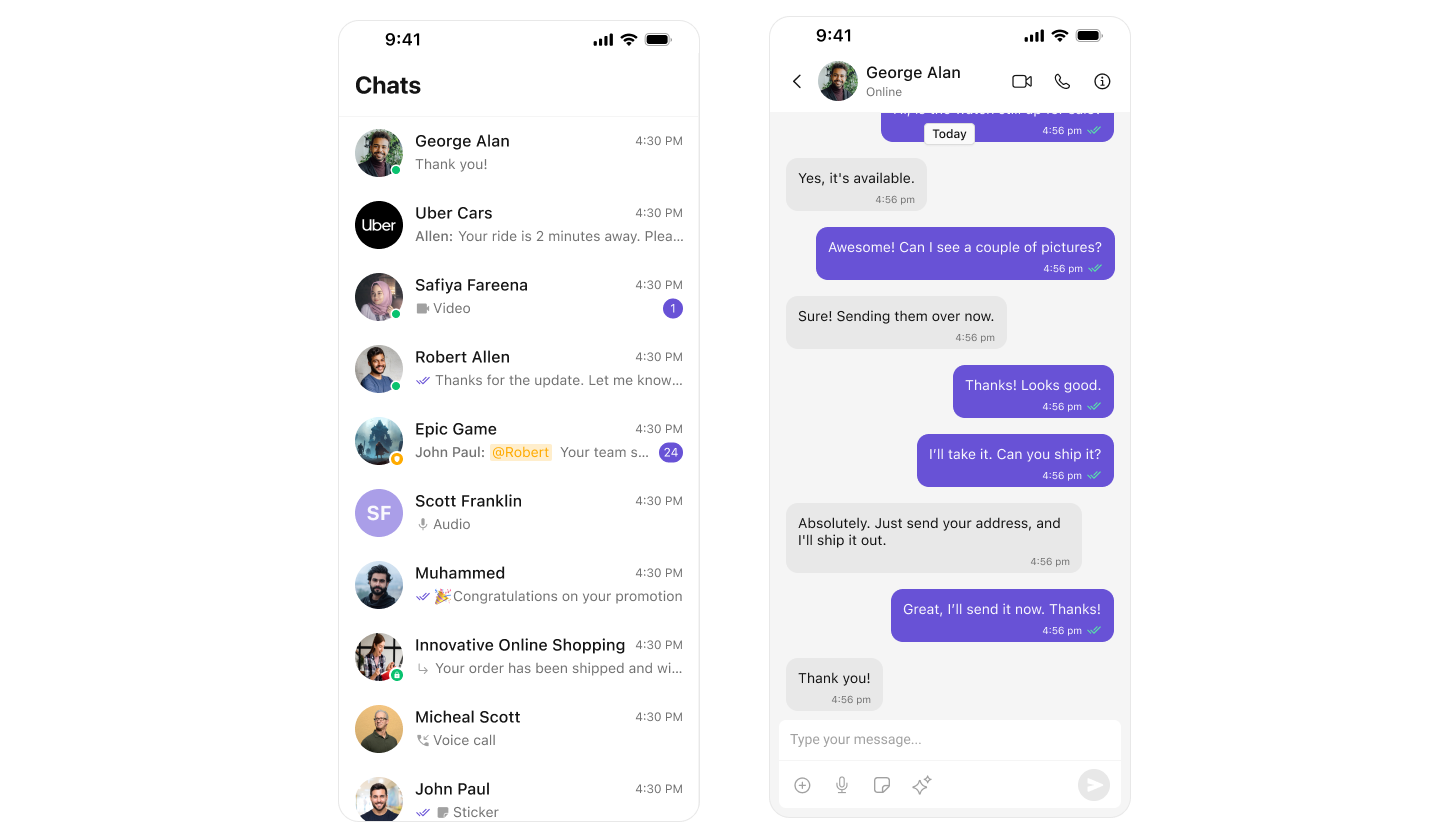
### **1️⃣ Conversation List + Message View**
**Best for:** Native iOS apps using **stack-based navigation** to switch between conversations and messages.
**Highlights:**
* **Push-Based Navigation** – Taps on conversations open full message views.
* **Supports One-to-One & Group Chats** – Handles all CometChat conversation types.
* **Real-Time Sync** – Messages auto-refresh using live CometChat event listeners.
* **Session-Aware** – Message states persist across app sessions and devices.
* **Customizable UI** – Modify styling, actions, or behavior using CometChat UI Kit.
 **Use When:**
* You need a **native iOS chat experience** with clean transitions.
* Your app supports **private and group messaging**.
* You want **seamless sync and navigation** between list and messages.
[Integrate Conversation List + Message View](./ios-conversation)
***
### **2️⃣ One-to-One / Group Chat**
**Best for:** iOS apps that launch **directly into a conversation screen** without showing a list.
**Highlights:**
* **Single View Chat** – Use `CometChatMessages` with a passed user or group object.
* **No Sidebar or List** – Ideal for contextual entry points (support, match, invite, etc.).
* **Works with UINavigationController & SwiftUI NavigationStack**
* **Lightweight** – Launches faster and uses minimal memory.
* **Full-Screen Messaging** – Clear, immersive chat UI.
**Use When:**
* You need a **native iOS chat experience** with clean transitions.
* Your app supports **private and group messaging**.
* You want **seamless sync and navigation** between list and messages.
[Integrate Conversation List + Message View](./ios-conversation)
***
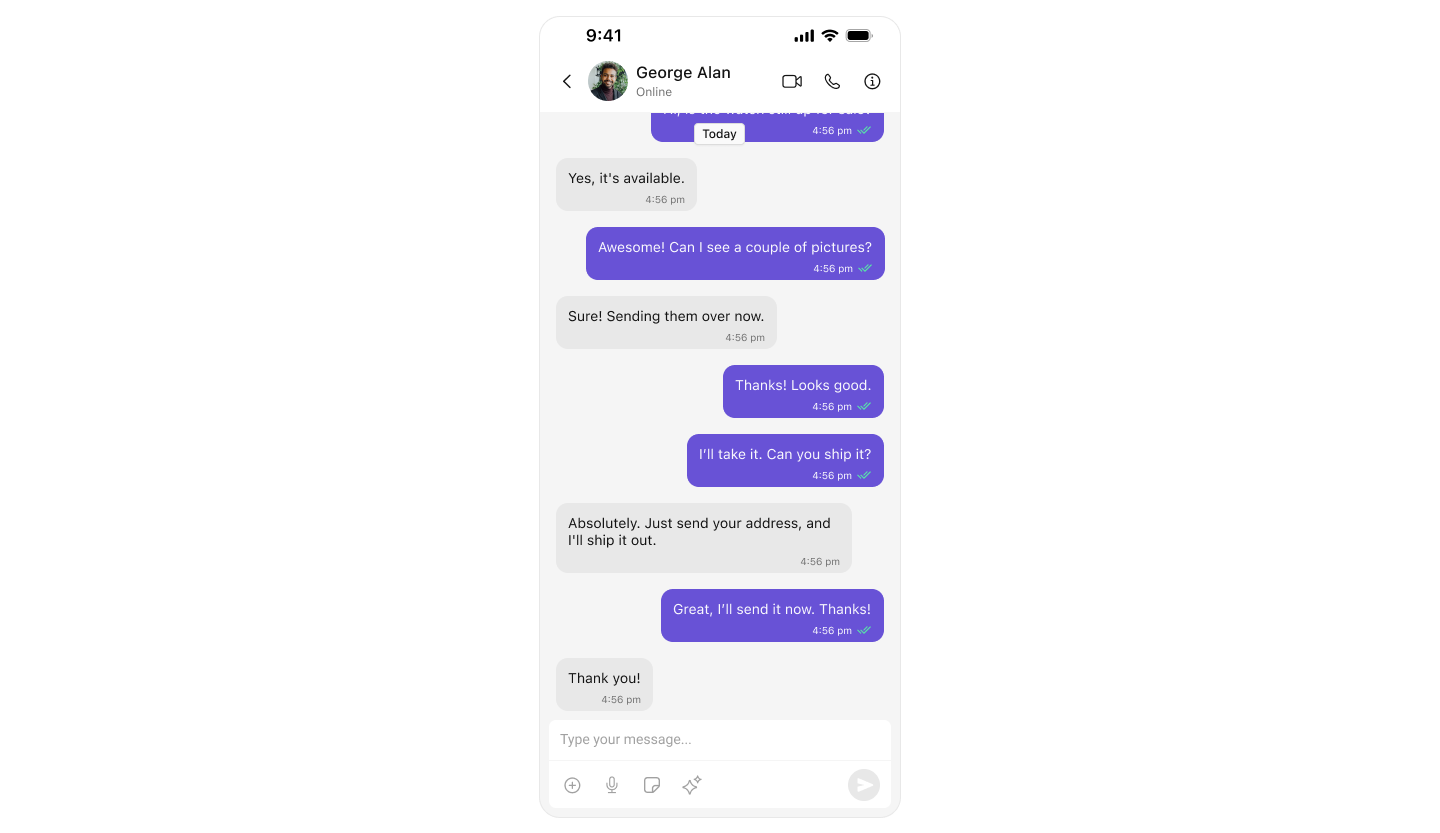
### **2️⃣ One-to-One / Group Chat**
**Best for:** iOS apps that launch **directly into a conversation screen** without showing a list.
**Highlights:**
* **Single View Chat** – Use `CometChatMessages` with a passed user or group object.
* **No Sidebar or List** – Ideal for contextual entry points (support, match, invite, etc.).
* **Works with UINavigationController & SwiftUI NavigationStack**
* **Lightweight** – Launches faster and uses minimal memory.
* **Full-Screen Messaging** – Clear, immersive chat UI.
 **Use When:**
* Your app starts directly with a **specific user or group chat**.
* You want a **clean, distraction-free** chat experience.
* Ideal for **support workflows, community replies, or invitations.**
[Integrate One-to-One / Group Chat](./ios-one-to-one-chat)
***
### **3️⃣ Tab-Based Messaging UI (All-in-One)**
**Best for:** iOS apps needing a **multi-tab interface** with seamless transitions between Chats, Users, Calls, and Settings.
**Highlights:**
* **UITabBarController or SwiftUI TabView** – Native navigation pattern for iOS.
* **Modular UI** – Isolated controllers or views for each tab.
* **Full-Screen Messaging** – Dedicated message views within the Chat tab.
* **Extensible** – Add future tabs like Notifications, Search, or Profile.
* **Responsive Layouts** – Works across iPhones and iPads.
* **Great for SuperApps & Enterprise Tools**
**Use When:**
* Your app starts directly with a **specific user or group chat**.
* You want a **clean, distraction-free** chat experience.
* Ideal for **support workflows, community replies, or invitations.**
[Integrate One-to-One / Group Chat](./ios-one-to-one-chat)
***
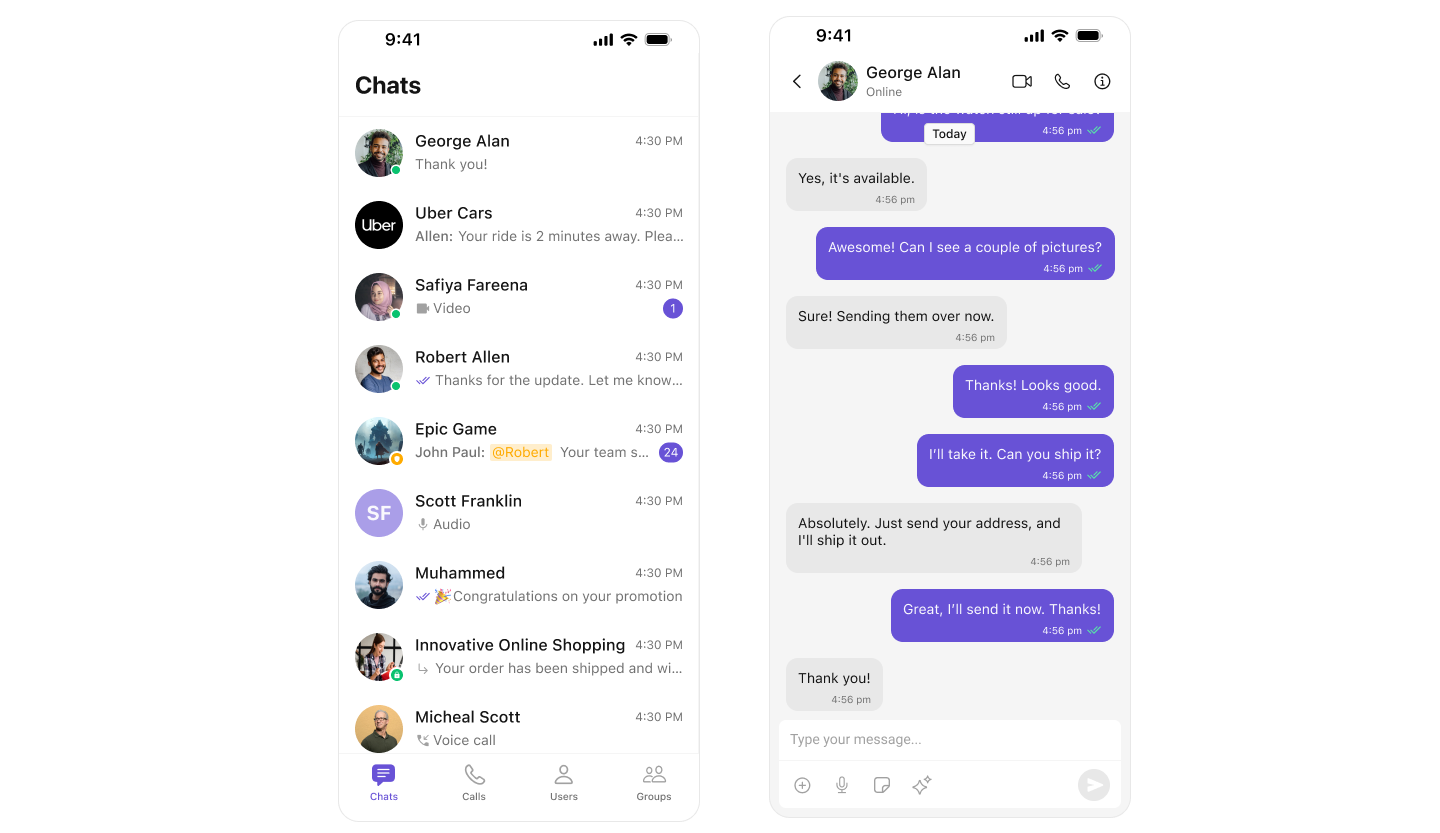
### **3️⃣ Tab-Based Messaging UI (All-in-One)**
**Best for:** iOS apps needing a **multi-tab interface** with seamless transitions between Chats, Users, Calls, and Settings.
**Highlights:**
* **UITabBarController or SwiftUI TabView** – Native navigation pattern for iOS.
* **Modular UI** – Isolated controllers or views for each tab.
* **Full-Screen Messaging** – Dedicated message views within the Chat tab.
* **Extensible** – Add future tabs like Notifications, Search, or Profile.
* **Responsive Layouts** – Works across iPhones and iPads.
* **Great for SuperApps & Enterprise Tools**
 **Use When:**
* You need a **structured layout** for navigating chat, calls, and contacts.
* Your app supports **multiple modules** (e.g., user directory, history, chat).
* Designed for **enterprise, support, or social use cases**.
[Integrate Tab-Based Chat](./ios-tab-based-chat)
***
## **Build Your Own Chat Experience**
**Best for:** Developers who need complete control over their chat interface, allowing customization of components, themes, and features to align with their app’s design and functionality. Whether you're enhancing an existing chat experience or building from scratch, this approach provides the flexibility to tailor every aspect to your needs.
**Recommended for:**
* Apps that require **a fully customized chat experience**.
* Developers who want to **extend functionalities and modify UI components**.
* Businesses integrating chat seamlessly into **existing platforms**.
**Key Areas to Explore:**
* **[iOS Sample App](https://github.com/cometchat/cometchat-uikit-ios/tree/v5/SampleApp)** – Fully functional sample applications to accelerate your development.
* **[Core Features](./core-features)** – Learn about messaging, real-time updates, and other essential capabilities.
* **[Components](./components-overview)** – Utilize prebuilt UI elements or customize them to fit your design.
* **[Themes](./theme-introduction)** – Adjust colors, fonts, and styles to match your branding.
* **[Build Your Own UI](/sdk/javascript/overview)** – Prefer a custom UI over our UI Kits? Explore our SDKs to create a tailored chat experience.
***
## **Next Steps**
Now that you’ve selected your **chat experience**, proceed to the **integration guide**:
* **[Integrate Conversation List + Message](/ui-kit/ios/ios-conversation)**
* **[Integrate One-to-One Chat](/ui-kit/ios/ios-one-to-one-chat)**
* **[Integrate Tab-Based Chat](/ui-kit/ios/ios-tab-based-chat)**
* **[Advanced Customizations](/ui-kit/ios/theme-introduction)**
***
**Use When:**
* You need a **structured layout** for navigating chat, calls, and contacts.
* Your app supports **multiple modules** (e.g., user directory, history, chat).
* Designed for **enterprise, support, or social use cases**.
[Integrate Tab-Based Chat](./ios-tab-based-chat)
***
## **Build Your Own Chat Experience**
**Best for:** Developers who need complete control over their chat interface, allowing customization of components, themes, and features to align with their app’s design and functionality. Whether you're enhancing an existing chat experience or building from scratch, this approach provides the flexibility to tailor every aspect to your needs.
**Recommended for:**
* Apps that require **a fully customized chat experience**.
* Developers who want to **extend functionalities and modify UI components**.
* Businesses integrating chat seamlessly into **existing platforms**.
**Key Areas to Explore:**
* **[iOS Sample App](https://github.com/cometchat/cometchat-uikit-ios/tree/v5/SampleApp)** – Fully functional sample applications to accelerate your development.
* **[Core Features](./core-features)** – Learn about messaging, real-time updates, and other essential capabilities.
* **[Components](./components-overview)** – Utilize prebuilt UI elements or customize them to fit your design.
* **[Themes](./theme-introduction)** – Adjust colors, fonts, and styles to match your branding.
* **[Build Your Own UI](/sdk/javascript/overview)** – Prefer a custom UI over our UI Kits? Explore our SDKs to create a tailored chat experience.
***
## **Next Steps**
Now that you’ve selected your **chat experience**, proceed to the **integration guide**:
* **[Integrate Conversation List + Message](/ui-kit/ios/ios-conversation)**
* **[Integrate One-to-One Chat](/ui-kit/ios/ios-one-to-one-chat)**
* **[Integrate Tab-Based Chat](/ui-kit/ios/ios-tab-based-chat)**
* **[Advanced Customizations](/ui-kit/ios/theme-introduction)**
***