> ## Documentation Index
> Fetch the complete documentation index at: https://cometchat-22654f5b-feature-react-native-sdk-quotedmessage-a.mintlify.site/llms.txt
> Use this file to discover all available pages before exploring further.
# Call
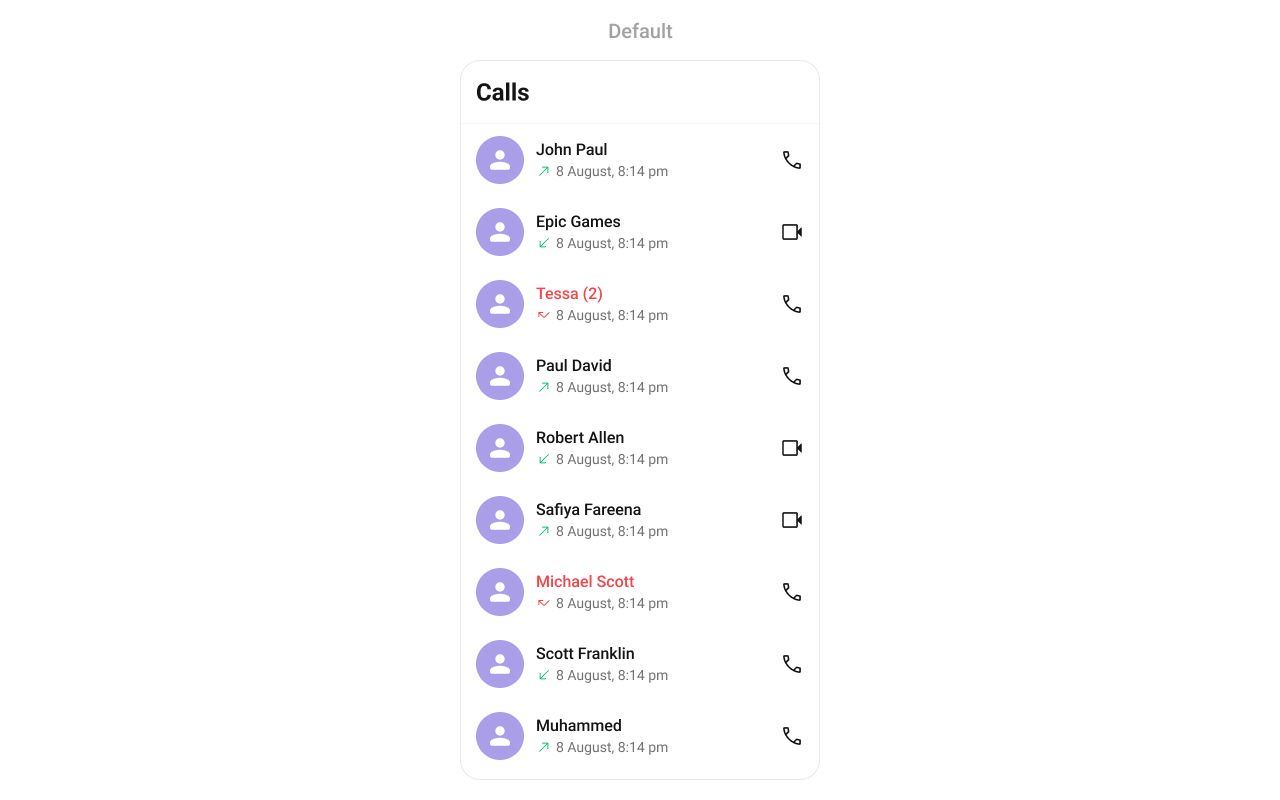
CometChat’s Calls feature offers advanced functionality for seamlessly integrating one-on-one and group audio/video calling into your application. This document provides a technical overview of how these features are implemented using the React Native UI Kit.
## Integration
First, make sure that you've correctly integrated the UI Kit library into your project. If you haven't done this yet or are facing difficulties, refer to our [Getting Started](/ui-kit/react-native/getting-started) guide. This guide will walk you through a step-by-step process of integrating our UI Kit into your React Native project.
Once you've successfully integrated the UI Kit, the next step is to add the CometChat Calls SDK to your project. This is necessary to enable the calling features in the UI Kit. Here's how you do it:
```sh theme={null}
npm install @cometchat/calls-sdk-react-native
```
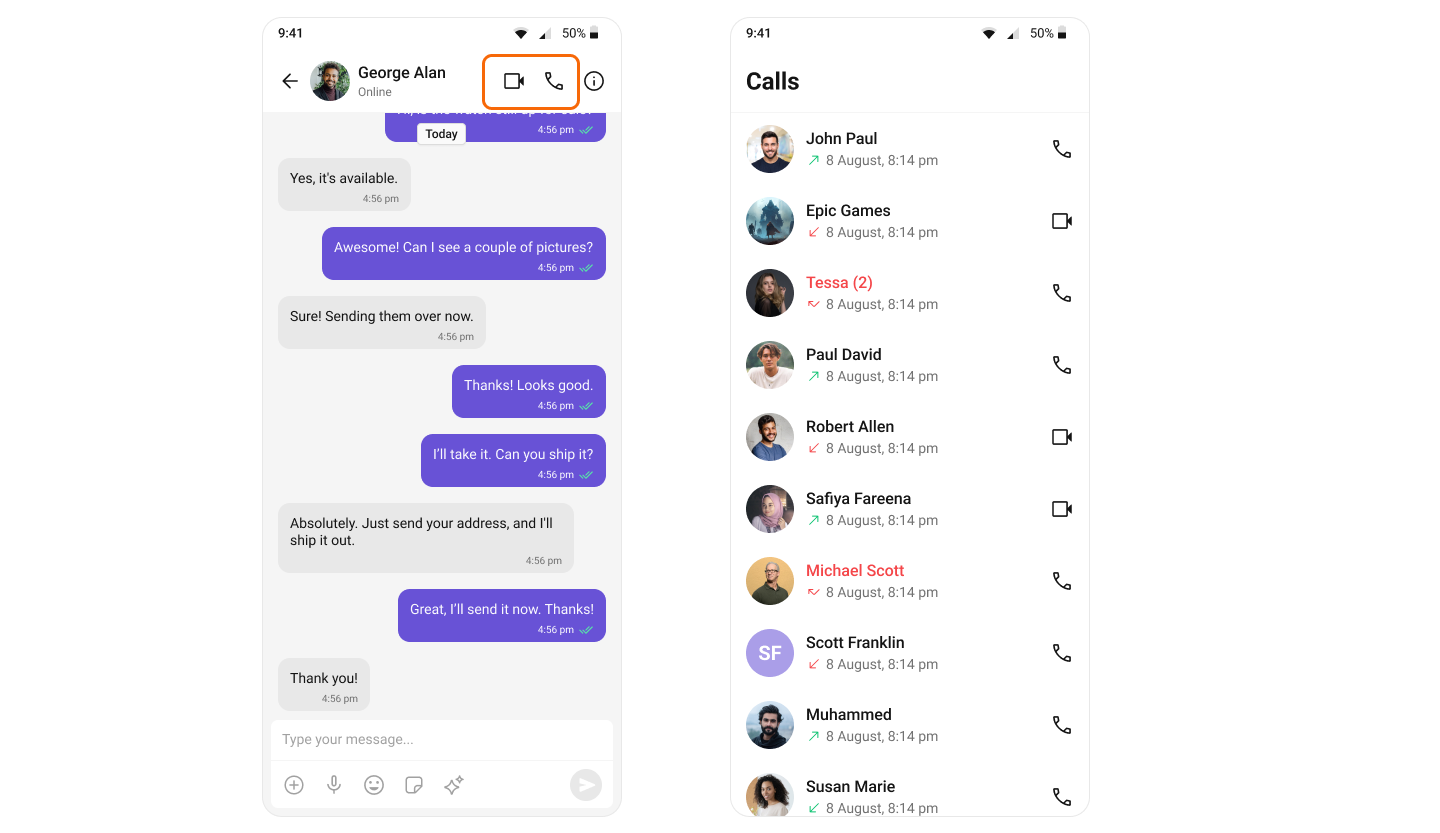
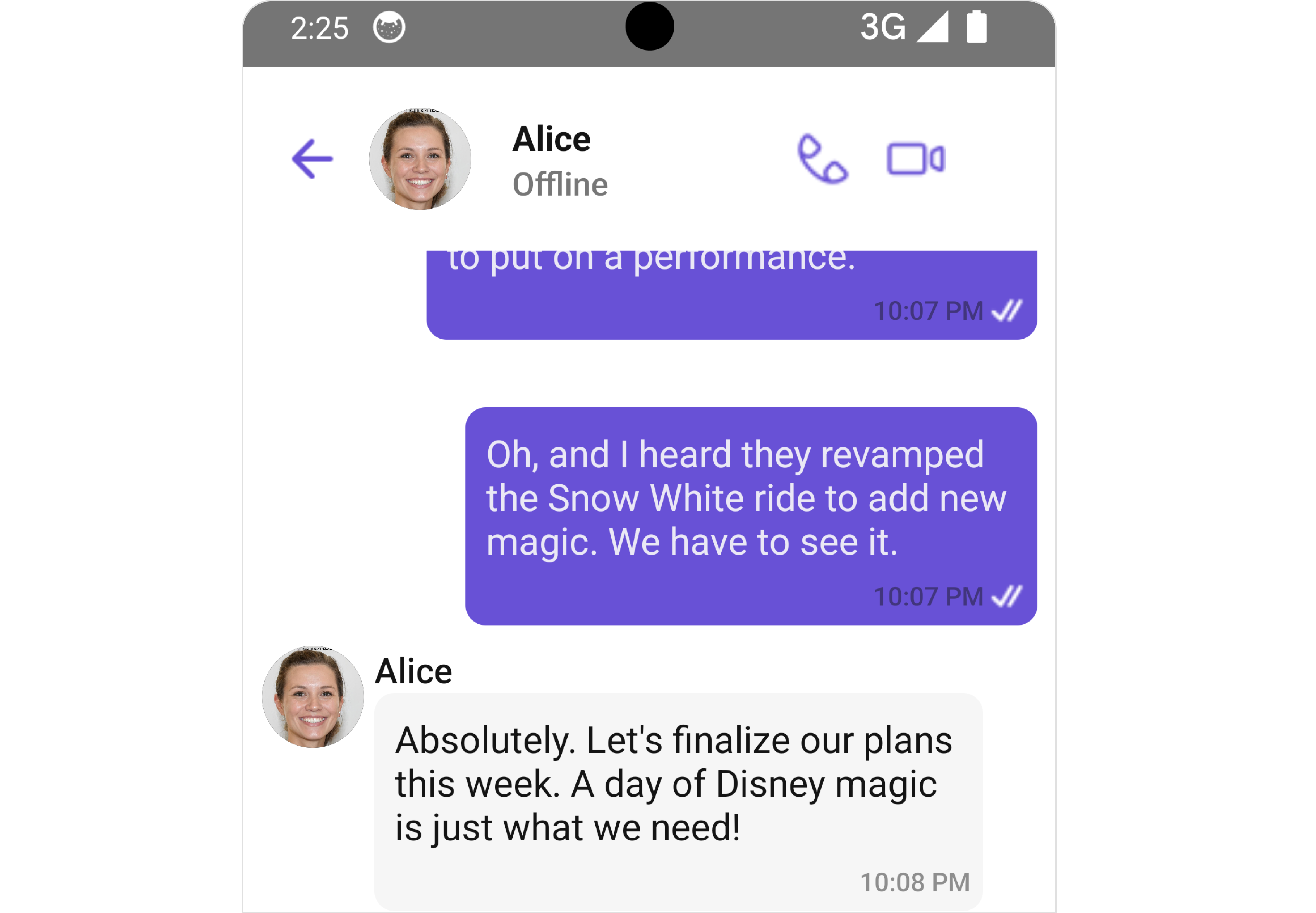
Once the dependency is added, the React Native UI Kit will automatically detect it and enable calling features. Your application will now support both audio and video calls and the [CallButtons](/ui-kit/react-native/call-buttons) component will appear within the [MessageHeader](/ui-kit/react-native/message-header) component.
 ## Add necessary permissions
### Android:
Go to AndroidManifest.xml located in the react-native/app/src/main of your React Native project and add the following permissions:
```xml theme={null}
```
### iOS:
Open Info.plist located in the ios/\{appname} of your React Native project and add the following entries:
```xml theme={null}
NSCameraUsageDescription
Access camera
NSMicrophoneUsageDescription
Access Microphone
```
## Setup minimum Android and iOS versions
For Android go to app-level build.gradle and change minSdkVersion to 24 and the targetSdkVersion and compileSdkVersion to 33.
```gradle theme={null}
android {
namespace "com.org.name_of_your_app"
compileSdkVersion 33
defaultConfig {
minSdkVersion 24
targetSdkVersion 33
}
}
```
For iOS you can open xcworkspace in XCode modify the IPHONEOS\_DEPLOYMENT\_TARGET to 12.0
or you can specify it in the post\_install hook of the Podfile
```ruby theme={null}
post_install do |installer|
installer.pods_project.targets.each do |target|
flutter_additional_ios_build_settings(target)
target.build_configurations.each do |build_configuration|
build_configuration.build_settings['IPHONEOS_DEPLOYMENT_TARGET'] = '12.0'
build_configuration.build_settings['EXCLUDED_ARCHS[sdk=iphonesimulator*]'] = 'arm64 i386'
build_configuration.build_settings['ENABLE_BITCODE'] = 'NO'
end
end
end
```
## Add the Call Listeners
In addition to CallButtons, the Calls UI Kit offers fully functional UI components for handling Incoming, Outgoing, and Ongoing calls. To receive call events in your desired component or screen, you must register a call listener using the addCallListener() method. The onIncomingCallReceived() event is triggered whenever an incoming call is received.
```tsx theme={null}
import React, { useEffect, useRef, useState } from "react";
import { SafeAreaView } from "react-native";
import { CometChat } from "@cometchat/chat-sdk-react-native";
import { CometChatIncomingCall } from "@cometchat/chat-uikit-react-native";
// Track whether the user is logged in
const [loggedIn, setLoggedIn] = useState(false);
// Track if there is an incoming call to display
const [callReceived, setCallReceived] = useState(false);
// Store the incoming call object for use in the UI
const incomingCall = useRef(
null
);
// Unique ID for registering and removing the call listener
var listenerID: string = "UNIQUE_LISTENER_ID";
const App = (): React.ReactElement => {
useEffect(() => {
// Register the call listener when the component mounts or when login state changes
CometChat.addCallListener(
listenerID,
new CometChat.CallListener({
// Fired when an incoming call is received
onIncomingCallReceived: (call: CometChat.Call) => {
// Store the incoming call and update state.
incomingCall.current = call;
// Trigger UI to show incoming call screen
setCallReceived(true);
},
// Fired when an outgoing call is rejected by the recipient
onOutgoingCallRejected: () => {
// Clear the call state if outgoing call is rejected.
incomingCall.current = null; // Clear the call object
setCallReceived(false); // Hide any call UI
},
onIncomingCallCancelled: () => {
// Clear the call state if the incoming call is cancelled.
incomingCall.current = null;
setCallReceived(false);
},
})
);
// Cleanup: remove the call listener when the component unmounts or before re-running
return () => {
CometChat.removeCallListener(listenerID);
};
}, [loggedIn]); // Re-run effect if the login state changes
return (
{/* Render the incoming call UI when logged in and a call has been received */}
{loggedIn && callReceived && incomingCall.current ? (
{
// Handle call decline by clearing the incoming call state.
incomingCall.current = null; // Clear the call object
setCallReceived(false); // Hide the incoming call UI
}}
/>
) : null}
);
};
```
## Features
### Incoming Call
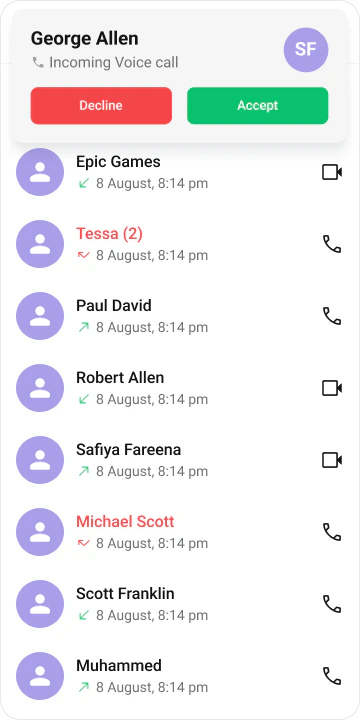
The [Incoming Call](/ui-kit/react-native/incoming-call) component of the CometChat UI Kit provides the functionality that lets users receive real-time audio and video calls in the app.
When a call is made to a user, the Incoming Call component triggers and displays a call screen. This call screen typically displays the caller information and provides the user with options to either accept or reject the incoming call.
## Add necessary permissions
### Android:
Go to AndroidManifest.xml located in the react-native/app/src/main of your React Native project and add the following permissions:
```xml theme={null}
```
### iOS:
Open Info.plist located in the ios/\{appname} of your React Native project and add the following entries:
```xml theme={null}
NSCameraUsageDescription
Access camera
NSMicrophoneUsageDescription
Access Microphone
```
## Setup minimum Android and iOS versions
For Android go to app-level build.gradle and change minSdkVersion to 24 and the targetSdkVersion and compileSdkVersion to 33.
```gradle theme={null}
android {
namespace "com.org.name_of_your_app"
compileSdkVersion 33
defaultConfig {
minSdkVersion 24
targetSdkVersion 33
}
}
```
For iOS you can open xcworkspace in XCode modify the IPHONEOS\_DEPLOYMENT\_TARGET to 12.0
or you can specify it in the post\_install hook of the Podfile
```ruby theme={null}
post_install do |installer|
installer.pods_project.targets.each do |target|
flutter_additional_ios_build_settings(target)
target.build_configurations.each do |build_configuration|
build_configuration.build_settings['IPHONEOS_DEPLOYMENT_TARGET'] = '12.0'
build_configuration.build_settings['EXCLUDED_ARCHS[sdk=iphonesimulator*]'] = 'arm64 i386'
build_configuration.build_settings['ENABLE_BITCODE'] = 'NO'
end
end
end
```
## Add the Call Listeners
In addition to CallButtons, the Calls UI Kit offers fully functional UI components for handling Incoming, Outgoing, and Ongoing calls. To receive call events in your desired component or screen, you must register a call listener using the addCallListener() method. The onIncomingCallReceived() event is triggered whenever an incoming call is received.
```tsx theme={null}
import React, { useEffect, useRef, useState } from "react";
import { SafeAreaView } from "react-native";
import { CometChat } from "@cometchat/chat-sdk-react-native";
import { CometChatIncomingCall } from "@cometchat/chat-uikit-react-native";
// Track whether the user is logged in
const [loggedIn, setLoggedIn] = useState(false);
// Track if there is an incoming call to display
const [callReceived, setCallReceived] = useState(false);
// Store the incoming call object for use in the UI
const incomingCall = useRef(
null
);
// Unique ID for registering and removing the call listener
var listenerID: string = "UNIQUE_LISTENER_ID";
const App = (): React.ReactElement => {
useEffect(() => {
// Register the call listener when the component mounts or when login state changes
CometChat.addCallListener(
listenerID,
new CometChat.CallListener({
// Fired when an incoming call is received
onIncomingCallReceived: (call: CometChat.Call) => {
// Store the incoming call and update state.
incomingCall.current = call;
// Trigger UI to show incoming call screen
setCallReceived(true);
},
// Fired when an outgoing call is rejected by the recipient
onOutgoingCallRejected: () => {
// Clear the call state if outgoing call is rejected.
incomingCall.current = null; // Clear the call object
setCallReceived(false); // Hide any call UI
},
onIncomingCallCancelled: () => {
// Clear the call state if the incoming call is cancelled.
incomingCall.current = null;
setCallReceived(false);
},
})
);
// Cleanup: remove the call listener when the component unmounts or before re-running
return () => {
CometChat.removeCallListener(listenerID);
};
}, [loggedIn]); // Re-run effect if the login state changes
return (
{/* Render the incoming call UI when logged in and a call has been received */}
{loggedIn && callReceived && incomingCall.current ? (
{
// Handle call decline by clearing the incoming call state.
incomingCall.current = null; // Clear the call object
setCallReceived(false); // Hide the incoming call UI
}}
/>
) : null}
);
};
```
## Features
### Incoming Call
The [Incoming Call](/ui-kit/react-native/incoming-call) component of the CometChat UI Kit provides the functionality that lets users receive real-time audio and video calls in the app.
When a call is made to a user, the Incoming Call component triggers and displays a call screen. This call screen typically displays the caller information and provides the user with options to either accept or reject the incoming call.
 ### Outgoing Call
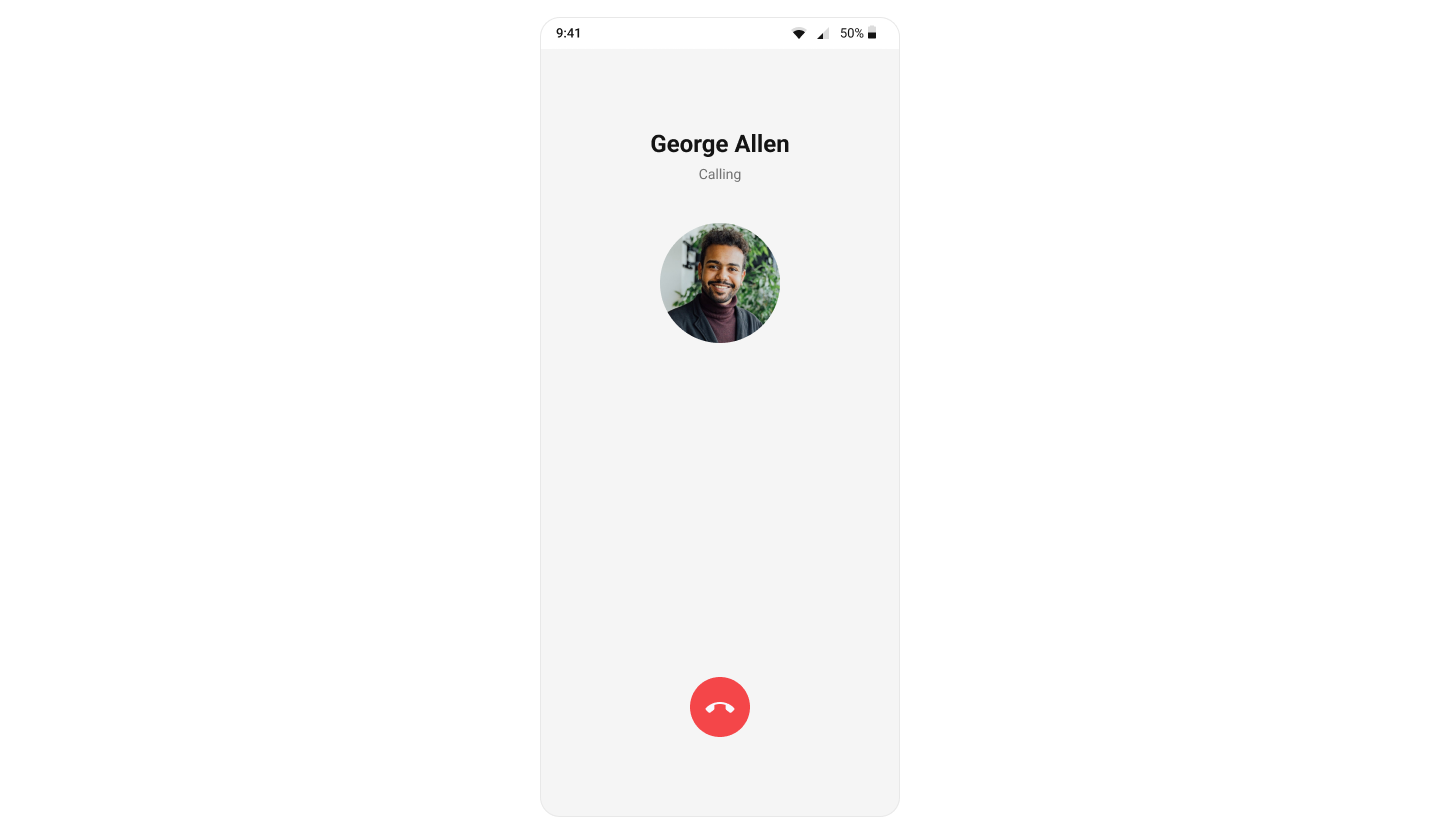
The [Outgoing Call](/ui-kit/react-native/outgoing-call) component of the CometChat UI Kit is designed to manage the outgoing call process within your application. When a user initiates an audio or video call to another user or group, this component displays an outgoing call screen, showcasing information about the recipient and the call status.
Importantly, the Outgoing Call component is smartly designed to transition automatically into the ongoing call screen once the receiver accepts the call. This ensures a smooth flow from initiating the call to engaging in a conversation, without any additional steps required from the user.
### Outgoing Call
The [Outgoing Call](/ui-kit/react-native/outgoing-call) component of the CometChat UI Kit is designed to manage the outgoing call process within your application. When a user initiates an audio or video call to another user or group, this component displays an outgoing call screen, showcasing information about the recipient and the call status.
Importantly, the Outgoing Call component is smartly designed to transition automatically into the ongoing call screen once the receiver accepts the call. This ensures a smooth flow from initiating the call to engaging in a conversation, without any additional steps required from the user.
 ### Call Logs
[Call Logs](/ui-kit/react-native/call-logs) component provides you with the records call events such as who called who, the time of the call, and the duration of the call. This information can be fetched from the CometChat server and displayed in a structured format for users to view their past call activities.
### Call Logs
[Call Logs](/ui-kit/react-native/call-logs) component provides you with the records call events such as who called who, the time of the call, and the duration of the call. This information can be fetched from the CometChat server and displayed in a structured format for users to view their past call activities.