> ## Documentation Index
> Fetch the complete documentation index at: https://cometchat-22654f5b-feature-react-native-sdk-quotedmessage-a.mintlify.site/llms.txt
> Use this file to discover all available pages before exploring further.

# Incoming Call

## Overview

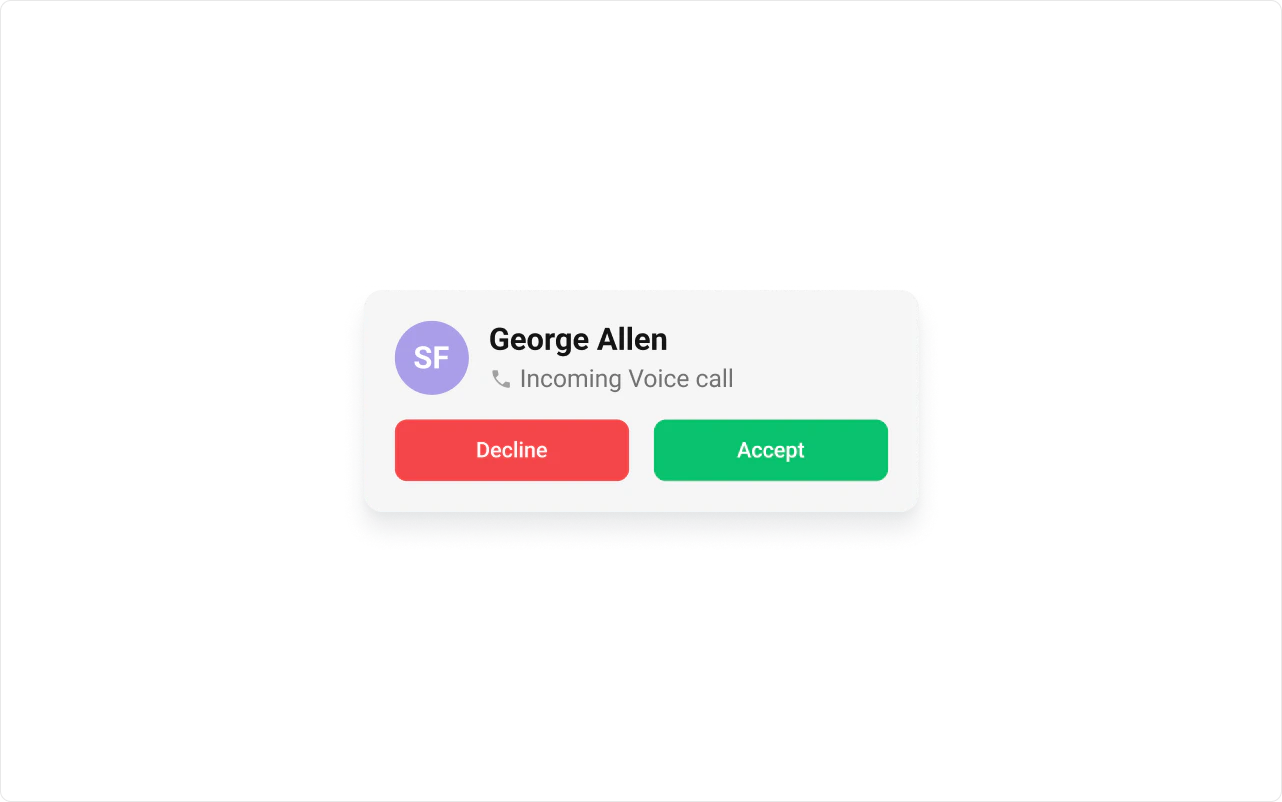
The `Incoming call` is a Component that serves as a visual representation when the user receives an incoming call, such as a voice call or video call, providing options to answer or decline the call.

<Frame>
  <img src="https://mintcdn.com/cometchat-22654f5b-feature-react-native-sdk-quotedmessage-a/yDKVamMkf61gj3YR/images/e63dbd67-incoming_calls_overview_web_screens-d0434dd2b66b78fe0bff43bdd34435d3.png?fit=max&auto=format&n=yDKVamMkf61gj3YR&q=85&s=afeb68185b4eca1ac72480c7a8fc1709" width="1282" height="802" data-path="images/e63dbd67-incoming_calls_overview_web_screens-d0434dd2b66b78fe0bff43bdd34435d3.png" />
</Frame>

The `Incoming Call` is comprised of the following base components:

| Components          | Description                                                                                                                                    |
| ------------------- | ---------------------------------------------------------------------------------------------------------------------------------------------- |
| cometchat-list-item | This component’s view consists of avatar, status indicator , title, and subtitle. The fields are then mapped with the SDK’s user, group class. |
| cometchat-button    | This component represents a button with optional icon and text.                                                                                |
| cometchat-avatar    | This component component displays an image or user's avatar with fallback to the first two letters of the username.                            |

## Usage

### Integration
<Tabs>
  <Tab title="IncomingCallsDemo.tsx">
    ```tsx theme={null}
    import { CometChatIncomingCall } from "@cometchat/chat-uikit-react";
    import React from "react";

    const IncomingCallsDemo = () => {
      return <CometChatIncomingCall />;
    };

    export default IncomingCallsDemo;
    ```
  </Tab>

  <Tab title="App.tsx">
    ```tsx theme={null}
    import { IncomingCallsDemo } from "./IncomingCallsDemo";

    export default function App() {
      return (
        <div className="App">
          <div>
            <IncomingCallsDemo />
          </div>
        </div>
      );
    }
    ```
  </Tab>
</Tabs>

### Actions

[Actions](/ui-kit/react/components-overview#actions) dictate how a component functions. They are divided into two types: Predefined and User-defined. You can override either type, allowing you to tailor the behavior of the component to fit your specific needs.

##### 1. onAccept

`onAccept` is triggered when you click the accept button of the `Incoming Call` component. You can override this action using the following code snippet.

<Tabs>
  <Tab title="TypeScript">
    ```ts theme={null}
    import { CometChatIncomingCall } from "@cometchat/chat-uikit-react";
    import React from "react";

    const IncomingCallsDemo = () => {
      const handleOnAccept = () => {
        console.log("custom on accept action");
      };

      return <CometChatIncomingCall onAccept={handleOnAccept} />;
    };

    export default IncomingCallsDemo;
    ```
  </Tab>

  <Tab title="JavaScript">
    ```js theme={null}
    import { CometChatIncomingCall } from "@cometchat/chat-uikit-react";
    import React from "react";

    const IncomingCallsDemo = () => {
      const handleOnAccept = () => {
        console.log("custom on accept action");
      };

      return <CometChatIncomingCall onAccept={handleOnAccept} />;
    };

    export default IncomingCallsDemo;
    ```
  </Tab>
</Tabs>

##### 2. onDecline

`onDecline` is triggered when you click the Decline button of the `Incoming Call` component. You can override this action using the following code snippet.

<Tabs>
  <Tab title="TypeScript">
    ```ts theme={null}
    import { CometChatIncomingCall } from "@cometchat/chat-uikit-react";
    import React from "react";

    const IncomingCallsDemo = () => {
      const handleOnDecline = () => {
        console.log("your custom on decline action");
      };

      return <CometChatIncomingCall onDecline={handleOnDecline} />;
    };

    export default IncomingCallsDemo;
    ```
  </Tab>

  <Tab title="JavaScript">
    ```js theme={null}
    import { CometChatIncomingCall } from "@cometchat/chat-uikit-react";
    import React from "react";

    const IncomingCallsDemo = () => {
      const handleOnDecline = () => {
        console.log("your custom on decline action");
      };

      return <CometChatIncomingCall onDecline={handleOnDecline} />;
    };

    export default IncomingCallsDemo;
    ```
  </Tab>
</Tabs>

##### 3. onError

This action doesn't change the behavior of the component but rather listens for any errors that occur in the Incoming Call component.

<Tabs>
  <Tab title="TypeScript">
    ```ts theme={null}
    import { CometChatIncomingCall } from "@cometchat/chat-uikit-react";
    import React from "react";

    const IncomingCallsDemo = () => {
      const handleOnError = (error: CometChat.CometChatException) => {
        console.log("your custom on error action", error);
      };

      return <CometChatIncomingCall onError={handleOnError} />;
    };

    export default IncomingCallsDemo;
    ```
  </Tab>

  <Tab title="JavaScript">
    ```js theme={null}
    import { CometChatIncomingCall } from "@cometchat/chat-uikit-react";
    import React from "react";

    const IncomingCallsDemo = () => {
      const handleOnError = (error) => {
        console.log("your custom on error action", error);
      };

      return <CometChatIncomingCall onError={handleOnError} />;
    };

    export default IncomingCallsDemo;
    ```
  </Tab>
</Tabs>

***

### Filters

You can set `CallSettingsBuilder` in the Incoming Call Component to customise the calling experience. To know more about the filters available please refer to [CallSettingsBuilder](/sdk/javascript/direct-call#settings).

<Tabs>
  <Tab title="TypeScript">
    ```ts theme={null}
    import { CometChatIncomingCall } from "@cometchat/chat-uikit-react";
    import React from "react";

    const IncomingCallsDemo = () => {
      const getCallSettingsBuilder = (call: CometChat.Call) => {
        return new CometChatCalls.CallSettingsBuilder()
          .setIsAudioOnlyCall(
            call?.getType() === CometChatUIKitConstants.MessageTypes.audio
              ? true
              : false
          )
          .build();
      };

      return <CometChatIncomingCall callSettingsBuilder={getCallSettingsBuilder} />;
    };

    export default IncomingCallsDemo;
    ```
  </Tab>

  <Tab title="JavaScript">
    ```js theme={null}
    import { CometChatIncomingCall } from "@cometchat/chat-uikit-react";
    import React from "react";

    const IncomingCallsDemo = () => {
      const getCallSettingsBuilder = (call) => {
        return new CometChatCalls.CallSettingsBuilder()
          .setIsAudioOnlyCall(
            call?.getType() === CometChatUIKitConstants.MessageTypes.audio
              ? true
              : false
          )
          .build();
      };

      return <CometChatIncomingCall callSettingsBuilder={getCallSettingsBuilder} />;
    };

    export default IncomingCallsDemo;
    ```
  </Tab>
</Tabs>

### Events

[Events](/ui-kit/react/components-overview#events) are emitted by a `Component`. By using event you can extend existing functionality. Being global events, they can be applied in Multiple Locations and are capable of being Added or Removed.

The list of events emitted by the Incoming Call component is as follows.

| Event              | Description                                                                  |
| ------------------ | ---------------------------------------------------------------------------- |
| **ccCallRejected** | This event is triggered when the initiated call is rejected by the receiver. |
| **ccCallAccepted** | This event is triggered when the initiated call is accepted by the receiver. |
| **ccCallEnded**    | This event is triggered when the initiated call successfully ends.           |

<Tabs>
  <Tab title="Add Listener">
    ```tsx theme={null}
    const ccCallRejected = CometChatCallEvents.ccCallRejected.subscribe(
      (call: CometChat.Call) => {
        //Your Code
      }
    );

    const ccCallAccepted = CometChatCallEvents.ccCallAccepted.subscribe(
      (call: CometChat.Call) => {
        //Your Code
      }
    );

    const ccCallEnded = CometChatCallEvents.ccCallEnded.subscribe(
      (call: CometChat.Call) => {
        //Your Code
      }
    );
    ```
  </Tab>
</Tabs>

***

<Tabs>
  <Tab title="Remove Listener">
    ```tsx theme={null}
    ccCallRejected?.unsubscribe();

    ccCallAccepted?.unsubscribe();

    ccCallEnded?.unsubscribe();
    ```
  </Tab>
</Tabs>

***

## Customization

To fit your app's design requirements, you can customize the appearance of the Incoming Call component. We provide exposed methods that allow you to modify the experience and behavior according to your specific needs.

### Style

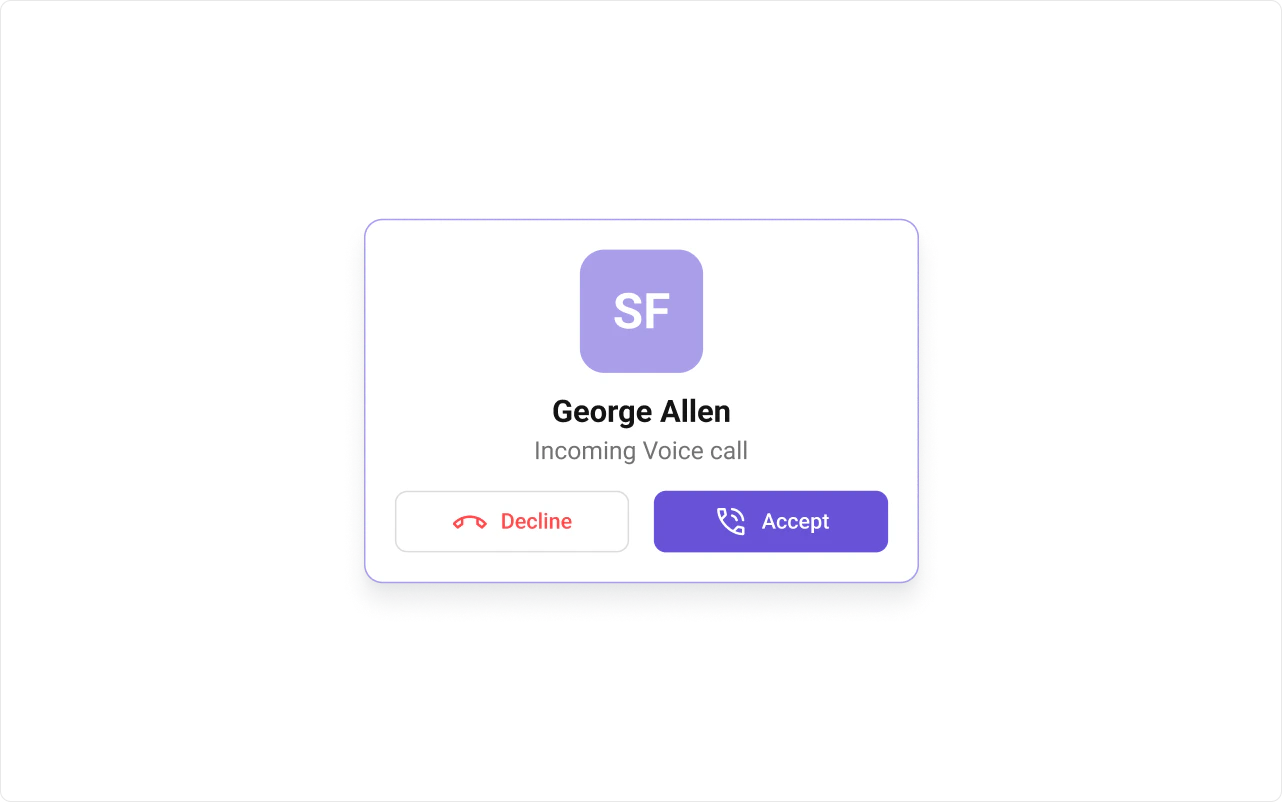
Using CSS you can customize the look and feel of the component in your app like the color, size, shape, and fonts.

**Example:**

<Frame>
  <img src="https://mintcdn.com/cometchat-22654f5b-feature-react-native-sdk-quotedmessage-a/FOPcIvXNMzgmVa9j/images/0256ea4e-incoming_calls_style_web_screens-9d869ffb8755959f5607e9e63d255cdd.png?fit=max&auto=format&n=FOPcIvXNMzgmVa9j&q=85&s=7c98ff4d2c8b243e30ce0fee3e83544d" width="1282" height="802" data-path="images/0256ea4e-incoming_calls_style_web_screens-9d869ffb8755959f5607e9e63d255cdd.png" />
</Frame>

<Tabs>
  <Tab title="TypeScript">
    ```ts theme={null}
    import { CometChatIncomingCall } from "@cometchat/chat-uikit-react";
    import React from "react";

    const IncomingCallsDemo = () => {
      return <CometChatIncomingCall />;
    };

    export default IncomingCallsDemo;
    ```
  </Tab>

  <Tab title="JavaScript">
    ```js theme={null}
    import { CometChatIncomingCall } from "@cometchat/chat-uikit-react";
    import React from "react";

    const IncomingCallsDemo = () => {
      return <CometChatIncomingCall />;
    };

    export default IncomingCallsDemo;
    ```
  </Tab>

  <Tab title="css">
    ```css theme={null}
    .cometchat-incoming-call {
      display: flex;
      width: 555px;
      padding: 30.833px;
      flex-direction: column;
      align-items: center;
      gap: 24.667px;
      flex-shrink: 0;
      border-radius: 18.5px;
      border: 1.542px solid #aa9ee8;
      background: #fff;
      box-shadow: 0px 18.5px 24.667px -6.167px rgba(16, 24, 40, 0.08), 0px 6.167px
          9.25px -3.083px rgba(16, 24, 40, 0.03);
    }

    .cometchat-incoming-call .cometchat-list-item {
      width: 100%;
    }

    .cometchat-incoming-call .cometchat-incoming-call__button-group {
      justify-content: center;
    }

    .cometchat-incoming-call__button-decline,
    .cometchat-incoming-call__button-accept {
      background-color: white;
      border-radius: 12px;
      border: 1.5px solid #dcdcdc;
    }

    .cometchat-incoming-call__button-decline .cometchat-button:hover,
    .cometchat-incoming-call__button-decline .cometchat-button {
      background-color: white;
      background-color: white;
      border-radius: 12px;
      border: 1.5px solid #dcdcdc;
    }

    .cometchat-incoming-call__button-accept .cometchat-button:hover,
    .cometchat-incoming-call__button-accept .cometchat-button {
      background-color: #6852d6;
      color: white;
    }

    .cometchat-incoming-call__button-decline .cometchat-button__text {
      color: #f44649;
      font: 500 21px/120% roboto;
      font-style: normal;
    }

    .cometchat-incoming-call__button-accept .cometchat-button__text {
      color: #fff;
      font: 500 21px/120% roboto;
      font-style: normal;
    }

    .cometchat-incoming-call__button-decline .cometchat .cometchat-button::before,
    .cometchat-incoming-call__button-accept .cometchat .cometchat-button::before {
      content: url("../assets/call-decline.svg");
      width: 37px;
      height: 37px;
      flex-shrink: 0;
    }

    .cometchat-incoming-call__button-accept .cometchat .cometchat-button::before {
      content: url("../assets/call-accept.svg");
    }

    .cometchat-incoming-call__avatar,
    .cometchat-incoming-call__avatar .cometchat-avatar {
      display: flex;
      width: 123.333px;
      height: 123.333px;
      justify-content: center;
      align-items: center;
      border-radius: 24.667px;
      background: #aa9ee8;
    }

    .cometchat-incoming-call__avatar .cometchat-avatar__image {
      border-radius: 24.667px;
    }

    .cometchat-incoming-call__avatar .cometchat-avatar__text {
      color: #fff;
      text-align: center;
      font: 500 21px/120% roboto;
      font-style: normal;
    }

    .cometchat-incoming-call .cometchat-list-item__body {
      flex-direction: column-reverse;
      gap: 20px;
      background: #fff;
    }

    .cometchat-incoming-call .cometchat-list-item__body-title {
      color: #141414;
    }

    .cometchat-incoming-call .cometchat-list-item__title-container {
      text-align: center;
      gap: 6px;
    }

    .cometchat-list-item__body-subtitle {
      justify-content: center;
    }
    ```
  </Tab>
</Tabs>

### Functionality

These are a set of small functional customizations that allow you to fine-tune the overall experience of the component. With these, you can change text, set custom icons, and toggle the visibility of UI elements.

Here is a code snippet demonstrating how you can customize the functionality of the `Incoming Call` component.

<Tabs>
  <Tab title="TypeScript">
    ```ts theme={null}
    import { CometChatIncomingCall } from "@cometchat/chat-uikit-react";
    import React from "react";

    const IncomingCallsDemo = () => {
      return (
        <CometChatIncomingCall
          disableSoundForCalls={true}
        />
      );
    };

    export default IncomingCallsDemo;
    ```
  </Tab>

  <Tab title="JavaScript">
    ```js theme={null}
    import { CometChatIncomingCall } from "@cometchat/chat-uikit-react";
    import React from "react";

    const IncomingCallsDemo = () => {
      return (
        <CometChatIncomingCall
          disableSoundForCalls={true}
        />
      );
    };

    export default IncomingCallsDemo;
    ```
  </Tab>
</Tabs>

Below is a list of customizations along with corresponding code snippets

| Property          | Description                                                                           | Code                                                |
| ----------------- | ------------------------------------------------------------------------------------- | --------------------------------------------------- |
| **Call**          | The CometChat call object used to initialize and display the incoming call component. | `call={callObject}`                                 |
| **Disable sound** | Disables the sound for incoming calls.                                                | `disableSoundForCalls={true}`                       |
| **Custom sound**  | Specifies a custom sound to play for incoming calls.                                  | `customSoundForCalls='Your Custom Sound For Calls'` |

***

### Advanced

For advanced-level customization, you can set custom views to the component. This lets you tailor each aspect of the component to fit your exact needs and application aesthetics. You can create and define your views, layouts, and UI elements and then incorporate those into the component.

***

#### SubtitleView

Property `subtitleView` is a function that renders a JSX element to display the subtitle view.

<Tabs>
  <Tab title="TypeScript">
    ```ts theme={null}
    import { CometChat } from "@cometchat/chat-sdk-javascript";
    import { CometChatIncomingCall } from "@cometchat/chat-uikit-react";
    import React from "react";

    const IncomingCallsDemo = () => {
      const getSubtitleView = (call: CometChat.Call): JSX.Element => {
        /** Return custom subtitle view */
      };

      return <CometChatIncomingCall subtitleView={getSubtitleView} />;
    };

    export default IncomingCallsDemo;
    ```
  </Tab>

  <Tab title="JavaScript">
    ```js theme={null}
    import { CometChat } from "@cometchat/chat-sdk-javascript";
    import { CometChatIncomingCall } from "@cometchat/chat-uikit-react";
    import React from "react";

    const IncomingCallsDemo = () => {
      const getSubtitleView = (call) => {
        /** Return custom subtitle view */
      };

      return <CometChatIncomingCall subtitleView={getSubtitleView} />;
    };

    export default IncomingCallsDemo;
    ```
  </Tab>
</Tabs>

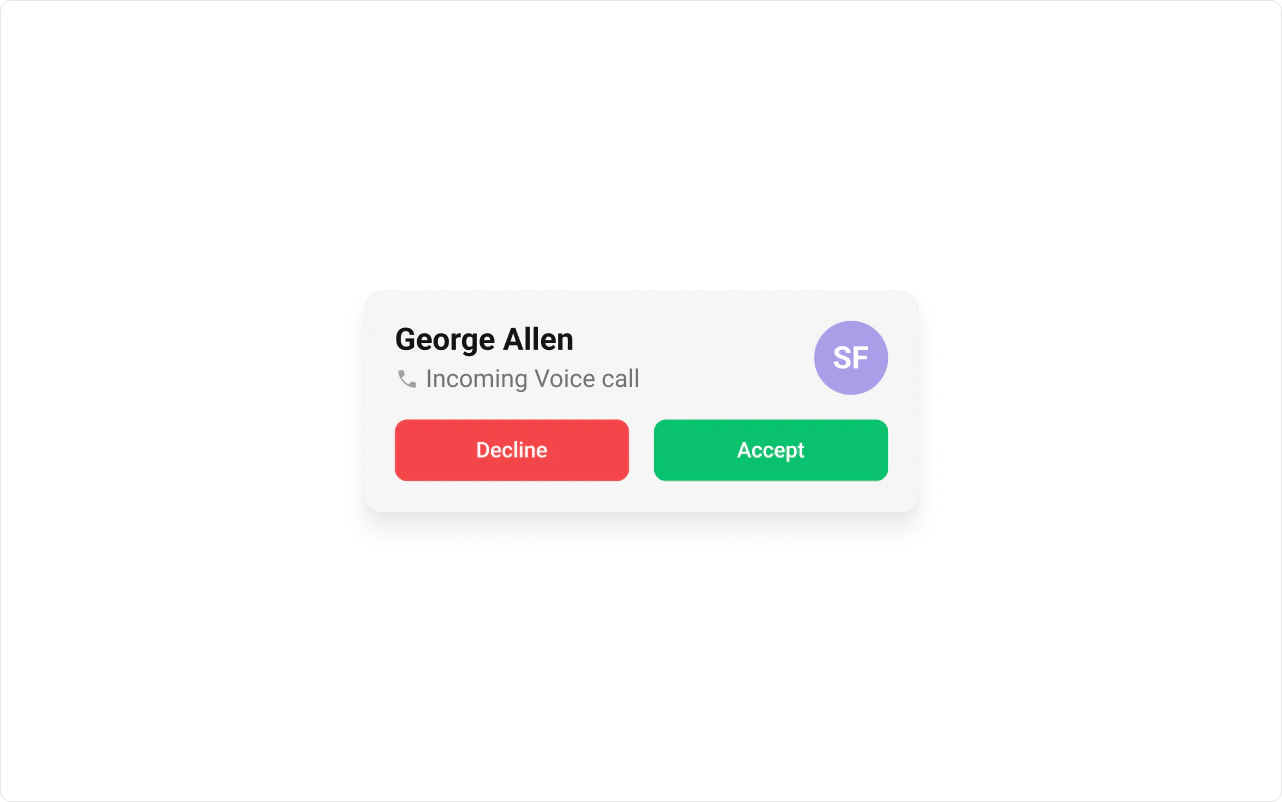
#### LeadingView

Property `leadingView` is a function that renders a JSX element to display the leading view.

The customized call interface is displayed below.

<Frame>
  <img src="https://mintcdn.com/cometchat-22654f5b-feature-react-native-sdk-quotedmessage-a/195oxTVcmj5zqz-a/images/c3e4060d-incoming_call_leading_view_custom_web_screens-75333fe402b7588c590288cd6f825a99.png?fit=max&auto=format&n=195oxTVcmj5zqz-a&q=85&s=bd5a170bee7ffbcb42a80e1a0923cda4" width="1282" height="802" data-path="images/c3e4060d-incoming_call_leading_view_custom_web_screens-75333fe402b7588c590288cd6f825a99.png" />
</Frame>

Use the following code to achieve the customization shown above.
<Tabs>
  <Tab title="TypeScript">
    ```ts theme={null}
    import { CometChat } from "@cometchat/chat-sdk-javascript";
    import { CometChatAvatar, CometChatIncomingCall } from "@cometchat/chat-uikit-react";
    import React from "react";

    const IncomingCallsDemo = () => {
      const getLeadingView = (call: CometChat.Call) => {
            return (
                <div>
                    <CometChatAvatar name={call?.getCallInitiator()?.getName()} image={call?.getCallInitiator()?.getAvatar()} />
                </div>
            )
        };

      return <CometChatIncomingCall leadingView={getLeadingView} />;
    };

    export default IncomingCallsDemo;
    ```
  </Tab>

  <Tab title="JavaScript">
    ```js theme={null}
    import { CometChat } from "@cometchat/chat-sdk-javascript";
    import { CometChatAvatar, CometChatIncomingCall } from "@cometchat/chat-uikit-react";
    import React from "react";

    const IncomingCallsDemo = () => {
      const getLeadingView = (call) => {
            return (
                <div>
                    <CometChatAvatar name={call?.getCallInitiator()?.getName()} image={call?.getCallInitiator()?.getAvatar()} />
                </div>
            )
        };

      return <CometChatIncomingCall leadingView={getLeadingView} />;
    };

    export default IncomingCallsDemo;
    ```
  </Tab>

  <Tab title="css">
    ```css theme={null}
    .cometchat-incoming-call__avatar {
      display: none;
    }
    ```
  </Tab>
</Tabs>

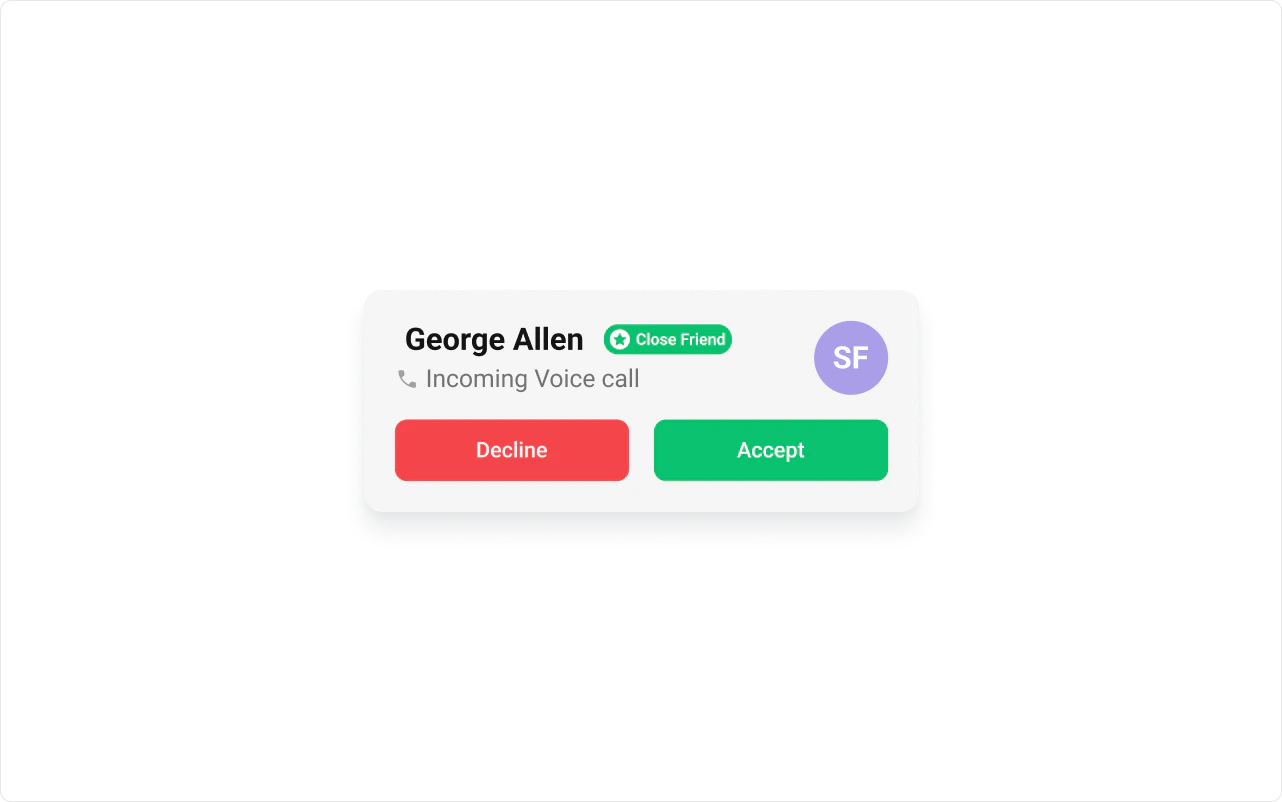
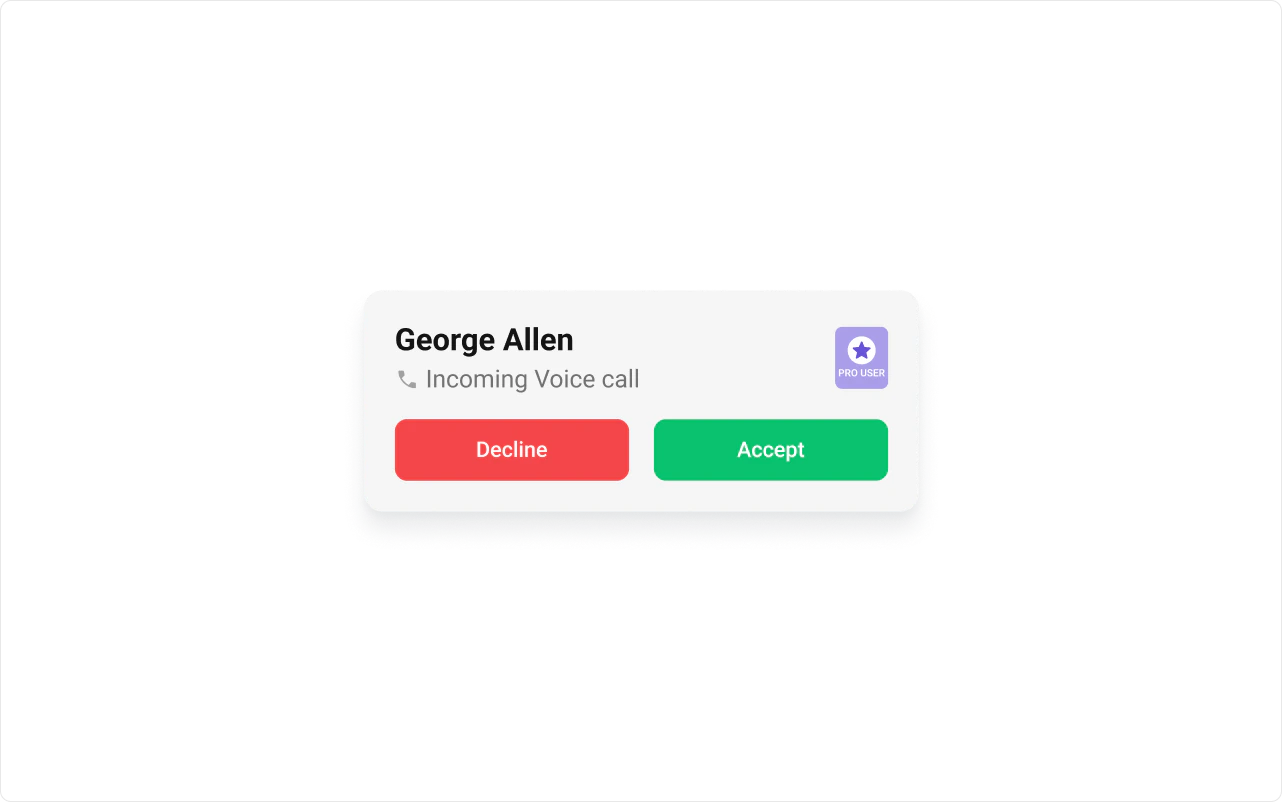
#### TitleView

Property `titleView` is a function that renders a JSX element to display the title view.

The customized call interface is displayed below.

<Frame>
  <img src="https://mintcdn.com/cometchat-22654f5b-feature-react-native-sdk-quotedmessage-a/skyYyiTRS367pk0g/images/8d3bfa9b-incoming_call_title_view_custom_web_screens-67b55f5b6fc1ede3f9f55d840ebaa290.png?fit=max&auto=format&n=skyYyiTRS367pk0g&q=85&s=0f5af4d3f25d372da3336f725592d7db" width="1282" height="802" data-path="images/8d3bfa9b-incoming_call_title_view_custom_web_screens-67b55f5b6fc1ede3f9f55d840ebaa290.png" />
</Frame>

Use the following code to achieve the customization shown above.
<Tabs>
  <Tab title="TypeScript">
    ```ts theme={null}
    import { CometChat } from "@cometchat/chat-sdk-javascript";
    import { CometChatIncomingCall } from "@cometchat/chat-uikit-react";
    import React from "react";

    const IncomingCallsDemo = () => {
      const getTitleView = (call: CometChat.Call) => {
            return (
                <div className="incoming-call__title-wrapper">
                    {call?.getCallInitiator()?.getName()}
                    <div className="incoming-call__tag">
                        <div className="incoming-call__tag-icon" />
                        {call.getCallInitiator()?.getRole()}
                    </div>
                </div>
            )
        };

      return <CometChatIncomingCall titleView={getTitleView} />;
    };

    export default IncomingCallsDemo;
    ```
  </Tab>

  <Tab title="JavaScript">
    ```js theme={null}
    import { CometChat } from "@cometchat/chat-sdk-javascript";
    import { CometChatIncomingCall } from "@cometchat/chat-uikit-react";
    import React from "react";

    const IncomingCallsDemo = () => {
      const getTitleView = (call) => {
            return (
                <div className="incoming-call__title-wrapper">
                    {call?.getCallInitiator()?.getName()}
                    <div className="incoming-call__tag">
                        <div className="incoming-call__tag-icon" />
                        {call.getCallInitiator()?.getRole()}
                    </div>
                </div>
            )
        };

      return <CometChatIncomingCall titleView={getTitleView} />;
    };

    export default IncomingCallsDemo;
    ```
  </Tab>

  <Tab title="css">
    ```css theme={null}
    .incoming-call__title-wrapper {
      display: flex;
      width: 370px;
      height: 37px;
      padding: 2px 10px;
      align-items: center;
      gap: 10px;
      color: #141414;
      font: 700 24px Roboto;
    }

    .incoming-call__tag {
      display: flex;
      height: 30.036px;
      padding: 2.002px 6.007px;
      justify-content: center;
      align-items: center;
      gap: 6.007px;
      border-radius: 14.017px;
      background: #09C26F;
      color: #FFF;
      font: 600 12px Roboto;
    }

    .incoming-call__tag-icon {
      background-image: url("<relative path to your icon>");
      background-size: contain;
      height: 20px;
      width: 20px;
    }
    ```
  </Tab>
</Tabs>

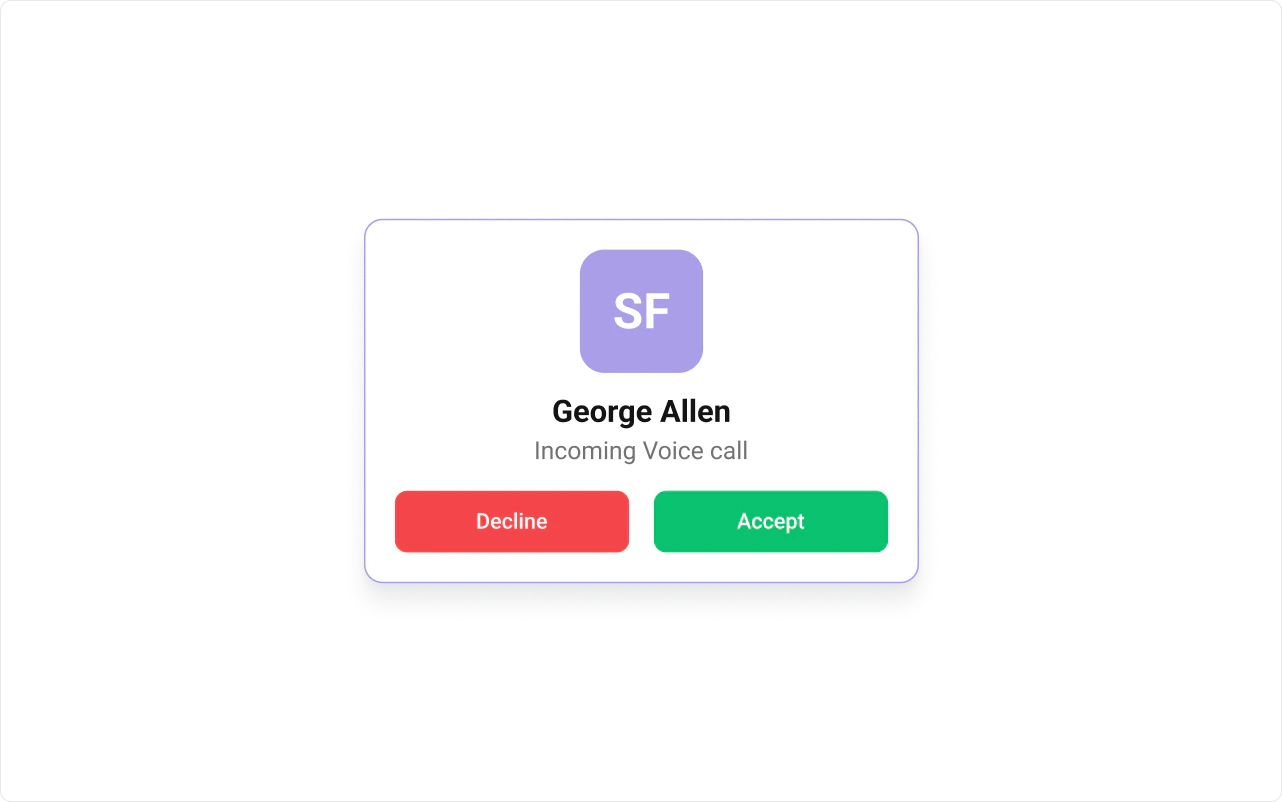
#### TrailingView

Property `trailingView` is a function that renders a JSX element to display the trailing view.

The customized call interface is displayed below.

<Frame>
  <img src="https://mintcdn.com/cometchat-22654f5b-feature-react-native-sdk-quotedmessage-a/LWkTA5Pfh1MlgSXC/images/5ed15e01-incoming_call_trailing_view_custom_web_screens-bc98263b9efb963e620064f970c4413b.png?fit=max&auto=format&n=LWkTA5Pfh1MlgSXC&q=85&s=771d898050a8d982ffd6d01b51e33f9b" width="1282" height="802" data-path="images/5ed15e01-incoming_call_trailing_view_custom_web_screens-bc98263b9efb963e620064f970c4413b.png" />
</Frame>

Use the following code to achieve the customization shown above.
<Tabs>
  <Tab title="TypeScript">
    ```ts theme={null}
    import { CometChat } from "@cometchat/chat-sdk-javascript";
    import { CometChatIncomingCall } from "@cometchat/chat-uikit-react";
    import React from "react";

    const IncomingCallsDemo = () => {
      const getTrailingView = (call: CometChat.Call) => {
            return (
                <div className="incoming-call__avatar">
                    <div className="incoming-call__avatar-icon" />
                    {call.getCallInitiator()?.getRole()}
                </div>
            )
        };

      return <CometChatIncomingCall trailingView={getTrailingView} />;
    };

    export default IncomingCallsDemo;
    ```
  </Tab>

  <Tab title="JavaScript">
    ```js theme={null}
    import { CometChat } from "@cometchat/chat-sdk-javascript";
    import { CometChatIncomingCall } from "@cometchat/chat-uikit-react";
    import React from "react";

    const IncomingCallsDemo = () => {
      const getTrailingView = (call) => {
            return (
                <div className="incoming-call__avatar">
                    <div className="incoming-call__avatar-icon" />
                    {call.getCallInitiator()?.getRole()}
                </div>
            )
        };

      return <CometChatIncomingCall trailingView={getTrailingView} />;
    };

    export default IncomingCallsDemo;
    ```
  </Tab>

  <Tab title="css">
    ```css theme={null}
    .incoming-call__avatar {
      display: flex;
      height: 62px;
      padding: 1px 3px;
      flex-direction: column;
      justify-content: center;
      align-items: center;
      gap: 3px;
      border-radius: 7px;
      background: #AA9EE8;
      color: #FFF;
      font: 600 10px Roboto;
    }

    .incoming-call__avatar-icon {
      background-image: url("<relative path to your icon");
      height: 28px;
      width: 28px;
      background-size: contain;
    }
    ```
  </Tab>
</Tabs>

#### ItemView

Property `itemView` is a function that renders a JSX element to display the item view.

The customized call interface is displayed below.

<Frame>
  <img src="https://mintcdn.com/cometchat-22654f5b-feature-react-native-sdk-quotedmessage-a/tAD7jl57uaz-SCT_/images/40f39b71-incoming_call_item_view_custom_web_screens-f8cd3984730f17f99313f1d988439d41.png?fit=max&auto=format&n=tAD7jl57uaz-SCT_&q=85&s=bbe0a6058c027f5c5b744e8feb29afbb" width="1282" height="802" data-path="images/40f39b71-incoming_call_item_view_custom_web_screens-f8cd3984730f17f99313f1d988439d41.png" />
</Frame>

Use the following code to achieve the customization shown above.

<Tabs>
  <Tab title="TypeScript">
    ```ts theme={null}
    import { CometChat } from "@cometchat/chat-sdk-javascript";
    import { CometChatAvatar, CometChatIncomingCall } from "@cometchat/chat-uikit-react";
    import React from "react";

    const IncomingCallsDemo = () => {
      const getItemView = (call: CometChat.Call) => {
            return (
                <div className="incoming-call__itemview">
                    <CometChatAvatar name={call?.getCallInitiator()?.getName()} image={call?.getCallInitiator()?.getAvatar()} />
                    <div>
                        <div className="incoming-call__itemview-title">
                            {call?.getCallInitiator()?.getName()}
                        </div>
                        <div className="incoming-call__itemview-subtitle">
                            {"Incoming " + call.getType() + " call"}
                        </div>
                    </div>
                </div>
            )
        };

      return <CometChatIncomingCall itemView={getItemView} />;
    };

    export default IncomingCallsDemo;
    ```
  </Tab>

  <Tab title="JavaScript">
    ```js theme={null}
    import { CometChat } from "@cometchat/chat-sdk-javascript";
    import { CometChatAvatar, CometChatIncomingCall } from "@cometchat/chat-uikit-react";
    import React from "react";

    const IncomingCallsDemo = () => {
      const getItemView = (call) => {
            return (
                <div className="incoming-call__itemview">
                    <CometChatAvatar name={call?.getCallInitiator()?.getName()} image={call?.getCallInitiator()?.getAvatar()} />
                    <div>
                        <div className="incoming-call__itemview-title">
                            {call?.getCallInitiator()?.getName()}
                        </div>
                        <div className="incoming-call__itemview-subtitle">
                            {"Incoming " + call.getType() + " call"}
                        </div>
                    </div>
                </div>
            )
        };

      return <CometChatIncomingCall itemView={getItemView} />;
    };

    export default IncomingCallsDemo;
    ```
  </Tab>

  <Tab title="css">
    ```css theme={null}
    .incoming-call__itemview {
      display: flex;
      flex-direction: column;
      justify-content: center;
      align-items: center;
      gap: 20px;
      align-self: stretch;
    }

    .incoming-call__itemview .cometchat-avatar,
    .incoming-call__itemview .cometchat-avatar__image {
      height: 90px;
      width: 90px;
      border-radius: 24px;
    }

    .incoming-call__itemview .cometchat-avatar__text {
      color: #FFF;
      text-align: center;
      font: 700 32px Roboto
    }

    .incoming-call__itemview-title {
      color: #141414;
      text-align: center;
      font: 700 24px Roboto;
    }

    .incoming-call__itemview-subtitle {
      color: var(--Color-Text-Color-Text-Secondary, #727272);
      font: 400 16px Roboto;
    }
    ```
  </Tab>
</Tabs>