> ## Documentation Index
> Fetch the complete documentation index at: https://cometchat-22654f5b-feature-react-native-sdk-quotedmessage-a.mintlify.site/llms.txt
> Use this file to discover all available pages before exploring further.

# Building A One To One/Group Chat Experience

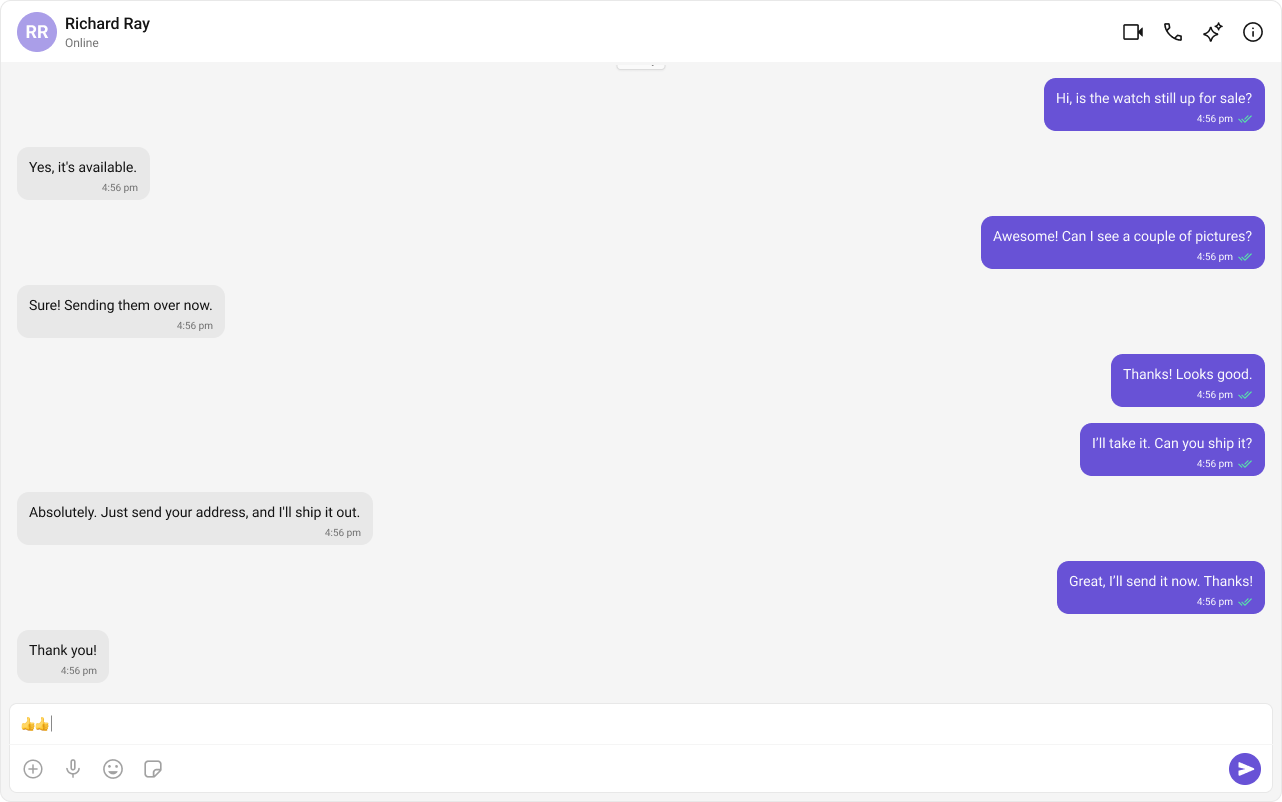
The **One-to-One Chat** feature provides a streamlined **direct messaging interface**, making it ideal for **support chats, dating apps, and private messaging platforms**. This setup eliminates distractions by focusing solely on a **dedicated chat window**.

***

## **User Interface Preview**

<Frame>
  <img src="https://mintcdn.com/cometchat-22654f5b-feature-react-native-sdk-quotedmessage-a/-G4WbAhFV_nFm5lW/images/4d640baf-chat_experience_one_on_one-db9d6d7716241c59bb026625b05019fe.png?fit=max&auto=format&n=-G4WbAhFV_nFm5lW&q=85&s=52b47727a652341a9265f70884e0a36a" width="1282" height="802" data-path="images/4d640baf-chat_experience_one_on_one-db9d6d7716241c59bb026625b05019fe.png" />
</Frame>

### **Key Components**

1. **Chat Header** – Displays recipient details and optional call/video call buttons.
2. **Message View** – Shows real-time chat history.
3. **Message Input Box** – Enables users to send messages, media, and reactions.

***

## **Step-by-Step Guide**

### **Step 1: Implement the Chat Header**

* Display **profile picture, name, and online status**.
* Add **voice and video call buttons** (optional).

```html theme={null}
<CometChatMessageHeader user={selectedUser} group={selectedGroup} />
```

### **Step 2: Build the Message View**

* Load **chat history** and **real-time messages**.
* Ensure **smooth scrolling and timestamp visibility**.

```html theme={null}
<CometChatMessageList user={selectedUser} group={selectedGroup} />
```

### **Step 3: Add the Message Composer**

* Include a **text input field**.
* Support **media uploads, file attachments, emojis, and reactions**.

```html theme={null}
<CometChatMessageComposer user={selectedUser} group={selectedGroup} />
```

***

#### **Implementation**

Now we will create the `CometChatNoSSR.tsx` & `CometChatNoSSR.css` files. Here, we will initialize the CometChat UI Kit, log in a user, and build the messaging experience using `CometChatMessageHeader`, `CometChatMessageList`, and `CometChatMessageComposer` components.

```
src/
│── CometChatNoSSR/
│   ├── CometChatNoSSR.tsx
│   ├── CometChatNoSSR.css
```

<Tabs>
  <Tab title="TypeScript">
    ```tsx CometChatNoSSR.tsx theme={null}
    import React, { useEffect, useState } from "react";
    import { CometChatMessageComposer, CometChatMessageHeader, CometChatMessageList, CometChatUIKit, UIKitSettingsBuilder } from "@cometchat/chat-uikit-react";
    import { CometChat } from "@cometchat/chat-sdk-javascript";
    import "./CometChatNoSSR.css";

    const COMETCHAT_CONSTANTS = {
      APP_ID: "",
      REGION: "",
      AUTH_KEY: "",
    };

    const CometChatNoSSR: React.FC = () => {
      const [user, setUser] = useState<CometChat.User | undefined>(undefined);
      const [selectedUser, setSelectedUser] = useState<CometChat.User | undefined>(undefined);
      // eslint-disable-next-line @typescript-eslint/no-unused-vars
      const [selectedGroup, setSelectedGroup] = useState<CometChat.Group | undefined>(undefined);

      useEffect(() => {
        const UIKitSettings = new UIKitSettingsBuilder()
          .setAppId(COMETCHAT_CONSTANTS.APP_ID)
          .setRegion(COMETCHAT_CONSTANTS.REGION)
          .setAuthKey(COMETCHAT_CONSTANTS.AUTH_KEY)
          .subscribePresenceForAllUsers()
          .build();

        CometChatUIKit.init(UIKitSettings)
          ?.then(() => {
            console.log("Initialization completed successfully");
            CometChatUIKit.getLoggedinUser().then((loggedInUser) => {
              if (!loggedInUser) {
                CometChatUIKit.login("superhero1")
                  .then((user) => {
                    console.log("Login Successful", { user });
                    setUser(user);
                  })
                  .catch((error) => console.error("Login failed", error));
              } else {
                console.log("Already logged-in", { loggedInUser });
                setUser(loggedInUser);
              }
            });
          })
          .catch((error) => console.error("Initialization failed", error));
      }, []);

      useEffect(() => {
        if (user) {
          // Fetch user or group from CometChat SDK whose chat you want to load. 

          /** Fetching User */
          const UID = "cometchat-uid-1";
          CometChat.getUser(UID).then(
            user => {
              setSelectedUser(user);
            }, error => {
              console.log("User fetching failed with error:", error);
            }
          );

          /** Fetching Group */
          // const GUID = "GUID"
          // CometChat.getGroup(GUID).then(
          //   group => {
          //     setSelectedGroup(group);
          //   }, error => {
          //     console.log("User fetching failed with error:", error);
          //   }
          // );
        }
      }, [user]);

      return user ? (
        <>
          {selectedUser || selectedGroup ? (
            <div className="messages-wrapper">
              <CometChatMessageHeader user={selectedUser} group={selectedGroup} />
              <CometChatMessageList user={selectedUser} group={selectedGroup} />
              <CometChatMessageComposer user={selectedUser} group={selectedGroup} />
            </div>
          ) : (
            <div className="empty-conversation">Start a conversation by passing valid user or group IDs.</div>
          )}
        </>
      ) : undefined;
    };

    export default CometChatNoSSR;
    ```
  </Tab>

  <Tab title="CSS">
    ```css CometChatNoSSR.css theme={null}
    .messages-wrapper {
        width: 100%;
        height: 100%;
        display: flex;
        flex-direction: column;
    }

    .empty-conversation {
        height: 100%;
        width: 100%;
        display: flex;
        justify-content: center;
        align-items: center;
        background: white;
        color: var(--cometchat-text-color-secondary, #727272);
        font: var(--cometchat-font-body-regular, 400 14px Roboto);
    }

    .cometchat .cometchat-message-composer {
        border-radius: 0px;
    }
    ```
  </Tab>
</Tabs>

In the code snippet above, ensure you select either a user or a group based on your chat requirement. You can also determine this dynamically depending on the conversation type.

#### **Fetching a User (One-on-One Chat)**

```javascript theme={null}
const UID = "cometchat-uid-1";
CometChat.getUser(UID).then(
    user => {
        setSelectedUser(user);
    }, error => {
        console.log("User fetching failed with error:", error);
    }
);
```

#### **Fetching a Group (Group Chat)**

```javascript theme={null}
const GUID = "GUID"
CometChat.getGroup(GUID).then(
    group => {
        setSelectedGroup(group);
    }, error => {
        console.log("User fetching failed with error:", error);
    }
);
```

### **Step 4: Disable SSR and Render the CometChat Component**

Create a file CometChat.tsx inside the routes folder:

```javascript theme={null}
import React, { lazy, Suspense, useEffect, useState } from "react";
import "@cometchat/chat-uikit-react/css-variables.css";

// Lazy import to prevent SSR crash
const CometChatNoSSR = lazy(() => import("../CometChatNoSSR/CometChatNoSSR"));

export default function CometChatRoute() {
  const [mounted, setMounted] = useState(false);

  useEffect(() => {
    setMounted(true);
  }, []);

  return mounted ? (
    <Suspense fallback={<div>Loading...</div>}>
      <CometChatNoSSR />
    </Suspense>
  ) : (
    <div>Loading...</div>
  );
}
```

Now, create a route for CometChat in your routes file:

```typescript theme={null}
import { type RouteConfig, index, route } from "@react-router/dev/routes";

export default [
  index("routes/home.tsx"),
  route("chat", "routes/CometChat.tsx"), // Chat Route
] satisfies RouteConfig;
```

<Note>
  Why disable SSR? CometChat UI Kit Builder relies on browser APIs such as window, document, and WebSockets. Since React Router renders on the server by default, disabling SSR for this component prevents runtime errors.
</Note>

### **Step 5: Update App CSS**

Next, add the following styles to app.css to ensure CometChat UI Kit is properly styled.

```css app.css theme={null}
:root {
  --background: #ffffff;
  --foreground: #171717;
}

@media (prefers-color-scheme: dark) {
  :root {
    --background: #0a0a0a;
    --foreground: #ededed;
  }
}

/** Give your App a height of `100%`. Keep other CSS properties in the below selector as it is. */
.root {
  height: 100%;
}

html,
body {
  height: 100%;
}

html,
body {
  max-width: 100vw;
  overflow-x: hidden;
}

body {
  color: var(--foreground);
  background: var(--background);
  font-family: Arial, Helvetica, sans-serif;
  -webkit-font-smoothing: antialiased;
  -moz-osx-font-smoothing: grayscale;
}

* {
  box-sizing: border-box;
  padding: 0;
  margin: 0;
}

a {
  color: inherit;
  text-decoration: none;
}

@media (prefers-color-scheme: dark) {
  html {
    color-scheme: dark;
  }
}
```

### **Step 6: Run Your Application**

1. **Start the development server**

   ```
   npm run dev
   ```

2. **Verify the chat interface**

* In your browser, navigate to the `/chat` route `(e.g., http://localhost:3000/chat)`.
* Confirm that the chat experience loads as expected.

***

## **Next Steps**

### **Enhance the User Experience**

* **[Advanced Customizations](/ui-kit/react/theme)** – Personalize the chat UI to align with your brand.

***
