> ## Documentation Index
> Fetch the complete documentation index at: https://cometchat-22654f5b-feature-react-native-sdk-quotedmessage-a.mintlify.site/llms.txt
> Use this file to discover all available pages before exploring further.

# Search

## Overview

The `CometChatSearch` component is a powerful and customizable search interface that allows users to search across conversations and messages in real time. It supports a wide variety of filters, scopes, and customization options. `CometChatSearch` helps users find messages, conversations, media, and more through an intuitive and filterable search experience. It can be embedded in multiple contexts — as part of the conversation list, message header, or as a full-screen search experience.

## Usage

### Integration

<Tabs>
  <Tab title="SearchDemo.tsx">
    ```tsx theme={null}
    import { CometChatSearch } from "@cometchat/chat-uikit-react";

    function SearchDemo() {
      return (
        <div className="conversations" style={{ width: "100%", height: "100%" }}>
          <CometChatSearch />
        </div>
      );
    }

    export default SearchDemo;
    ```
  </Tab>

  <Tab title="App.tsx">
    ```tsx theme={null}
    import { SearchDemo } from "./SearchDemo";

    export default function App() {
      return (
        <div className="App">
          <SearchDemo />
        </div>
      );
    }
    ```
  </Tab>
</Tabs>

***

### Actions

[Actions](/ui-kit/react/components-overview#actions) dictate how a component functions. They are divided into two types: Predefined and User-defined. You can override either type, allowing you to tailor the behavior of the component to fit your specific needs.

#### 1. onConversationClicked

`onConversationClicked` is triggered when you click on a Conversation from the search result. The `onConversationClicked` action doesn't have a predefined behavior. You can override this action using the following code snippet.

<Tabs>
  <Tab title="SearchDemo.tsx">
    ```tsx theme={null}
    import { CometChatSearch } from "@cometchat/chat-uikit-react";

    const openConversation = (conversation: CometChat.Conversation) => {
      console.log("Conversation Selected:", conversation);
    };

    <CometChatSearch onConversationClicked={openConversation} />;
    ```
  </Tab>
</Tabs>

***

#### 2. onMessageClicked

`onMessageClicked` is triggered when you click on a Message from the search result. The `onMessageClicked` action doesn't have a predefined behavior. You can override this action using the following code snippet.

<Tabs>
  <Tab title="SearchDemo.tsx">
    ```tsx theme={null}
    import { CometChatSearch } from "@cometchat/chat-uikit-react";

    const goToMessage = (message: CometChat.BaseMessage) => {
      console.log("Message Selected:", conversation);
    };

    <CometChatSearch onMessageClicked={goToMessage} />;
    ```
  </Tab>
</Tabs>

***

#### 3. OnBack

`OnBack` is triggered when you click on the back button of the Message Header component. You can override this action using the following code snippet.

<Tabs>
  <Tab title="SearchDemo.tsx">
    ```tsx theme={null}
    import { CometChatSearch } from "@cometchat/chat-uikit-react";

    const onBack = () => {
      console.log("Back button pressed");
    };

    <CometChatSearch onBack={onBack} />;
    ```
  </Tab>
</Tabs>

***

#### 4. onError

This action doesn't change the behavior of the component but rather listens for any errors that occur in the Conversations component.

<Tabs>
  <Tab title="SearchDemo.tsx">
    ```tsx theme={null}
    import { CometChatSearch } from "@cometchat/chat-uikit-react";

    const handleOnError = (error: CometChat.CometChatException) => {
      // Your exception handling code
    };

    <CometChatSearch onError={handleOnError} />;
    ```
  </Tab>
</Tabs>

***

### Filters

#### 1. ConversationsRequestBuilder

You can set the `ConversationsRequestBuilder` in the Search Component to filter the search result. You can modify the builder as per your specific requirements with multiple options available to know more refer to [ConversationRequestBuilder](/sdk/javascript/retrieve-conversations).

<Tabs>
  <Tab title="SearchDemo.tsx">
    ```tsx theme={null}
    import { CometChatSearch } from "@cometchat/chat-uikit-react";
    import { CometChat } from "@cometchat/chat-sdk-javascript";

    <CometChatSearch
      conversationsRequestBuilder={new CometChat.ConversationsRequestBuilder().setLimit(
        5
      )}
    />;
    ```
  </Tab>
</Tabs>

***

#### 2. MessagesRequestBuilder

You can set the `MessagesRequestBuilder` in the Search Component to filter the search result. You can modify the builder as per your specific requirements with multiple options available to know more refer to [MessagesRequestBuilder](/sdk/javascript/additional-message-filtering).

<Tabs>
  <Tab title="SearchDemo.tsx">
    ```tsx theme={null}
    import { CometChatSearch } from "@cometchat/chat-uikit-react";
    import { CometChat } from "@cometchat/chat-sdk-javascript";

    <CometChatSearch
      messagesRequestBuilder={new CometChat.MessagesRequestBuilder().setLimit(5)}
    />;
    ```
  </Tab>
</Tabs>

***

### Events

[Events](/ui-kit/react/components-overview#events) are emitted by a `Component`. By using event you can extend existing functionality. Being global events, they can be applied in multiple locations and are capable of being added or removed.

The `CometChatSearch` component does not produce any events.

***

## Customization

To fit your app's design requirements, you can customize the appearance of the `CometChatSearch` component. We provide exposed methods that allow you to modify the experience and behavior according to your specific needs.

### Style

To customize the appearance, you can customise css of `CometChatSearch`

**Example**

<Frame>
  <img src="https://mintcdn.com/cometchat-22654f5b-feature-react-native-sdk-quotedmessage-a/ez24jA9Q57bxQihV/images/react-uikit-search-update.png?fit=max&auto=format&n=ez24jA9Q57bxQihV&q=85&s=d5d52d9b8f4ed7ff7c0ac7fd0e18cfe3" width="2560" height="1600" data-path="images/react-uikit-search-update.png" />
</Frame>

<Tabs>
  <Tab title="SearchDemo.tsx">
    ```tsx theme={null}
    import React from "react";
    import { CometChatSearch } from "@cometchat/chat-uikit-react";

    <CometChatSearch />;
    ```
  </Tab>

  <Tab title="index.css">
    ```css theme={null}
    .cometchat-search * {
      font-family: 'Times New Roman', Times !important;
    }

    .cometchat-search {
      gap: 0;
    }

    .cometchat-search__header {
      background-color: var(--cometchat-primary-color);
    }

    .cometchat-search__back-button .cometchat-button .cometchat-button__icon {
      background: var(--cometchat-static-white);
    }

    .cometchat-search__body {
      padding-block: var(--cometchat-padding-3);
      background-color: var(--cometchat-primary-color);
    }

    .cometchat-search-conversations__see-more .cometchat-button,
    .cometchat-search-messages__see-more .cometchat-button {
      text-decoration: underline;
      text-decoration-color: var(--cometchat-primary-color);
      text-underline-offset: 2px;
    }

    .cometchat-search-conversations__see-more .cometchat-button .cometchat-button__text,
    .cometchat-search-messages__see-more .cometchat-button .cometchat-button__text {
      font-weight: 300;
    }

    .cometchat-search__conversations {
      padding-top: var(--cometchat-padding-3);
      background-color: var(--cometchat-extended-primary-color-100);
    }

    .cometchat-search__messages {
      margin-top: var(--cometchat-margin-4);
    }

    .cometchat-search__conversations .cometchat-list__header {
      background-color: var(--cometchat-extended-primary-color-100);
    }

    .cometchat-search__conversations .cometchat-list__header-title {
      background-color: var(--cometchat-extended-primary-color-100);
    }

    .cometchat-search__conversations .cometchat-list-item {
      background-color: var(--cometchat-extended-primary-color-100);
    }

    .cometchat-search-messages__date-separator {
      display: none;
    }

    .cometchat-search__body-filter .cometchat-button__text {
      color: var(--cometchat-text-color-secondary);
    }

    .cometchat-search .cometchat-list__header-title {
      color: var(--cometchat-text-color-primary);
      font-weight: 700;
    }
    ```
  </Tab>
</Tabs>

### Functionality

These are a set of small functional customizations that allow you to fine-tune the overall experience of the component. With these, you can change text, set custom icons, and toggle the visibility of UI elements.

Here is a code snippet demonstrating how you can customize the functionality of the Message Header component.

<Tabs>
  <Tab title="SearchDemo.tsx">
    ```tsx theme={null}
    import { CometChatSearch } from "@cometchat/chat-uikit-react";

    <CometChatSearch hideBackButton={true} />;
    ```
  </Tab>
</Tabs>

Following is a list of customizations along with their corresponding code snippets:

| Property                  | Description                                                                                           | Code                                                                                                                                           |
| ------------------------- | ----------------------------------------------------------------------------------------------------- | ---------------------------------------------------------------------------------------------------------------------------------------------- |
| **User**                  | A `CometChat.User` object representing the user in whose conversation the search will be performed.   | `user={chatUser}`                                                                                                                              |
| **Group**                 | A `CometChat.Group` object representing the group in whose conversation the search will be performed. | `group={chatGroup}`                                                                                                                            |
| **Hide Back Button**      | Hides the back button in the Search component.                                                        | `hideBackButton={true}`                                                                                                                        |
| **Hide User Status**      | Hides the user's online/offline status indicator.                                                     | `hideUserStatus={true}`                                                                                                                        |
| **Hide Group Type**       | Hides the group type icon in conversation leading view.                                               | `hideGroupType={false}`                                                                                                                        |
| **Hide Receipts**         | Disables the display of message read receipts in conversation result.                                 | `hideReceipts={false}`                                                                                                                         |
| **Search Filters**        | List of filters to be rendered in the Search component.                                               | `searchFilters={[CometChatSearchFilter.Messages, CometChatSearchFilter.Photos, CometChatSearchFilter.Audio, CometChatSearchFilter.Documents]}` |
| **Initial Search Filter** | The filter which will be active by default on load.                                                   | `initialSearchFilter={CometChatSearchFilter.Messages}`                                                                                         |
| **Search In**             | List of entities in which the search should be performed.                                             | `searchIn={[CometChatSearchScope.Conversations]}`                                                                                              |
| **Initial View**          | Custom view to be shown when CometChat Search is rendered & no search is performed.                   | `initialView={<>Custom Initial View</>}`                                                                                                       |
| **Loading View**          | A custom component to display during the loading state.                                               | `loadingView={<>Custom Loading View</>}`                                                                                                       |
| **Empty View**            | A custom component to display when there are no conversations available.                              | `emptyView={<>Custom Empty View</>}`                                                                                                           |
| **Error View**            | A custom component to display when an error occurs.                                                   | `errorView={<>Custom Error View</>}`                                                                                                           |

### Advanced

For advanced-level customization, you can set custom views to the component. This lets you tailor each aspect of the component to fit your exact needs and application aesthetics. You can create and define your views, layouts, and UI elements and then incorporate those into the component.

***

#### ConversationItemView

With this function, you can assign a custom list item view to an conversation in the search result. For more information, refer to the [itemView](/ui-kit/react/conversations#itemview) prop of the `CometChatConversations` component.

#### ConversationLeadingView

With this function, you can assign a custom leading view of an conversation in the search result. For more information, refer to the [leadingView](/ui-kit/react/conversations#leadingview) prop of the `CometChatConversations` component.

#### ConversationTitleView

With this function, you can assign a custom title view to an conversation in the search result. For more information, refer to the [titleView](/ui-kit/react/conversations#titleview) prop of the `CometChatConversations` component.

#### ConversationSubtitleView

With this function, you can assign a custom subtitle view to an conversation in the search result. For more information, refer to the [subtitleView](/ui-kit/react/conversations#subtitleview) prop of the `CometChatConversations` component.

#### ConversationTrailingView

With this function, you can assign a custom trailing view to an conversation in the search result. For more information, refer to the [trailingView](/ui-kit/react/conversations#trailingview) prop of the `CometChatConversations` component.

#### ConversationOptions

A function that returns a list of actions available when hovering over a conversation item in the search result. For more information, refer to the [options](/ui-kit/react/conversations#options) prop of the `CometChatConversations` component.

#### MessageItemView

With this function, you can assign a custom item view of a message in the search result.

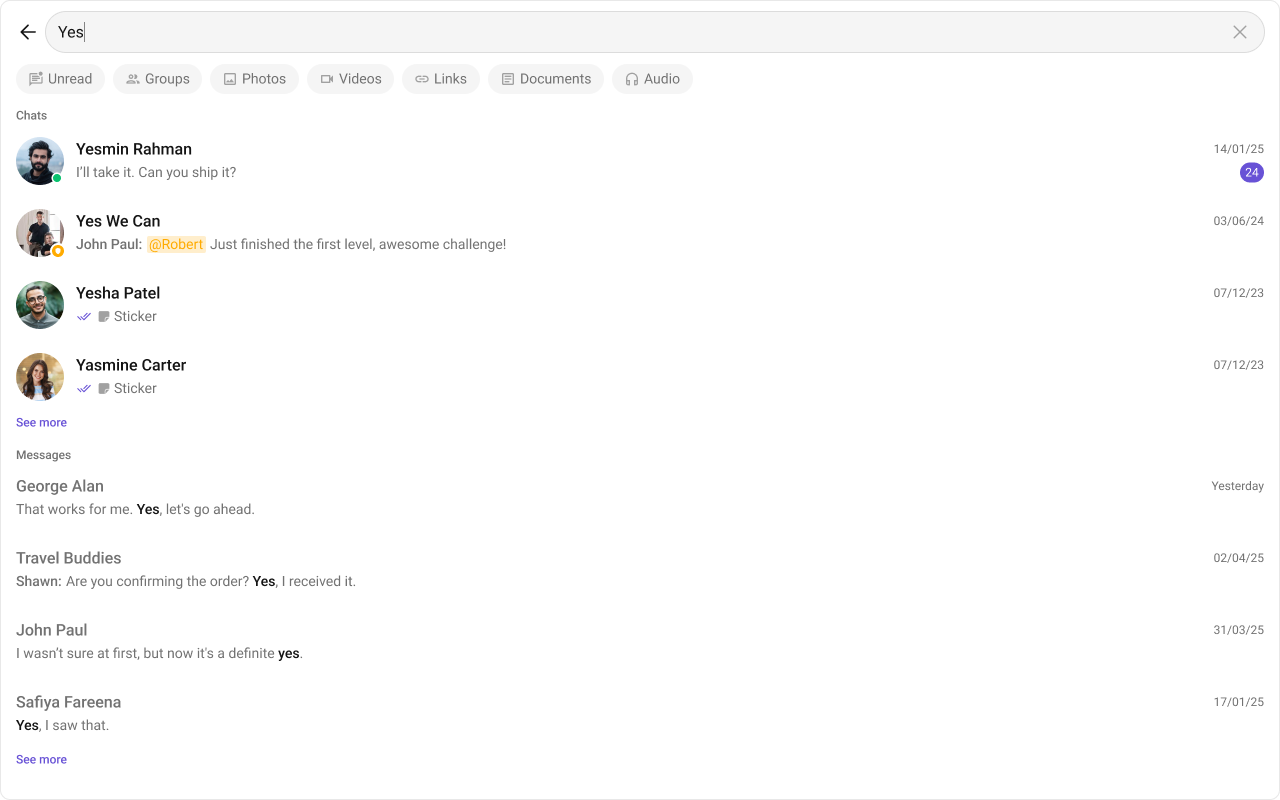
Shown below is the default message search interface.

<Frame>
  <img src="https://mintcdn.com/cometchat-22654f5b-feature-react-native-sdk-quotedmessage-a/j9rC5KDHdwR7G4nu/images/1ab7cd1b-search_message_item_view_default_web_screens-2895b996369fcaa0e59203664c628b7b.png?fit=max&auto=format&n=j9rC5KDHdwR7G4nu&q=85&s=e38ffbfa51e7cde5d67922d17cfc2c74" width="1280" height="800" data-path="images/1ab7cd1b-search_message_item_view_default_web_screens-2895b996369fcaa0e59203664c628b7b.png" />
</Frame>

The customized message search interface is displayed below.

<Frame>
  <img src="https://mintcdn.com/cometchat-22654f5b-feature-react-native-sdk-quotedmessage-a/tAD7jl57uaz-SCT_/images/3d0a9273-search_message_item_view_custom_web_screens-bf216d1eab67d0d95362a3ef1996f752.png?fit=max&auto=format&n=tAD7jl57uaz-SCT_&q=85&s=719e48d3068a7ba9f0717bd2929d6af6" width="1280" height="800" data-path="images/3d0a9273-search_message_item_view_custom_web_screens-bf216d1eab67d0d95362a3ef1996f752.png" />
</Frame>

Use the following code to achieve the customization shown above.

<Tabs>
  <Tab title="TypeScript">
    ```ts theme={null}
    import { CometChat } from "@cometchat/chat-sdk-javascript";
    import { CometChatSearch } from "@cometchat/chat-uikit-react";

    const getMessageItemView = (message: CometChat.BaseMessage) => {
      return (
        <div className="cometchat-search__message-list-item">
          <div className="cometchat-search__message-list-item-sender">
            {message.getSender()?.getName()}:
          </div>
          <div className="cometchat-search__message-list-item-text">
            {message instanceof CometChat.TextMessage ? (message as CometChat.TextMessage).getText() : message.getType()}
          </div>
        </div>
      );
    };

    <CometChatSearch
      messageItemView={getMessageItemView} // Custom message item view
    />;
    ```
  </Tab>

  <Tab title="css">
    ```css theme={null}
    .cometchat-search__message-list-item {
      background: var(--cometchat-extended-primary-color-100);
      border-bottom: 1px solid var(--cometchat-border-color-highlight);
      padding: var(--cometchat-padding-3) var(--cometchat-padding-4);
      display: flex;
      justify-content: flex-start;
      gap: var(--cometchat-padding-2);
    }

    .cometchat-search__message-list-item .cometchat-search__message-list-item-sender {
      color: var(--cometchat-text-color-highlight);
      font: var(--cometchat-font-body-regular);
    }

    .cometchat-search__message-list-item .cometchat-search__message-list-item-text {
      color: var(--cometchat-text-color-secondary);
      font: var(--cometchat-font-body-regular);
    }
    ```
  </Tab>
</Tabs>

***

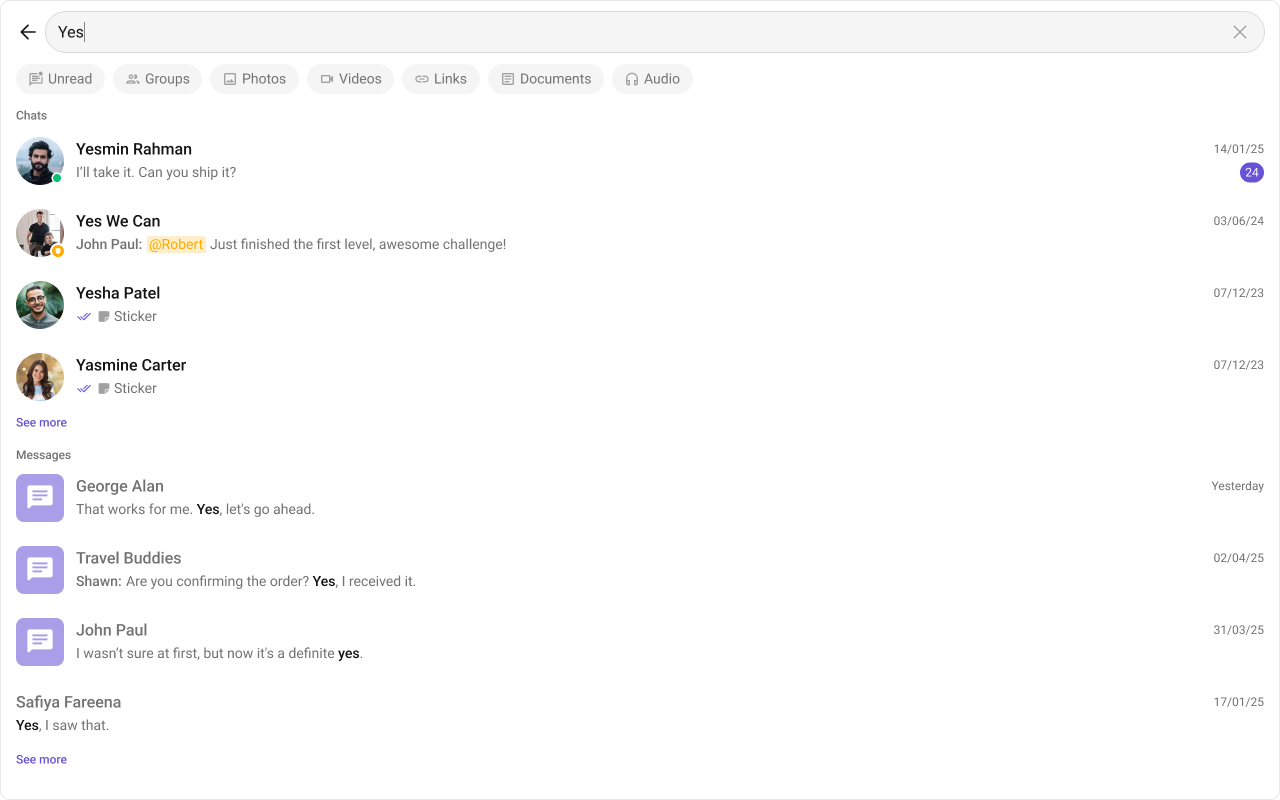
#### MessageLeadingView

With this function, you can assign a custom leading view of a message in the search result.

Shown below is the default message leading view interface.

<Frame>
  <img src="https://mintcdn.com/cometchat-22654f5b-feature-react-native-sdk-quotedmessage-a/j9rC5KDHdwR7G4nu/images/1ab7cd1b-search_message_item_view_default_web_screens-2895b996369fcaa0e59203664c628b7b.png?fit=max&auto=format&n=j9rC5KDHdwR7G4nu&q=85&s=e38ffbfa51e7cde5d67922d17cfc2c74" width="1280" height="800" data-path="images/1ab7cd1b-search_message_item_view_default_web_screens-2895b996369fcaa0e59203664c628b7b.png" />
</Frame>

The customized message leading view interface is displayed below.
<Frame>
  <img src="https://mintcdn.com/cometchat-22654f5b-feature-react-native-sdk-quotedmessage-a/skyYyiTRS367pk0g/images/8ec51714-search_message_leading_view_custom_web_screens-af08d61c02454c807100907c1156d46d.png?fit=max&auto=format&n=skyYyiTRS367pk0g&q=85&s=776a3580ee2b48d363787ef0a2f3ee15" width="1280" height="800" data-path="images/8ec51714-search_message_leading_view_custom_web_screens-af08d61c02454c807100907c1156d46d.png" />
</Frame>

Use the following code to achieve the customization shown above.

<Tabs>
  <Tab title="TypeScript">
    ```ts theme={null}
    import { CometChat } from "@cometchat/chat-sdk-javascript";
    import { CometChatSearch } from "@cometchat/chat-uikit-react";

    const getMessageLeadingView = (message: CometChat.BaseMessage) => {
      return (
        <div className="cometchat-search__message-list-item-leading-view">
          <img src={ICON_URL}></img>
        </div>
      );
    };

    <CometChatSearch
      messageLeadingView={getMessageLeadingView} // Custom message leading view
    />;
    ```
  </Tab>

  <Tab title="css">
    ```css theme={null}
    .cometchat-search__message-list-item-leading-view {
      height: 48px;
      width: 48px;
      border-radius: var(--cometchat-radius-2);
      background: var(--cometchat-extended-primary-color-500);
      display: flex;
      align-items: center;
      justify-content: center;
    }

    .cometchat-search__message-list-item-leading-view img {
      height: 32px;
      width: 32px;
    }
    ```
  </Tab>
</Tabs>

***

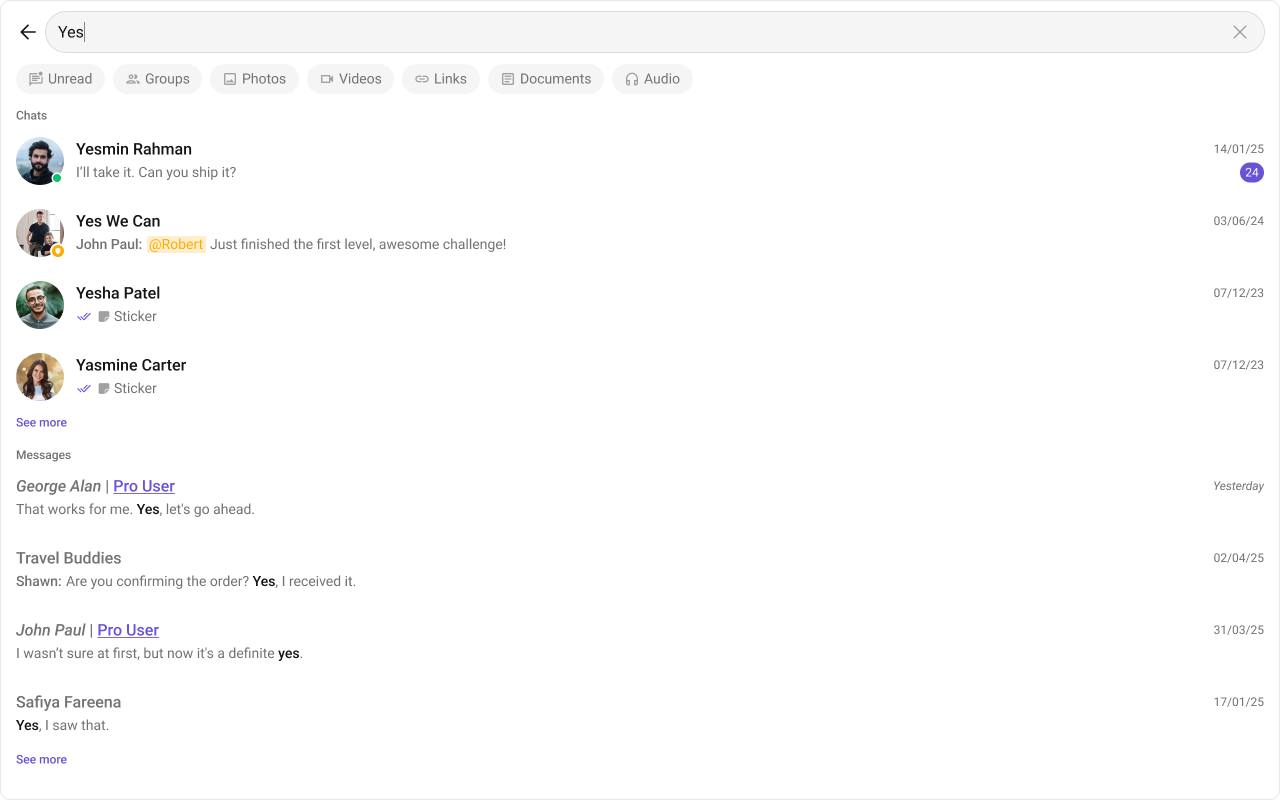
#### MessageTitleView

With this function, you can assign a custom title view of a message in the search result.

Shown below is the default message title view interface.

<Frame>
  <img src="https://mintcdn.com/cometchat-22654f5b-feature-react-native-sdk-quotedmessage-a/j9rC5KDHdwR7G4nu/images/1ab7cd1b-search_message_item_view_default_web_screens-2895b996369fcaa0e59203664c628b7b.png?fit=max&auto=format&n=j9rC5KDHdwR7G4nu&q=85&s=e38ffbfa51e7cde5d67922d17cfc2c74" width="1280" height="800" data-path="images/1ab7cd1b-search_message_item_view_default_web_screens-2895b996369fcaa0e59203664c628b7b.png" />
</Frame>

The customized message title view interface is displayed below.
<Frame>
  <img src="https://mintcdn.com/cometchat-22654f5b-feature-react-native-sdk-quotedmessage-a/ASAuj03ZuUm-dFU-/images/0b1cf07c-search_message_title_view_custom_web_screens-df6cb1c0e91a105d4f708e47c62de992.png?fit=max&auto=format&n=ASAuj03ZuUm-dFU-&q=85&s=a361a3c4b99bf7d7d36a7dae0cc24aa0" width="1280" height="800" data-path="images/0b1cf07c-search_message_title_view_custom_web_screens-df6cb1c0e91a105d4f708e47c62de992.png" />
</Frame>

Use the following code to achieve the customization shown above.

<Tabs>
  <Tab title="TypeScript">
    ```ts theme={null}
    import { CometChat } from "@cometchat/chat-sdk-javascript";
    import { CometChatSearch } from "@cometchat/chat-uikit-react";

    const getMessageTitleView = (message: CometChat.BaseMessage) => {
      return (
        <div className="cometchat-search__message-list-item-title">
          <div className="cometchat-search__message-list-item-title-text">
            {message.getSender()?.getName()}
          </div>
          <span>|</span>
          <div className="cometchat-search__message-list-item-title-role">
            {message.getSender().getRole() ?? "Pro User"}
          </div>
        </div>
      );
    };

    <CometChatSearch
      messageTitleView={getMessageTitleView} // Custom message title view
    />;
    ```
  </Tab>

  <Tab title="css">
    ```css theme={null}
    .cometchat-search__message-list-item-title {
      display: flex;
      align-items: center;
      gap: var(--cometchat-spacing-1);
    }

    .cometchat-search__message-list-item-title .cometchat-search__message-list-item-title-text {
      font: var(--cometchat-font-heading4-medium);
      color: var(--cometchat-text-color-secondary);
    }

    .cometchat-search__message-list-item-title .cometchat-search__message-list-item-title-role {
      font: var(--cometchat-font-heading4-medium);
      color: var(--cometchat-text-color-highlight);
      text-decoration-color: var(--cometchat-border-color-highlight);
      text-decoration: underline;
    }
    ```
  </Tab>
</Tabs>

***

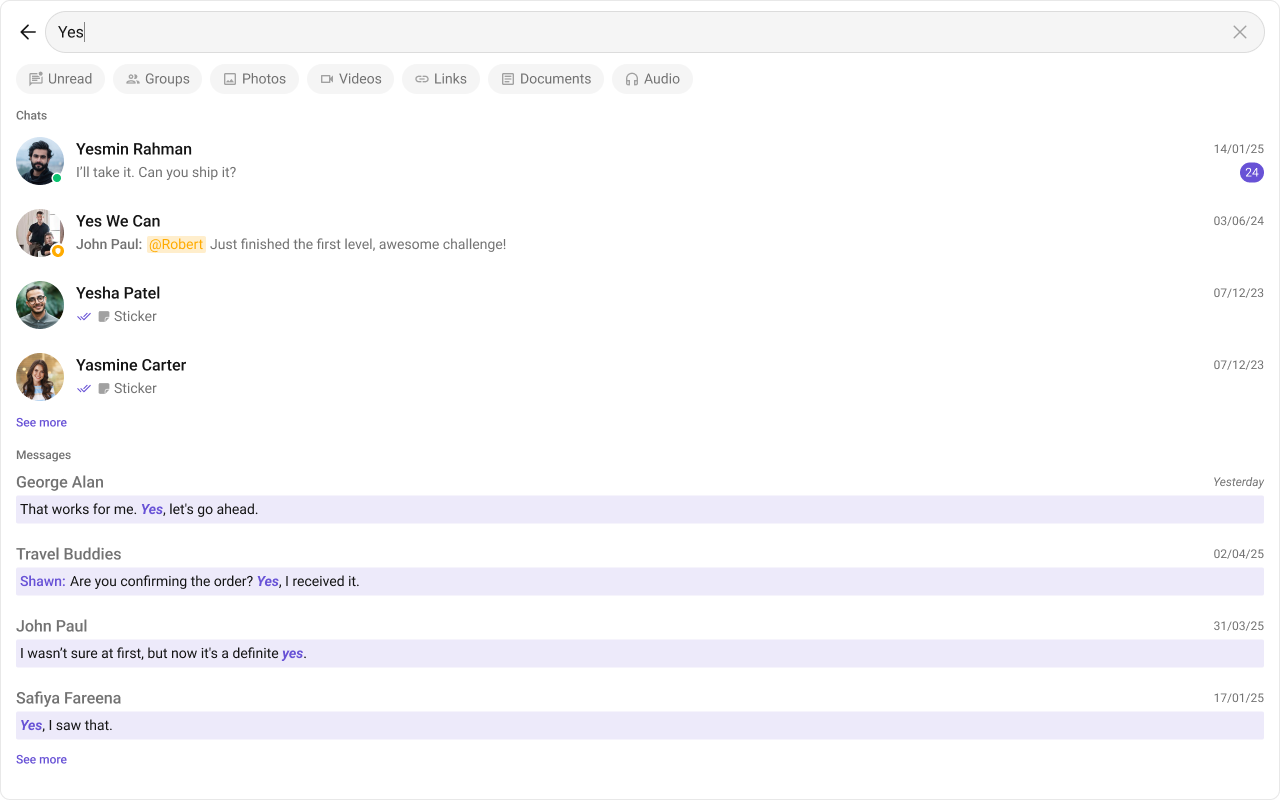
#### MessageSubtitleView

With this function, you can assign a custom subtitle view of a message in the search result.

Shown below is the default message subtitle view interface.

<Frame>
  <img src="https://mintcdn.com/cometchat-22654f5b-feature-react-native-sdk-quotedmessage-a/j9rC5KDHdwR7G4nu/images/1ab7cd1b-search_message_item_view_default_web_screens-2895b996369fcaa0e59203664c628b7b.png?fit=max&auto=format&n=j9rC5KDHdwR7G4nu&q=85&s=e38ffbfa51e7cde5d67922d17cfc2c74" width="1280" height="800" data-path="images/1ab7cd1b-search_message_item_view_default_web_screens-2895b996369fcaa0e59203664c628b7b.png" />
</Frame>

The customized message subtitle view interface is displayed below.
<Frame>
  <img src="https://mintcdn.com/cometchat-22654f5b-feature-react-native-sdk-quotedmessage-a/ZiXV5iCXIbI0bphk/images/67721bd7-search_message_subtitle_view_custom_web_screens-96e7a678fc3920eb12db00b43c4f6860.png?fit=max&auto=format&n=ZiXV5iCXIbI0bphk&q=85&s=db7831c5c3662771c1549023c5d212b8" width="1280" height="800" data-path="images/67721bd7-search_message_subtitle_view_custom_web_screens-96e7a678fc3920eb12db00b43c4f6860.png" />
</Frame>

Use the following code to achieve the customization shown above.

<Tabs>
  <Tab title="TypeScript">
    ```ts theme={null}
    import { CometChat } from "@cometchat/chat-sdk-javascript";
    import { CometChatSearch } from "@cometchat/chat-uikit-react";

    const getMessageSubtitleView = (message: CometChat.BaseMessage) => {
      return (
        <div className="cometchat-search__message-list-item-subtitle">
          <div className="cometchat-search__message-list-item-subtitle-sender">
            {message.getSender()?.getName()}:
          </div>
          <div className="cometchat-search__message-list-item-subtitle-text">
            {message instanceof CometChat.TextMessage ? (message as CometChat.TextMessage).getText() : message.getType()}
          </div>
        </div>
      );
    };

    <CometChatSearch
      messageSubtitleView={getMessageSubtitleView} // Custom message subtitle view
    />;
    ```
  </Tab>

  <Tab title="css">
    ```css theme={null}
    .cometchat-search__message-list-item-subtitle {
      background: var(--cometchat-extended-primary-color-100);
      padding: var(--cometchat-padding-1);
      display: flex;
      justify-content: flex-start;
      gap: var(--cometchat-padding-2);
      width: 100%;
    }

    .cometchat-search__message-list-item-subtitle .cometchat-search__message-list-item-subtitle-sender {
      color: var(--cometchat-text-color-highlight);
      font: var(--cometchat-font-body-regular);
    }

    .cometchat-search__message-list-item-subtitle .cometchat-search__message-list-item-subtitle-text {
      color: var(--cometchat-text-color-secondary);
      font: var(--cometchat-font-body-regular);
    }
    ```
  </Tab>
</Tabs>

***

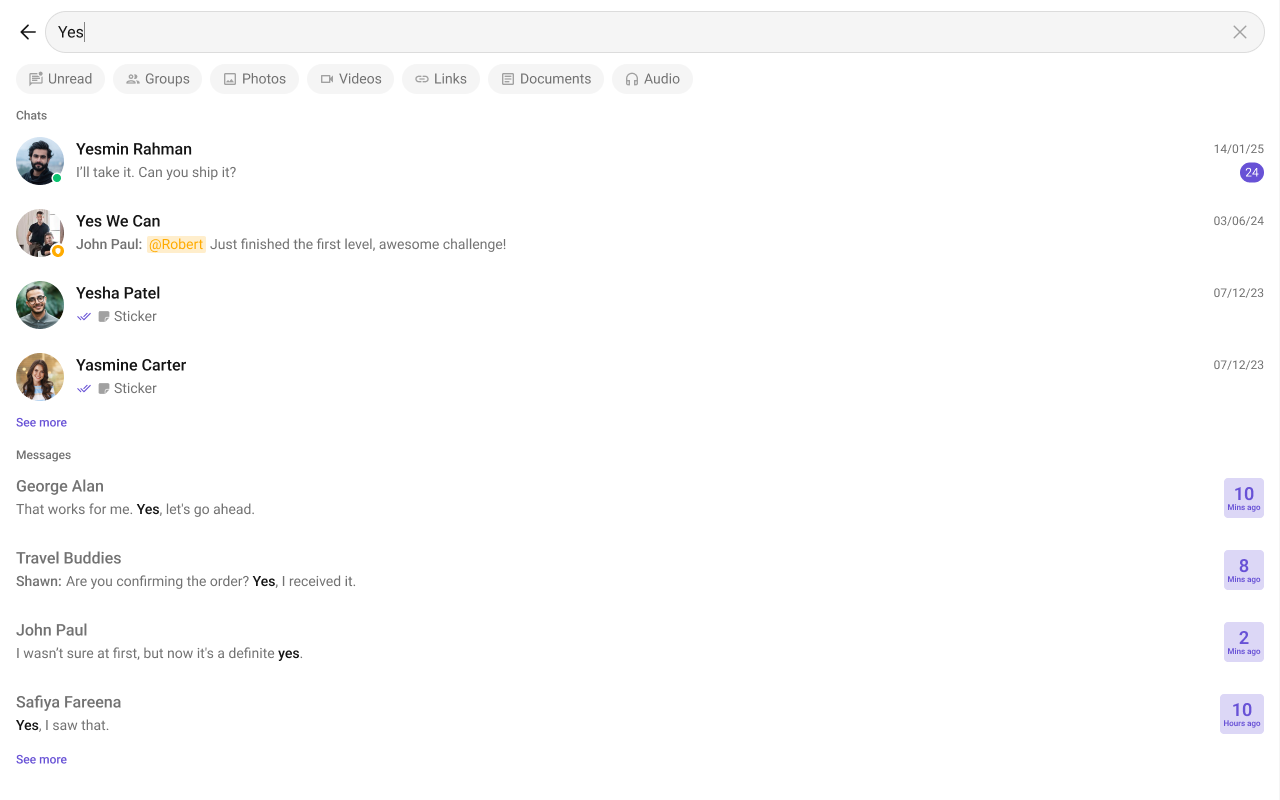
#### MessageTrailingView

With this function, you can assign a custom trailing view of a message in the search result.

Shown below is the default message trailing view interface.

<Frame>
  <img src="https://mintcdn.com/cometchat-22654f5b-feature-react-native-sdk-quotedmessage-a/j9rC5KDHdwR7G4nu/images/1ab7cd1b-search_message_item_view_default_web_screens-2895b996369fcaa0e59203664c628b7b.png?fit=max&auto=format&n=j9rC5KDHdwR7G4nu&q=85&s=e38ffbfa51e7cde5d67922d17cfc2c74" width="1280" height="800" data-path="images/1ab7cd1b-search_message_item_view_default_web_screens-2895b996369fcaa0e59203664c628b7b.png" />
</Frame>

The customized message trailing view interface is displayed below.
<Frame>
  <img src="https://mintcdn.com/cometchat-22654f5b-feature-react-native-sdk-quotedmessage-a/j9rC5KDHdwR7G4nu/images/1c199c35-search_message_trailing_view_custom_web_screens-75c38143a2439190b3198dd93923c6fd.png?fit=max&auto=format&n=j9rC5KDHdwR7G4nu&q=85&s=e0fc4d39122342cc6e54652654a5b8fb" width="1280" height="800" data-path="images/1c199c35-search_message_trailing_view_custom_web_screens-75c38143a2439190b3198dd93923c6fd.png" />
</Frame>

Use the following code to achieve the customization shown above.

<Tabs>
  <Tab title="TypeScript">
    ```ts theme={null}
    import { CometChat } from "@cometchat/chat-sdk-javascript";
    import { CometChatSearch } from "@cometchat/chat-uikit-react";

    const getMessageTrailingView = (message: CometChat.BaseMessage) => {
      const timestamp = message.getSentAt() * 1000;
      const now = new Date();
      const time = new Date(timestamp);
          
      // Calculate time difference
      const diffInMs = now.getTime() - time.getTime();
      const diffInMinutes = Math.floor(diffInMs / (1000 * 60));
      const diffInHours = Math.floor(diffInMs / (1000 * 60 * 60));
          
      // Determine the labels
      let backgroundColorClass = "cometchat-search__message-trailing-view-min"; // Default (less than 1 hour)
      let topLabel = `${diffInMinutes}`; // Default minutes
      let bottomLabel = `${diffInMinutes === 1 ? "Min ago" : "Mins ago"}`; // Default "Mins ago"
          
      if (diffInHours >= 1 && diffInHours <= 10) {
        // 1-10 hours
        backgroundColorClass = "cometchat-search__message-trailing-view-hour";
        topLabel = `${diffInHours}`;
        bottomLabel = `${diffInHours === 1 ? "Hour ago" : "Hours ago"}`;
      } else if (diffInHours > 10) {
        // More than 10 hours
        backgroundColorClass = "cometchat-search__message-trailing-view-date";
        topLabel = time.toLocaleDateString("en-US", { day: "numeric" });
        bottomLabel = time.toLocaleDateString("en-US", {
          month: "short",
          year: "numeric",
        });
      }

      return (
        <div className={`cometchat-search__message-trailing-view ${backgroundColorClass}`}>
          <span className="cometchat-search__message-trailing-view-time">{topLabel}</span>
          <span className="cometchat-search__message-trailing-view-status">{bottomLabel}</span>
        </div>
      );
    };

    <CometChatSearch
      messageTrailingView={getMessageTrailingView} // Custom message trailing view
    />;
    ```
  </Tab>

  <Tab title="css">
    ```css theme={null}
    .cometchat-search__message-trailing-view {
      display: flex;
      flex-direction: column;
      align-items: center;
      justify-content: center;
      width: 55px;
      height: 40px;
      border-radius: 8px;
      box-shadow: 0 2px 4px rgba(0, 0, 0, 0.1);
      font-family: Arial, sans-serif;
    }

    .cometchat-search__message-trailing-view-min {
      background-color: #e0d4f7;
    }

    .cometchat-search__message-trailing-view-hour {
      background-color: #fff3cd;
    }

    .cometchat-search__message-trailing-view-date {
      background-color: #f8d7da;
    }

    .cometchat-search__message-trailing-view-time {
      font-size: 20px;
      font-weight: bold;
      color: #4a3f99;
      margin-bottom: 4px;
      font: 600 18px Roboto;
    }

    .cometchat-search__message-trailing-view-status {
      font: 600 8px Roboto;
      color: #6a5b99;
    }
    ```
  </Tab>
</Tabs>

***

#### Message SentAt Date Time Format

The `MessageSentAtDateTimeFormat` property allows you to customize the **Message Sent At** timestamp displayed in the Search.

Default Date Time Format:

```javascript theme={null}
new CalendarObject({
    yesterday: "DD MMM, YYYY", // Example: "04 Jun, 2025"
    otherDays: `DD MMM, YYYY`, // Example: "04 Jun, 2025"
    today: "DD MMM, YYYY" // Example: "04 Jun, 2025"
});
```

The following example demonstrates how to modify the **Sent At** timestamp format using a custom [`CalendarObject`](/ui-kit/react/localize#calendarobject).

<Tabs>
  <Tab title="TypeScript">
    ```ts theme={null}
    import {
      CometChatSearch,
      CalendarObject
    } from "@cometchat/chat-uikit-react";

    // Define a custom date format pattern
    function getDateFormat() {
      const dateFormat = new CalendarObject({
        today: `DD MMM, hh:mm A`,   // Example: "25 Jan, 10:30 AM"
        yesterday: `DD MMM, hh:mm A`, // Example: "25 Jan, 10:30 AM"
        otherDays: `DD MMM, hh:mm A`,  // Example: "25 Jan, 10:30 AM"
      });
      return dateFormat;
    }

    // Apply the custom format to the CometChatSearch component
    <CometChatSearch messageSentAtDateTimeFormat={getDateFormat()} />;
    ```
  </Tab>
</Tabs>

***

#### Text Formatters

Assigns the list of text formatters. If the provided list is not null, it sets the list. Otherwise, it assigns the default text formatters retrieved from the data source.
