

Overview
TheAI Assistant Chat History widget is a pre-built user interface widget designed to display the conversation history between users and an AI assistant within a chat application. It provides a structured and visually appealing way to present past interactions, making it easy for users to review previous messages and context.
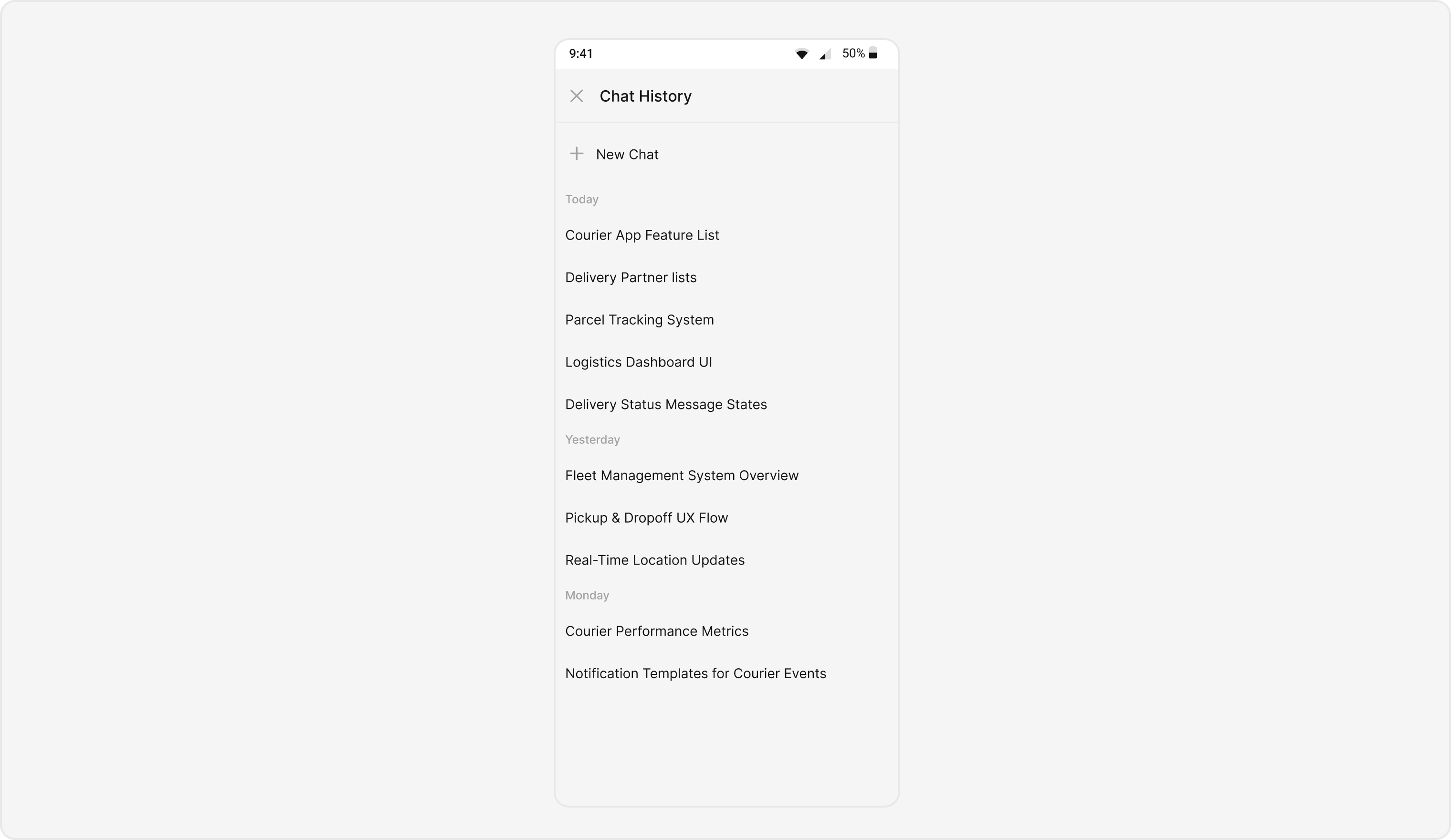
Usage
Integration
You can launchCometChatAIAssistantChatHistory directly using Navigator.push, or you can define it as a widget within the build method of your State class.
1. Using Navigator to Launch CometChatAIAssistantChatHistory
- Dart
2. Embedding ChatHistory as a Widget in the build Method
- Dart
Actions
Actions dictate how a widget functions. They are divided into two types: Predefined and User-defined. You can override either type, allowing you to tailor the behavior of the widget to fit your specific needs.onNewChatButtonClicked
onNewChatButtonClicked is triggered when you click on the new chat button. The onNewChatButtonClicked action doesn’t have a predefined behavior. You can override this action using the following code snippet.
- Dart
onMessageClicked
You can customize this behavior by using the provided code snippet to override theonMessageClicked.
- Dart
onError
You can customize this behavior by using the provided code snippet to override theonError and improve error handling.
- Dart
onLoad
Invoked when the list is successfully fetched and loaded, helping track component readiness.- Dart
onEmpty
Called when the list is empty, enabling custom handling such as showing a placeholder message.- Dart
Filters
You can adjust theMessagesRequestBuilder in the CometChatAIAssistantChatHistory Widget to customize your list. Numerous options are available to alter the builder to meet your specific needs. For additional details on MessagesRequestBuilder, please visit MessagesRequestBuilder.
In the example below, we are applying a filter to the messages based on a search substring and for a specific user. This means that only messages that contain the search term and are associated with the specified user will be displayed
- Dart
The following parameters in messageRequestBuilder will always be altered inside the list
- UID
- GUID
- types
- categories
Events
Events are emitted by aWidget. By using event you can extend existing functionality. Being global events, they can be applied in Multiple Locations and are capable of being Added or Removed.
The CometChatAIAssistantChatHistory Widget does not emit any events of its own.
Customization
To fit your app’s design requirements, you can customize the appearance of the conversation widget. We provide exposed methods that allow you to modify the experience and behavior according to your specific needs.Style
Using Style you can customize the look and feel of the widget in your app, These parameters typically control elements such as the color, size, shape, and fonts used within the widget.1. CometChatAIAssistantChatHistoryStyle
You can set thestyle to the CometChatAIAssistantChatHistory Widget to customize the styling.
- Dart
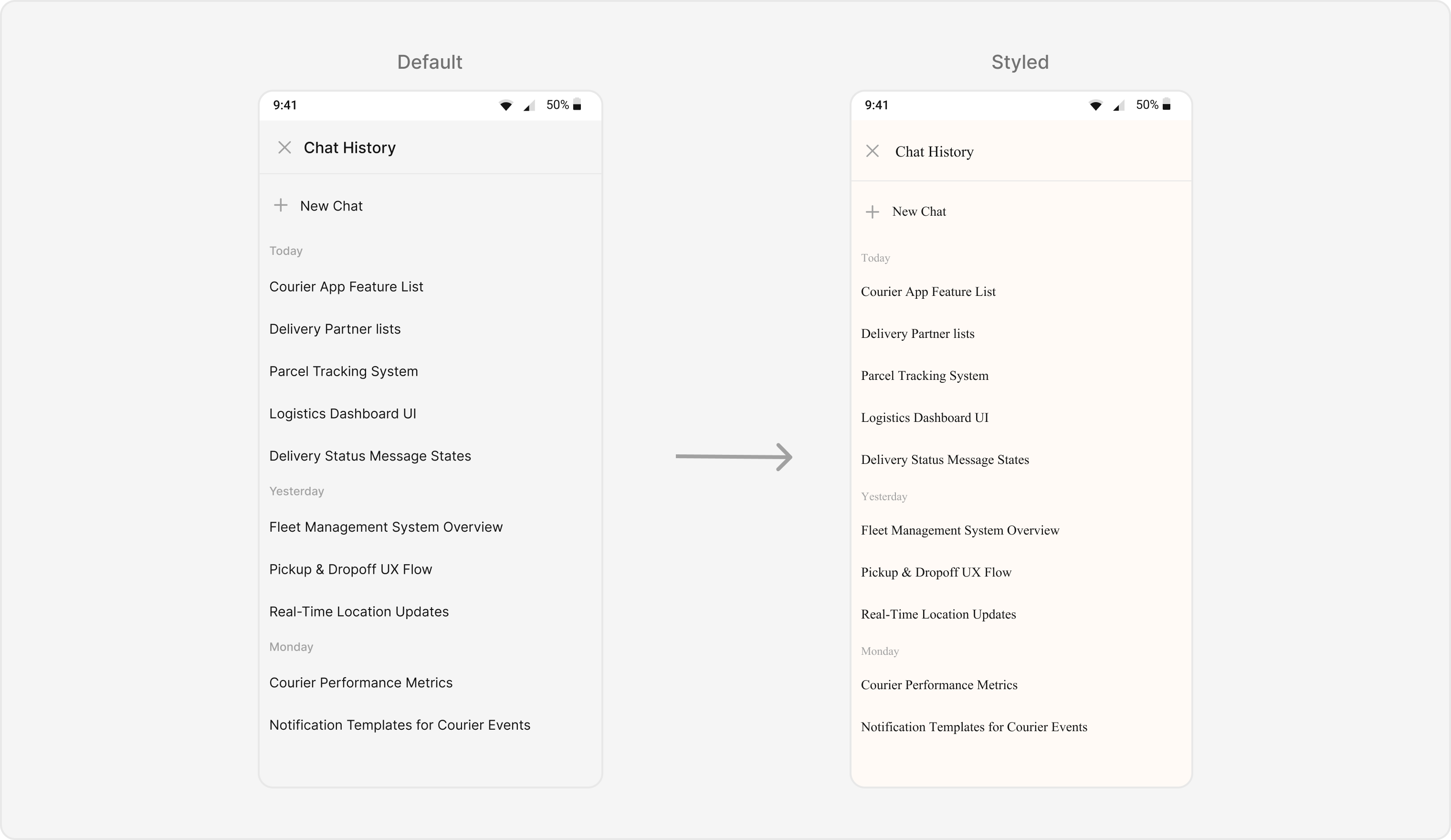
Functionality
These are a set of small functional customizations that allow you to fine-tune the overall experience of the widget. With these, you can change text, set custom icons, and toggle the visibility of UI elements.- Dart
CometChatMessageList Properties
Below is a list of customizations along with corresponding code snippets:Advance
For advanced-level customization, you can set custom views to the widget. This lets you tailor each aspect of the widget to fit your exact needs and application aesthetics. You can create and define your own widget and then incorporate those into the widget.DateSeparatorPattern
You can modify the date pattern of the chat history date separator to your requirement usingdateSeparatorPattern. This method accepts a function with a return type String. Inside the function, you can create your own pattern and return it as a String.
Example
Here is the complete example for reference:
- Dart
loadingStateView
Customizes the loading indicator when messages are being fetched. Use Cases:- Show a spinner or skeleton loader for smooth UX.
- Display a “Fetching history…” text.
- Dart
emptyStateView
Defines a custom view to be displayed when no messages are available. Use Cases:- Show a friendly message like “No history yet.”.
- Dart
errorStateView
Custom error state view displayed when fetching history fails. Use Cases:- Show a retry button when an error occurs.
- Display a friendly message like “Couldn’t load history. Check your connection.”.
- Dart